
Refresh apps by pulling down, force-closing, clearing cache, updating, or restarting your device.
I’ve spent years troubleshooting phones, tablets, and desktops, so I know how to refresh apps in ways that actually work. This guide explains practical methods for how to refresh apps across iOS, Android, Windows, macOS, and web apps. Read on to learn step-by-step actions, when to refresh versus restart, common fixes, automation tips, and real-world mistakes to avoid.
Why refreshing apps matters
Refreshing apps keeps data current, fixes small glitches, and improves performance. When an app hangs or shows old info, a refresh syncs it with the server. Regular refreshes also help free temporary memory and clear minor cache issues.
Refreshing can prevent crashes and reduce battery drain when done correctly. It is faster than reinstalling in most cases. Knowing how to refresh apps saves time and keeps your device responsive.
Different ways to refresh apps (by platform)
Below are common refresh methods for major platforms. Each is quick and safe. Pick the method that fits your device and situation.
- iOS (iPhone and iPad)
- Pull down in a list-based app to refresh content, like email or feeds.
- Open the app switcher and swipe the app off-screen to force close and reopen.
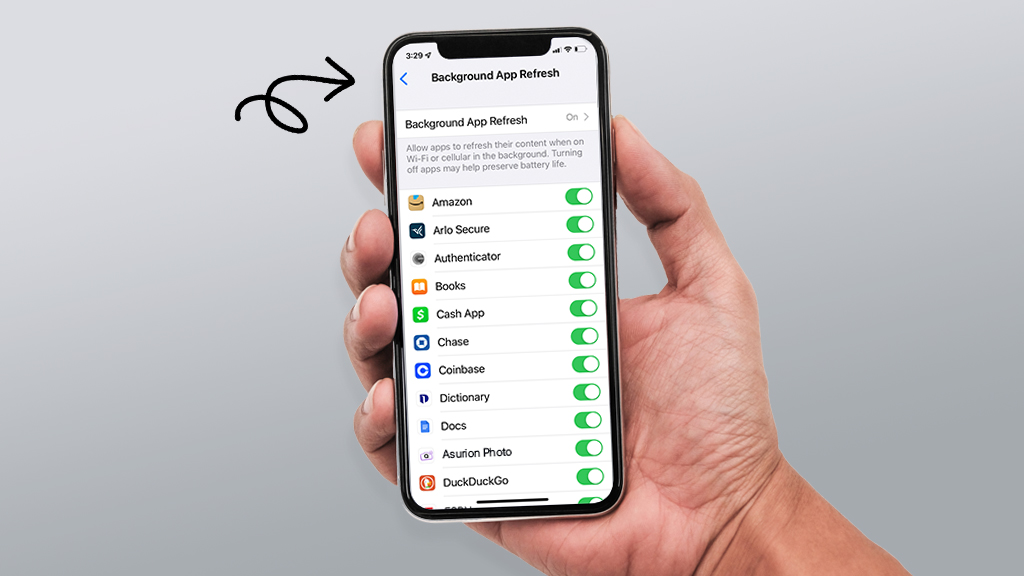
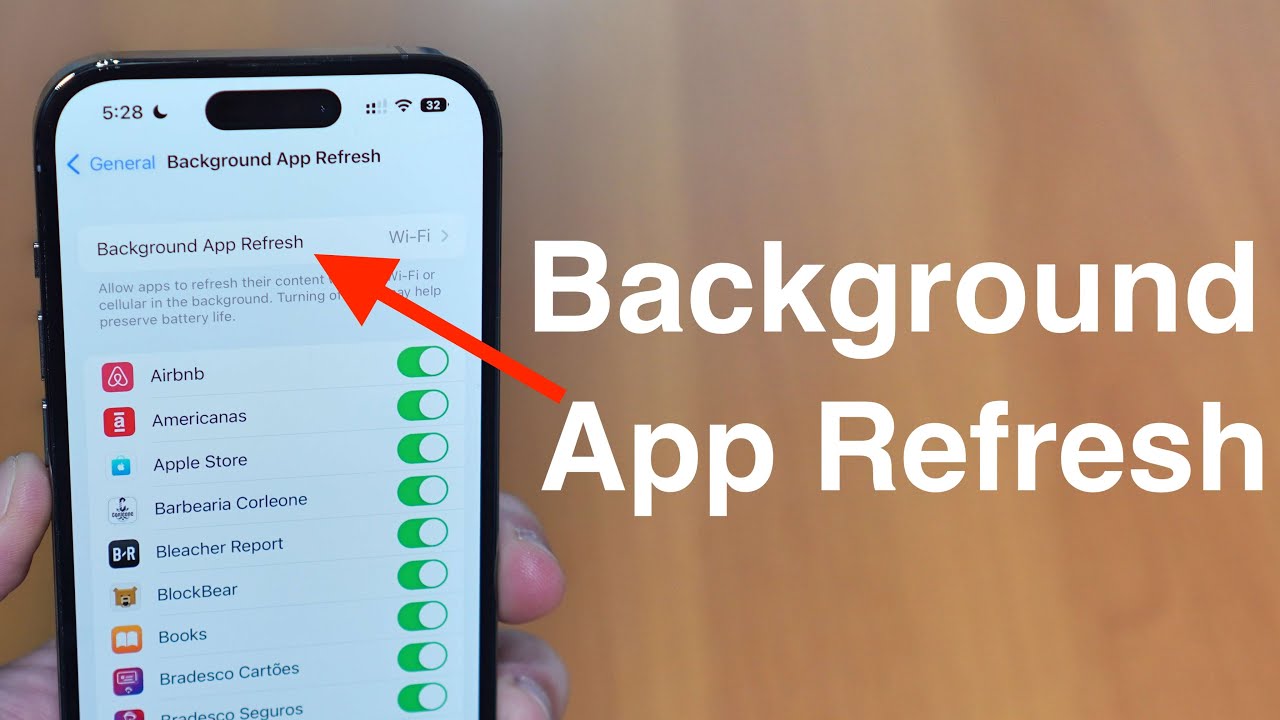
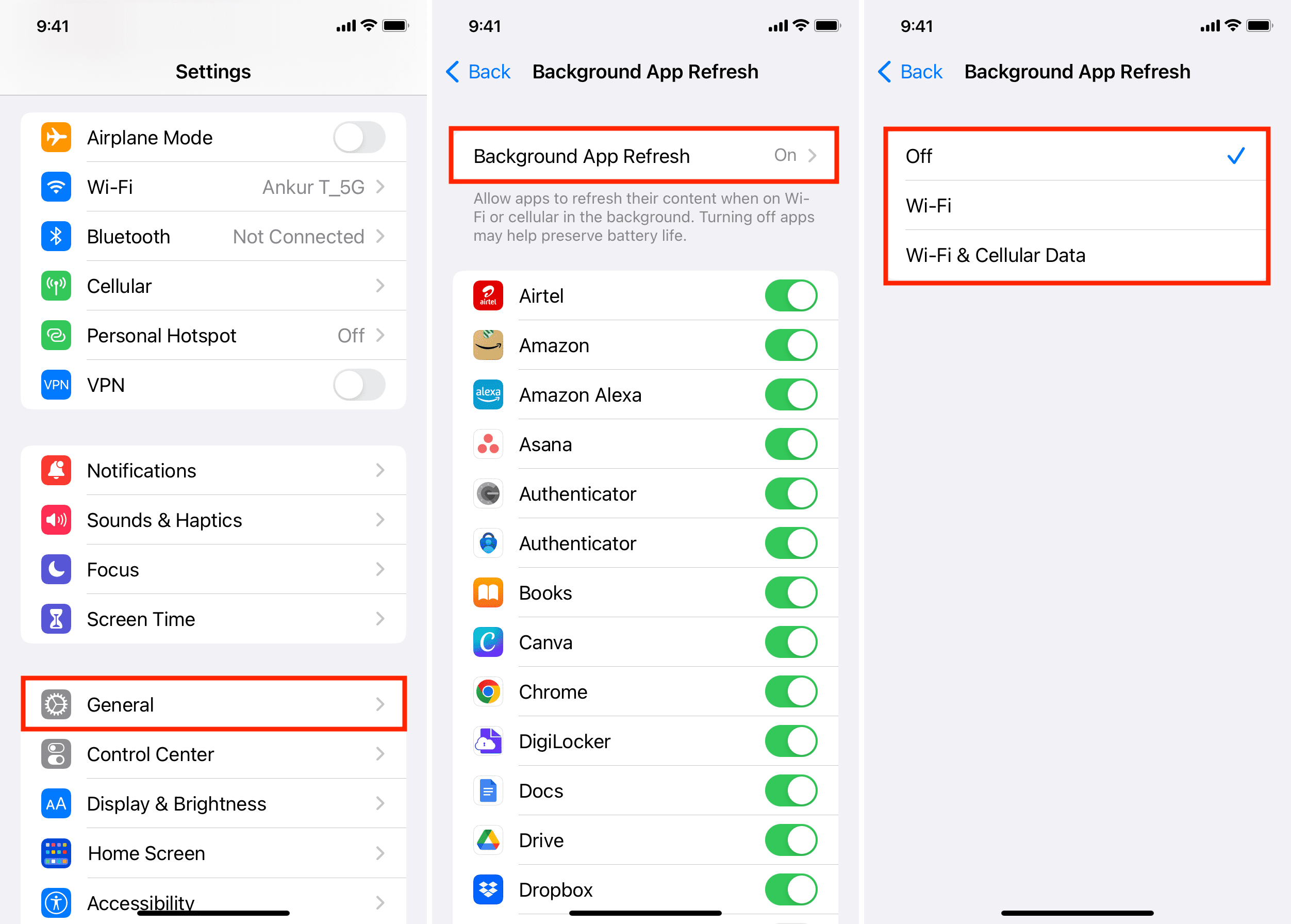
- Use Settings > General > Background App Refresh to control auto-refresh.
- Android
- Pull down in apps that support swipe-to-refresh.
- Use Settings > Apps > [App] > Force stop, then reopen the app.
- Clear cache via Settings > Storage or App info when data looks wrong.
- Windows
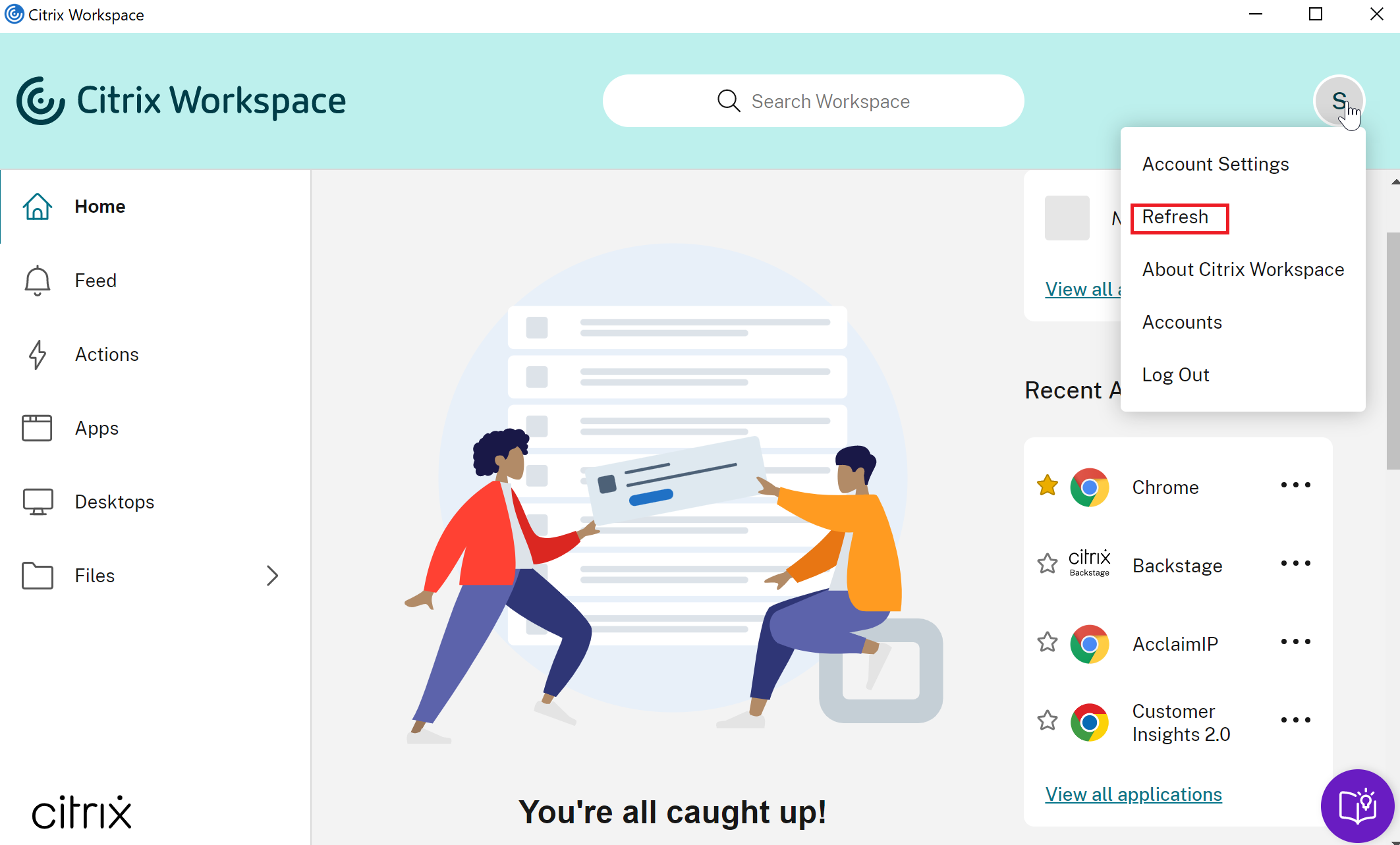
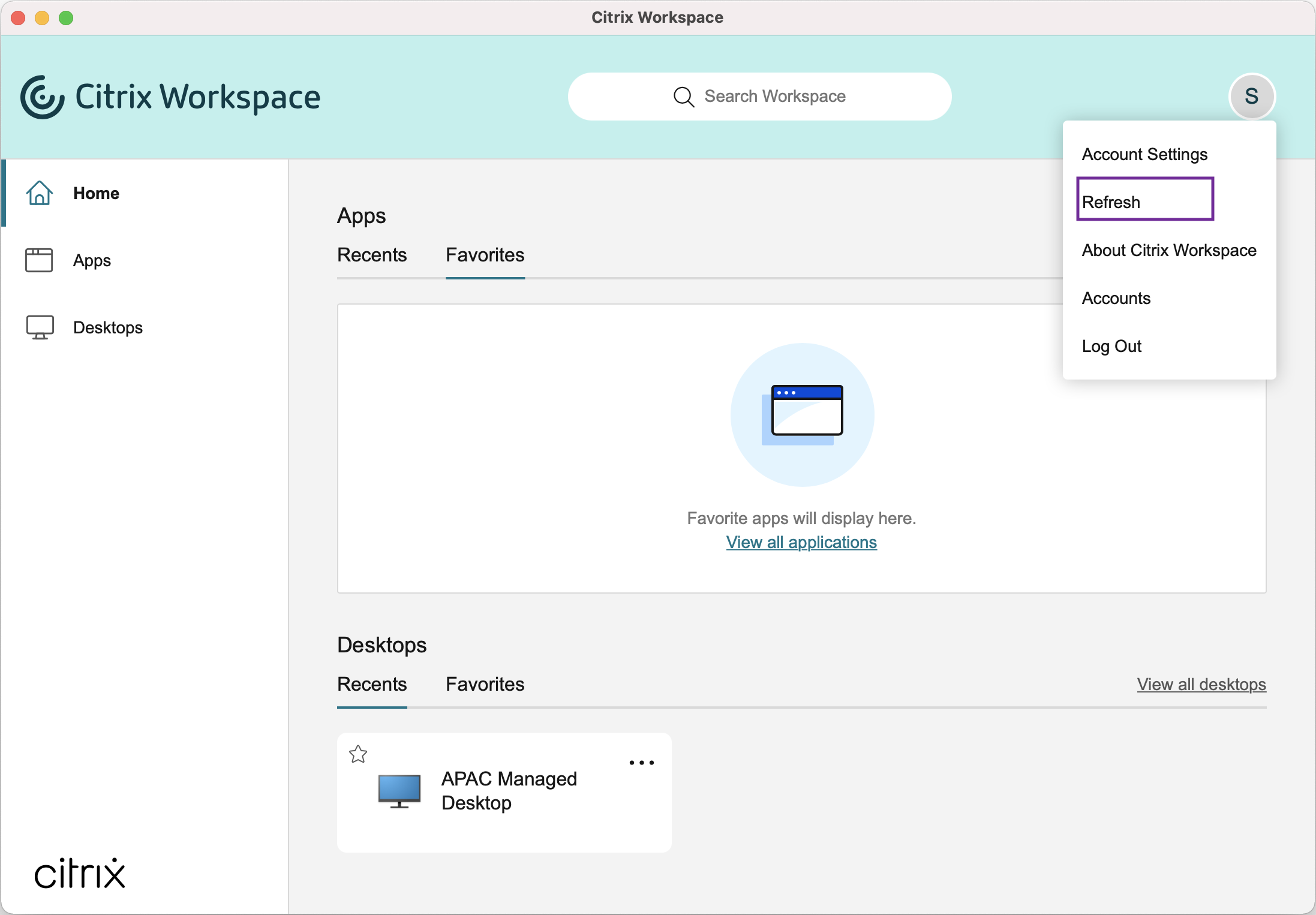
- Press F5 or use the refresh button in apps and browsers.
- Close and reopen apps from the Task Manager to force a hard refresh.
- Check for app updates in Microsoft Store to refresh app components.
- macOS
- Use Command-R in compatible apps or refresh buttons in web apps.
- Right-click the Dock icon and choose Quit, then reopen the app.
- Clear app caches from Library if data corruption persists.
- Web and Progressive Web Apps (PWA)
- Press Ctrl-R (Windows) or Command-R (macOS) for a hard reload.
- Use a hard refresh (Ctrl-Shift-R or Command-Shift-R) to bypass cache.
- Open dev tools and disable cache during testing for fresh assets.
These platform-specific steps show how to refresh apps in context. Choose gentle refresh first. Move to force stop or cache clear only when needed.
Step-by-step: How to refresh apps safely and fast
Follow these steps from least disruptive to most. This order reduces data loss and downtime.
- Soft refresh inside the app
- Pull down on lists or tap a refresh icon.
- Wait a few seconds for data to sync.
- Background refresh and connectivity check
- Ensure Wi-Fi or cellular is working.
- Toggle Airplane Mode on and off to reset the connection.
- Restart the app
- Close it normally and reopen.
- Use the app switcher on mobile or Task Manager on desktop.
- Force stop or force close
- Use Settings or Task Manager to stop the app if it won’t respond.
- Reopen and test.
- Clear cache or data (when content is stale)
- Clear cache first to keep settings.
- Clear data only if you can sign back in and won’t lose essential local data.
- Update the app and OS
- Install app updates to fix bugs.
- Update the operating system for stability.
- Restart the device
- Reboot the phone or computer to clear system-level issues.
- This often solves lingering problems when refreshing apps didn’t help.
These steps show how to refresh apps without losing data. Use a staged approach to limit downtime.

Troubleshooting common refresh problems
When refreshing fails, identify the cause. Here are common issues and fixes.
- Problem: App shows old content after refresh
- Fix: Hard refresh or clear app cache, then reconnect to Wi-Fi.
- Problem: App crashes after refresh
- Fix: Update the app and OS; if crash continues, reinstall the app.
- Problem: Refresh uses too much data or battery
- Fix: Turn off background refresh and set apps to update only on Wi-Fi.
- Problem: Login or sync errors after refresh
- Fix: Sign out and sign back in, check account permissions, and verify server status.
- Problem: App won’t open after force stop
- Fix: Restart the device and reinstall the app if needed.
Knowing common causes helps you fix issues faster. If problems persist, contact app support with logs and version info.

Automate and optimize app refreshing
You can let the system handle refreshes smartly. Automation reduces manual work and keeps apps current.
- Use Background App Refresh wisely
- Enable for apps that need live data, like email or messaging.
- Disable for rarely used apps to save battery.
- Schedule updates and sync
- Use app settings to schedule syncs at low-usage times.
- Set email and cloud apps to fetch less often if battery is a concern.
- Use battery optimization settings
- Allow apps to refresh only when the device is charging or on Wi-Fi.
- Exempt critical apps you wish to keep always up to date.
- Rely on system-level maintenance
- Let the OS batch background tasks to reduce wake-ups.
- Keep OS and app updates enabled to receive efficiency improvements.
Automating refresh tasks can make your device smoother. Test settings to balance freshness with battery life.

Performance, battery, and privacy considerations
Refreshing apps affects performance and privacy. Be mindful when changing settings.
- Performance
- Frequent refreshes use CPU and network. Limit background refresh when apps are heavy.
- Clearing cache may temporarily slow startup as the app rebuilds its data.
- Battery
- Background refresh can drain battery quickly. Use power-saving modes when needed.
- Refresh on Wi-Fi more than on cellular to cut data and energy use.
- Privacy and security
- Refreshing syncs account data with servers. Ensure you trust the network.
- Avoid auto-refresh on public Wi-Fi unless you use a VPN.
Weigh benefits and costs when you change refresh behavior. I advise testing changes for a day before adopting them permanently.
Personal experience and lessons learned
I once troubleshot an app that repeatedly showed old chat messages. I tried a soft refresh first. That did not help. I force-stopped the app, cleared cache, and updated it. The issue resolved. From that case I learned these lessons.
- Start with simple steps; they often fix the problem.
- Keep a log: app version, OS version, and steps you tried. This helps when contacting support.
- Avoid clearing data unless you have backup. I lost drafts once by skipping backups.
- Use automation but review settings monthly. I disabled background refresh for six apps and gained 12% battery life.
These small habits save time and headaches when you learn how to refresh apps the right way.
Best practices checklist
Use this checklist to make refreshing apps routine and safe.
- Check connectivity before refreshing apps.
- Try in-app refresh before force-closing.
- Clear cache, not data, unless necessary.
- Update apps and the OS regularly.
- Limit background refresh for low-priority apps.
- Reboot the device if several apps misbehave.
- Keep backups for apps that store local content.
- Use secure networks or a VPN when syncing sensitive data.
Follow this checklist to reduce errors and keep your apps responsive.
Frequently Asked Questions of how to refresh apps
How do I refresh apps on my iPhone?
Pull down inside the app where supported, or close and reopen the app via the app switcher. Use Settings > General > Background App Refresh to manage automated refreshing.
What is the difference between refresh and force close?
A refresh updates content within the app. A force close stops the app process and can clear temporary states; it is more disruptive but often fixes freezes.
Will clearing cache delete my data?
Clearing cache removes temporary files but usually keeps your account and app settings. Clearing app data can erase local files and sign you out.
How often should I refresh apps?
Refresh when you notice stale content or glitches. For most users, automatic background refresh once every few minutes is unnecessary; adjust settings for key apps only.
Does refreshing apps use data or battery?
Yes. Background and frequent refreshes use network data and battery. Limit background refresh on mobile data and use Wi-Fi when possible.
What if an app still won’t refresh?
Update the app and OS, then restart your device. If the problem continues, reinstall the app or contact support with error details.
Conclusion
Refreshing apps keeps your device smooth and your data current. Start with soft refreshes, move to cache clears only when needed, and use updates and reboots as fixes. Balance automation with battery and privacy needs. Try the step-by-step tips above this week and note what works best for your device and apps. Leave a comment with your experience, subscribe for more tips, or test one change now to see instant improvement.