Install apps via the Google Play Store, Sony Select, or sideload using USB/ADB on compatible Bravia TVs.
I have helped dozens of people get the apps they want on Sony TVs. This guide explains how to install apps on sony bravia tv step by step. You will learn how to identify your TV type, use the Play Store or Sony Select, sideload safely, and fix common problems. Read on for clear, tested instructions and practical tips from real-world experience.
Why installing apps matters on your Sony Bravia TV
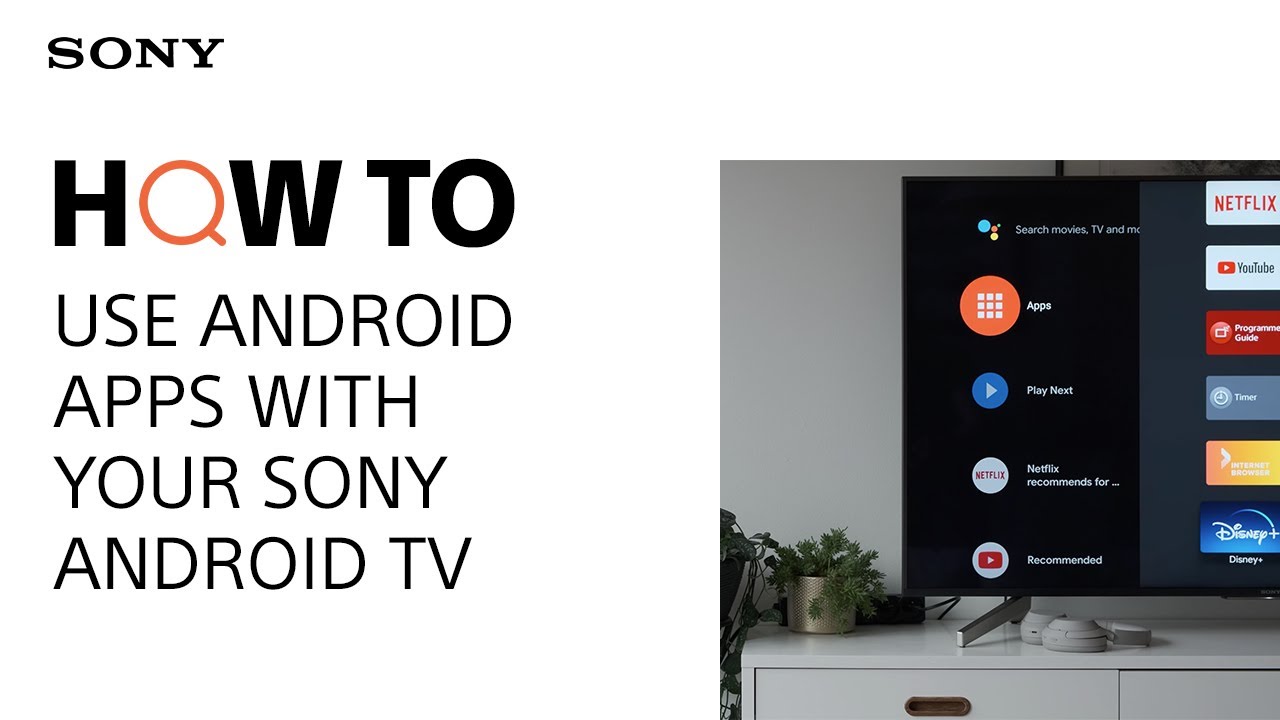
Installing apps brings streaming, games, and tools to your TV. A modern Sony Bravia can run Netflix, YouTube, Plex, and many niche apps. Knowing how to install apps on sony bravia tv helps you get the most from the hardware. It also extends the TV’s life by adding features without buying new gear.

Check your Sony Bravia model and operating system
Sony Bravia models use different software. Recent models run Android TV or Google TV. Older models may use Sony Select or an Opera-based platform. To check, open Settings > Device Preferences or Settings > System. Identifying the OS tells you the correct way to install apps.

How to install apps on Sony Bravia TV using the Google Play Store (Android TV and Google TV)
- Turn on the TV and connect to the internet.
- Sign in with a Google Account via Settings > Accounts.
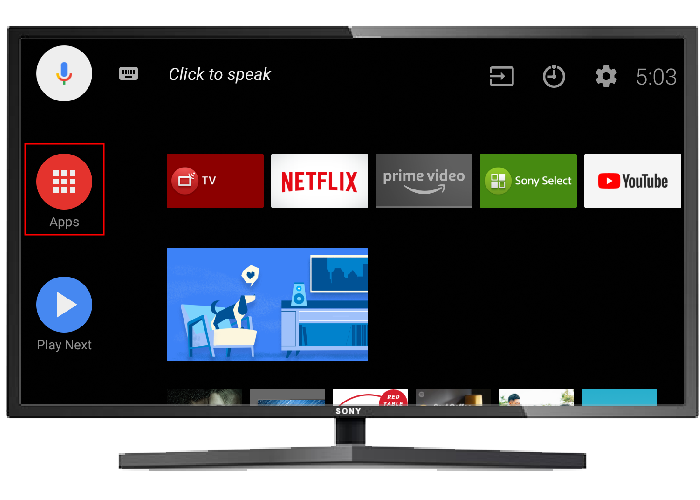
- Open the Google Play Store from the home screen.
- Search for the app name with the remote and select it.
- Choose Install and wait for download and setup.
- Open the app from Apps or the home screen.
If the Play Store is missing, your TV might not support Google Play. Some region or account issues can hide apps. If an app is not compatible, you will see an “incompatible” message.

How to install apps on Sony Bravia TV using Sony Select or built-in app store (older TVs)
- Press Home and find the Sony Select or Apps icon.
- Browse categories or use search.
- Select an app and choose Install or Add.
- Wait for the app to download and appear in your app list.
Older app stores have fewer apps. If you can’t find an app, check whether your TV supports updates or consider a streaming stick.

How to sideload apps on Sony Bravia TV (advanced users)
Sideloading lets you install apps not listed in the store. It is advanced and may void support for some apps. Follow these steps carefully.
Steps for sideload via USB:
- Download a trusted APK onto your computer.
- Copy the APK to a FAT32 USB drive.
- On the TV, enable Unknown Sources in Settings > Security or Apps.
- Use a file manager app on the TV to open the USB and install the APK.
- Restart the TV and test the app.
Steps for sideload via ADB (more control):
- Enable Developer Options and ADB debugging in Settings.
- Connect the TV and a PC on the same network.
- Use adb connect
from your PC and confirm the prompt on TV. - Run adb install <app.apk> to push the app.
- Reboot and check the app.
Risks and limits:
- Sideloaded apps may not work well on TV screens.
- Updates won’t auto-install; you must manage them manually.
- Some apps check for Google Play services and may fail.
How to install apps on Sony Bravia TV from your phone or the web
You can push apps remotely using the Google Play web interface or install apps via phone casting.
Install via Google Play web:
- Sign in to play.google.com with the same Google account as the TV.
- Search for the app and click Install.
- Choose your Sony Bravia device and start installation.
- The app appears on the TV home screen after download.
Install via phone app:
- Open the Play Store on your phone and tap the app page.
- Use the device selector (if signed into the same account) to send to TV.
- Or use Chromecast-enabled apps to cast content directly.

Troubleshooting and tips when apps won’t install
Check storage space and free up room if needed. Restart the TV and router to clear network problems. Clear the Play Store cache in Settings > Apps > Google Play Store. Make sure the TV firmware is up to date. If the app shows incompatible, check OS version and region restrictions. If updates fail, uninstall and reinstall the app.
Security, permissions, and limitations
Only install APKs from trusted sources to avoid malware. Limit sideloading and disable Unknown Sources when done. Some streaming apps block sideloaded versions. Region locks and app store policies affect availability. Keep your Sony Bravia firmware updated for security patches.
Personal experience, lessons learned, and common mistakes
I once sideloaded a video app that lacked TV controls. It launched but had tiny fonts and no remote support. Lesson learned: prefer apps built for TV. I also found that using the Google Play web installer saved time when the TV remote was slow. Avoid random APK sites, and always test non-store apps cautiously.
Quick questions (PAA-style)
Can I install Android phone apps on my Sony Bravia TV?
Most phone apps won’t work well on TV. Only apps designed for Android TV/Google TV install cleanly. Sideloaded phone apps may run but can have UI issues.
How do I update apps on Sony Bravia TV?
Open the Play Store, go to My apps, and choose Update. You can also enable auto-updates in the Play Store settings. Firmware updates can improve compatibility.
Is sideloading legal and safe?
Sideloading is legal in many places but may break app terms. Safety depends on the APK source. Use trusted sites and antivirus scanning on the APK.
Frequently Asked Questions of how to install apps on sony bravia tv
How do I know if my Sony Bravia supports Google Play?
Open Settings and look for Accounts or Google Play Store on the home screen. Newer models list Android TV or Google TV in specs. If you see Sony Select or an app gallery, it may be an older platform.
Why can’t I find an app on my Sony Bravia TV?
App availability depends on OS, region, and TV model. Some apps are restricted by country or require a newer Android TV version. Try the Play Store web installer or check for firmware updates.
Can I use a USB drive to add apps to my Sony Bravia?
Yes, you can sideload an APK via USB if the TV allows Unknown Sources. Copy the APK to a USB drive and install using a file manager on the TV. Be cautious about APK safety.
How do I update the TV firmware to allow new apps?
Go to Settings > Device Preferences > About > System Update (path varies by model). Install available updates and restart the TV. Updated firmware often adds newer app support.
What if an app keeps crashing on my Sony Bravia?
Clear the app cache and data via Settings > Apps. Uninstall and reinstall the app. Check for firmware updates and ensure adequate free storage.
Can I cast apps from my phone to Sony Bravia?
Yes. Use Chromecast-enabled apps to cast. Alternatively, mirror your phone screen with built-in casting features. Casting streams the content, not a native app install.
Is there a way to install region-locked apps?
Region-locked apps often require changing the Google account region or using a VPN on your network. These methods can be complex and may violate terms of service.
Conclusion
You now have clear, actionable ways to install apps on sony bravia tv. Start by identifying your TV’s OS, use the Play Store or Sony Select for the safest experience, and resort to sideloading only when necessary. Try adding one new app today and test how it works on your TV. If you found this guide helpful, leave a comment, subscribe for more tips, or explore additional resources to expand your TV’s capabilities.





