Are you tired of Meta AI popping up on your Facebook feed and interrupting your browsing experience? You’re not alone.
Many users find the AI chatbot and automated comment summaries more distracting than helpful. While you can’t completely remove Meta AI from Facebook, there are simple steps you can take right now to mute it and regain control over your feed.
You’ll discover easy tricks to silence Meta AI, stop those unwanted AI-generated messages, and customize your settings for a cleaner, more personal Facebook experience. Keep reading—your peace of mind on Facebook is just a few clicks away!

Credit: www.youtube.com
Mute Meta Ai Chatbot
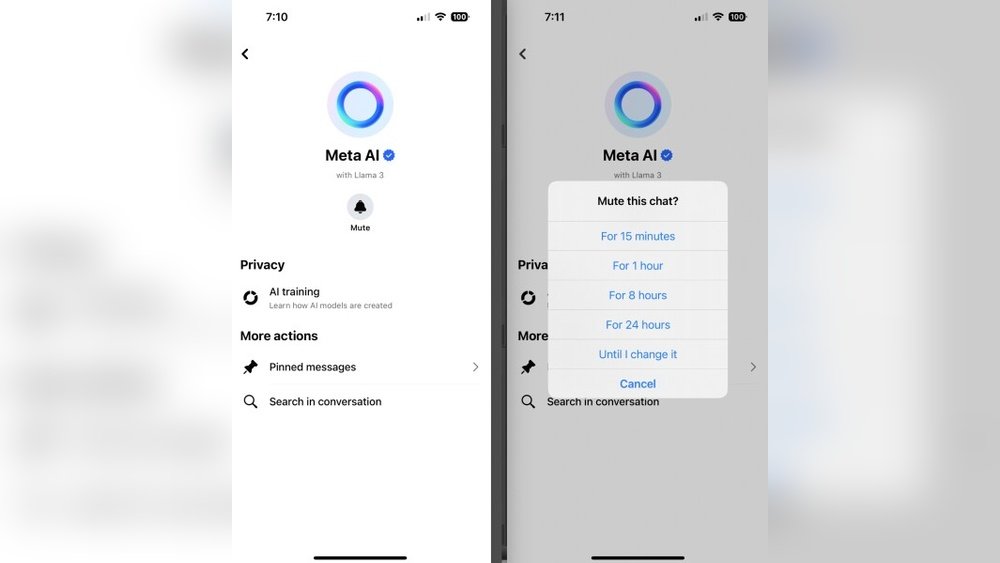
Muting the Meta AI chatbot on Facebook helps reduce interruptions without deleting the feature. This option offers a quieter experience while keeping chatbot functions available. Users gain control over when and how the AI interacts with their account.
Muting stops notifications from the Meta AI chatbot. The chatbot remains active but does not send messages or alerts. This method suits users who want fewer distractions but prefer not to remove the AI entirely.
Mute The Meta Ai Chatbot
- Open the Facebook app and tap the search bar.
- Tap the blue-gradient circle icon representing Meta AI.
- Tap the “i” icon in the top right corner of the chat window.
- Select “Mute” from the options.
- Choose “Until I change it” to mute indefinitely.
Disable Comment Summaries On Posts
- Tap your profile picture to open the menu.
- Select “Settings & Privacy,” then tap “Settings.”
- Scroll down to the “Audience and visibility” section.
- Tap “Posts.”
- Turn off “Allow comment summaries on your posts.”

Credit: www.reddit.com
Disable Comment Summaries
Disabling comment summaries on Facebook helps reduce Meta AI’s presence in your feed. Comment summaries are AI-generated snippets that highlight key points from user comments. They can feel intrusive and clutter your posts. Turning them off gives you a cleaner, more natural Facebook experience.
This setting stops Facebook from automatically creating comment summaries on your posts. You control what your friends and followers see. It also minimizes AI-generated content that you may find distracting.
How To Disable Comment Summaries On Facebook
- Open the Facebook app and tap your profile picture.
- Select Settings & Privacy, then tap Settings.
- Scroll down to the Audience and Visibility section.
- Tap Posts to open post settings.
- Find the option labeled Allow comment summaries on your posts.
- Toggle this option off to disable comment summaries.
Benefits Of Disabling Comment Summaries
- Reduces AI-generated content on your posts.
- Makes comment threads easier to read and follow.
- Improves your control over what appears on your timeline.
- Creates a more personal and authentic interaction space.
What Happens After Disabling Comment Summaries
Your posts will no longer show AI-generated comment snippets. Friends and followers will see the original comments only. Facebook stops summarizing discussions automatically. This reduces Meta AI’s influence on your Facebook experience.
Opt Out Of Ai Data Sharing
Opting out of AI data sharing on Facebook helps protect your personal information. Facebook uses data to improve Meta AI features. This data includes your posts, images, and interactions. You can limit this by adjusting your privacy settings. This step reduces how your data trains AI models.
Stopping Meta AI from using your data does not remove the AI completely. Instead, it limits the information AI can access. This gives you more control over your privacy. Follow clear steps to opt out in your Facebook account.
Access Privacy Center In Facebook Settings
Open Facebook and log into your account. Tap on “Settings and Privacy” in the menu. Next, select “Privacy Center” from the list. This section controls how your data is shared. Here you find options related to AI data use.
Find Ai Data Sharing Options
Scroll down to “How Meta uses information for generative AI models and features.” This area explains how your data is used. You will see an option named “Right to Object.” Tap this to start the opt-out process.
Complete The Opt-out Form
The form asks for your personal details. Provide the requested information carefully. You must explain why you want to opt out. Keep your explanation simple and clear. Submit the form to finalize your choice.
Confirm And Save Your Preferences
After submitting, Facebook processes your request. You may receive a confirmation message. Check that your preferences are saved in the Privacy Center. These settings help stop your data from training AI models.
Use Facebook Mobile Basic Site
Using the Facebook Mobile Basic Site offers a simple way to reduce Meta AI features. This version uses fewer resources and shows fewer AI-driven elements. It focuses on basic Facebook functions without extra AI content. This can make the Facebook experience less cluttered and faster.
The Mobile Basic Site works well on slow internet or older devices. It limits Meta AI’s presence by not loading advanced scripts. Users get a cleaner interface and fewer AI suggestions or chatbots. Accessing Facebook this way helps control unwanted AI interactions.
How To Access Facebook Mobile Basic Site
Open your mobile browser and visit https://mbasic.facebook.com. Log in with your Facebook username and password. The page will load a simple version of Facebook. This site does not display the Meta AI chatbot or comment summaries.
Benefits Of Using Mobile Basic Site
- Faster loading times on slow connections
- Minimal display of AI features
- Easy navigation with fewer distractions
- Less data usage compared to the full app
Limitations To Consider
- Some Facebook features are not available
- Interface looks outdated compared to the app
- Media content may load slower or not at all
Tips For Better Experience On Mobile Basic
- Use a reliable internet connection for smooth browsing
- Bookmark the URL for quick access
- Log out after use to protect your privacy
- Clear browser cache regularly to avoid issues
Limit Ai Interaction In Search
Changing your privacy settings on Facebook can reduce Meta AI’s access to your data. This limits how much the AI learns from your activity. Adjusting these settings helps control your information and improve your online privacy.
Start by reviewing what data Meta AI can use. Then, change settings to restrict access to your posts and personal details. This way, you keep more control over your Facebook experience.
Limit Data Access For Meta Ai
Open Facebook and go to Settings & Privacy. Click on Privacy Center. Find the section called How Meta uses information for generative AI models and features. Here, you can see what data Meta AI collects. Choose Right to Object to limit data use. Fill out the form with your details and submit it. This tells Meta you want to stop AI from using your info.
Mute The Meta Ai Chatbot
Go to the Facebook app and tap the search bar. Tap the blue-gradient circle icon for Meta AI. Tap the “i” icon in the top right corner. Select Mute and choose Until I change it. This stops the chatbot from sending messages and notifications. It reduces interruptions without deleting the AI feature.
Disable Comment Summaries On Your Posts
Tap your profile picture, then go to Settings & Privacy and select Settings. Scroll to Audience and Visibility. Find Posts and turn off Allow comment summaries on your posts. This stops Meta AI from creating summaries from your comments. It helps keep your conversations private and less influenced by AI.

Credit: www.reddit.com
Adjust Privacy Settings
Meta apps connect your Facebook account to many services. Some of these connections share data with Meta AI. Removing these app connections limits Meta AI’s access to your information. This step helps reduce unwanted AI features on Facebook.
Cleaning up app connections is simple and quick. It also improves your privacy and control over your Facebook account. Follow the steps below to remove Meta app connections safely.
Access Your Facebook Settings
Open Facebook and tap the menu icon. Scroll down to find Settings & Privacy. Tap Settings to open the main settings page. This area controls your account preferences and connections.
Find The Apps And Websites Section
Inside Settings, look for Apps and Websites. Tap it to see all apps linked to your Facebook account. This list shows active and expired connections. You can review what data these apps access.
Remove Unwanted Meta App Connections
Review the list carefully. Find Meta-related apps or any you no longer use. Tap each app to view details. Select Remove to disconnect the app from your Facebook. Confirm removal to stop data sharing with Meta AI.
Check Account Center For Meta Connections
Go back to Settings & Privacy. Select Account Center. This section manages connections across Meta services like Facebook, Instagram, and Messenger. Remove any linked accounts you don’t want connected.
Remove Meta App Connections
Meta AI features on WhatsApp may feel intrusive for some users. Avoiding these AI options helps keep your chats simple and private. WhatsApp lets you control AI functions easily. This section explains how to steer clear of AI features on WhatsApp.
Disable Ai Chat Assistants
Open WhatsApp and go to Settings. Find the AI or assistant settings section. Turn off any chat assistant or AI helper options. This stops AI from responding or suggesting replies in your chats.
Turn Off Ai-powered Message Suggestions
Message suggestions use AI to predict your next words. To disable them, go to Settings, then Chat Settings. Find the option for predictive text or smart replies. Switch it off to avoid AI-generated message prompts.
Limit Data Sharing With Meta Ai
WhatsApp uses data to improve AI features. To protect your data, open Settings and select Privacy. Disable options that allow WhatsApp to share your messages or media with AI services. This reduces AI learning from your information.
Opt Out Of Ai-based Features Updates
WhatsApp sometimes adds new AI tools automatically. Check for updates in the app settings. Choose to opt out of experimental or beta AI features. This keeps your app free from unwanted AI tools.
Manage Account Ownership
Meta AI on Facebook offers useful features but has clear limits. It cannot understand all human emotions or context perfectly. Sometimes, the AI makes mistakes or gives irrelevant answers. This happens because AI relies on patterns in data, not real human judgment.
Knowing these limits helps manage expectations and use Meta AI wisely. It also guides users on how to reduce interruptions or control AI features. Awareness of AI boundaries is key for a smoother Facebook experience.
How Meta Ai Processes Information
Meta AI processes user data to generate responses and suggestions. It uses algorithms trained on large datasets. The AI works fast but cannot always grasp nuances in conversations. It may misinterpret slang, jokes, or cultural references.
Why Meta Ai Can Be Intrusive
Meta AI aims to enhance user interaction, but it may feel intrusive. AI chatbots pop up or summarize comments automatically. This can disrupt the user’s flow or privacy. Users should know how to mute or limit these features.
Limitations In Privacy And Control
Users cannot fully remove Meta AI from Facebook. The AI is integrated into the platform’s core functions. However, privacy settings allow some control over AI data use. Opting out of AI training or muting features reduces unwanted AI presence.
Frequently Asked Questions
How Do I Opt Out Of Meta Ai Sharing?
Log in to Facebook and go to Settings & Privacy > Privacy Center. Find “How Meta uses information for generative AI models,” then select “Right to Object. ” Fill out the form with your details and reason to opt out of Meta AI sharing.
How Do I Remove The Meta App From Facebook?
You cannot fully remove the Meta app from Facebook. To reduce interruptions, mute the Meta AI chatbot in the app settings. Disable comment summaries under Settings > Audience and visibility > Posts. Use mbasic. facebook. com for fewer AI features, but full AI removal is not possible.
Why Have I Got Meta Ai On My Phone?
Meta AI appears on your phone as an optional feature from Meta to assist with questions, ideas, and learning. You can mute it but cannot fully remove it.
Can I Deactivate Meta?
You cannot fully deactivate Meta, but you can mute its AI chatbot and disable comment summaries in settings for less interaction.
What Is Meta Ai On Facebook?
Meta AI is a chatbot and content feature integrated into Facebook for user interaction.
Can I Completely Remove Meta Ai From Facebook?
No, complete removal isn’t possible, but you can mute or limit its features.
How Do I Mute The Meta Ai Chatbot On Facebook?
Open Facebook, tap the Meta AI icon near search, tap “i,” then select “Mute. ”
How Can I Disable Comment Summaries On My Facebook Posts?
Go to Settings & Privacy > Settings > Audience and visibility > Posts, then turn off comment summaries.
Does Muting Meta Ai Stop It Permanently?
Yes, choosing “Until I change it” keeps Meta AI muted indefinitely until you unmute.
Why Is Meta Ai Active On My Facebook Account?
Meta AI is enabled by default to enhance user experience with suggestions and help.
Conclusion
Getting rid of Meta AI on Facebook takes some simple steps. You can mute the chatbot to stop interruptions. Turning off comment summaries helps reduce AI activity on your posts. Adjust these settings anytime for a smoother experience. Remember, these changes improve your control over Meta AI features.
Stay aware and manage your privacy with ease. Your Facebook use can feel cleaner and less cluttered. Taking action empowers you to enjoy the platform your way.





