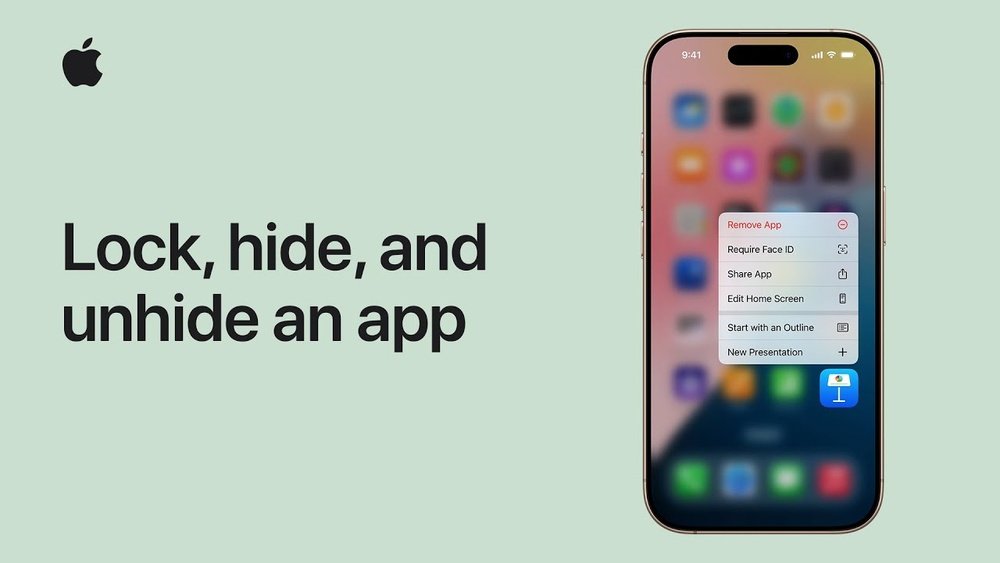
Have you ever felt like some apps on your iPhone are playing hide and seek? Maybe you’ve accidentally hidden an app, or perhaps you’re curious about apps that don’t show up on your home screen.
Finding those hidden apps can be tricky, but you don’t have to stay frustrated. In this guide, you’ll discover simple and effective ways to uncover every hidden app on your iPhone. Whether you want to unhide apps or just locate them quickly, these easy steps will put you back in control of your device.
Keep reading and unlock the full potential of your iPhone today!
Credit: setapp.com
Locate Apps In App Library
The App Library on your iPhone helps organize all installed apps in one place. It also stores apps hidden from the Home Screen. This makes it easy to find apps that do not appear on your main pages. Learning to navigate the App Library is key to locating hidden apps quickly.
Access Hidden Folder
Swipe left on your Home Screen until you reach the App Library. Scroll down to the bottom of the App Library. Here, you will find a folder named “Hidden.” Tap this folder to see apps that you have hidden from the Home Screen. This folder keeps your hidden apps safe but easy to access.
Use Face Id Or Passcode
Opening the Hidden folder may require extra security. You must verify your identity using Face ID or your device passcode. This protects your privacy and prevents others from viewing your hidden apps. After verification, you can browse and open any hidden app in the folder.
Search With Spotlight
Spotlight Search on your iPhone helps you find hidden apps quickly. It scans all installed apps, even those not visible on the home screen. This tool saves time and effort by showing results as you type. Follow simple steps to use Spotlight Search and locate your hidden apps.
Swipe Down On Home Screen
Start by unlocking your iPhone. Then, swipe down from the middle of the home screen. This action opens the Spotlight Search bar at the top of the screen. You do not need to go to any app or folder. Just a simple swipe is enough to access this feature.
Type App Name
Tap the search bar that appears. Enter the name of the hidden app you want to find. As you type, suggestions will show below the search bar. If the app is installed, it will appear in the results. Tap the app icon to open it directly from Spotlight Search.
Check Iphone Storage
Checking your iPhone storage helps reveal all installed apps. This includes apps hidden from the home screen. It’s a simple way to spot apps you might have forgotten about or hidden.
iPhone storage lists every app on your device. You can see how much space each app uses. This overview helps identify hidden apps quickly.
Navigate To Settings
Open the Settings app on your iPhone. Scroll down and tap on “General.” In the General menu, find and select “iPhone Storage.” This section shows all apps installed on your device.
Here, the phone calculates storage used by each app. It also shows system files and other data. This helps you find apps that are not visible on the home screen.
View All Installed Apps
In the iPhone Storage section, scroll through the list of apps. All installed apps appear here, even those hidden. The list is organized by size, with the largest apps at the top.
Tap any app to see more details, like data usage. This can confirm if the app is still on your iPhone. If you find an app you don’t recognize, it may be hidden from the home screen.
Credit: clario.co
Unhide Apps From App Store
Sometimes apps disappear from your iPhone’s home screen but remain linked to your Apple ID. You can unhide these apps through the App Store. This process reveals apps hidden from your purchase history. It allows easy redownloading without searching all over your device.
Follow simple steps in the App Store to access hidden apps. This method works well for apps you deleted or hid accidentally. It keeps your apps safe and ready to use whenever you want.
Open Hidden Purchases
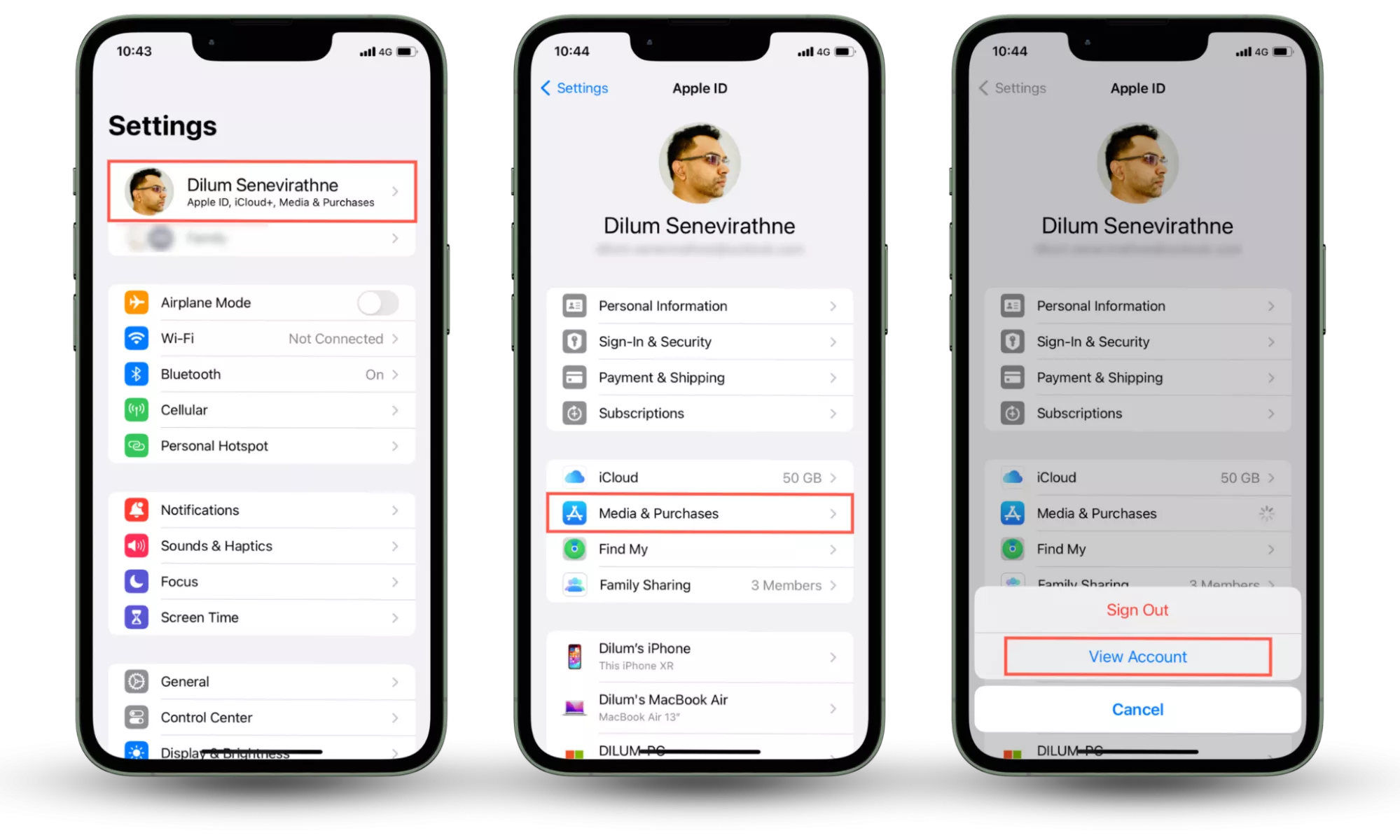
First, open the App Store on your iPhone. Tap your profile picture in the top-right corner. Next, tap your name or Apple ID to view account settings. Scroll down and find the “Hidden Purchases” option. Tap it to see all the apps hidden from your purchase list. Here you will find the apps you hid before. You can browse and select the ones you want to restore.
Redownload Hidden Apps
After opening “Hidden Purchases,” find the app you want to unhide. Tap the cloud icon next to the app. This will start downloading the app back to your iPhone. Wait for the download to finish. The app will reappear on your home screen or in the App Library. Now you can open and use the app as usual. This step helps you quickly get hidden apps back without extra hassle.
Disable Screen Time Restrictions
Screen Time restrictions can hide apps on your iPhone without clear notice. These settings block apps to control usage or protect privacy. Disabling these restrictions helps reveal apps hidden by Screen Time. Follow simple steps in your iPhone settings to do this. It opens access to all apps again.
Go To Content & Privacy Settings
Open the Settings app on your iPhone. Scroll down and tap on Screen Time. Next, select Content & Privacy Restrictions. Enter your Screen Time passcode if asked. This section controls which apps you can access. You can change settings to show hidden apps here.
Allow Restricted Apps
Inside Content & Privacy Restrictions, tap Allowed Apps. You will see a list of apps with toggles. Find apps that are turned off or hidden. Slide the toggle to green to allow the app. This action makes the app visible on your home screen again. Repeat for all apps you want to unhide.

Credit: www.youtube.com
Use Siri To Open Apps
Using Siri to open hidden apps on your iPhone is a simple and fast method. Siri can find apps even if they are not visible on your home screen. This feature helps you access apps without scrolling or searching manually.
Just speak the app’s name, and Siri will launch it for you. This method works well for apps hidden in folders or the App Library. It saves time and effort, especially if you forget where the app is stored.
Activate Siri
To start, activate Siri by pressing and holding the side button on your iPhone. On older models, press and hold the Home button. You can also say “Hey Siri” if voice activation is enabled. Wait for Siri’s sound or visual cue before speaking.
Command To Launch Hidden App
Say the name of the app you want to open. For example, say “Open Notes” or “Launch Calculator.” Siri will find the app even if it is hidden. If the app is not on your home screen, Siri still knows where to look.
Make sure to speak clearly and use the exact app name. Siri will respond by opening the app immediately. This method works well for apps hidden inside folders or restricted by settings.
Frequently Asked Questions
How To View Hidden Apps In Iphone?
Swipe left to open the App Library, then scroll down to the Hidden folder. Use Spotlight Search by swiping down on the home screen and typing the app name. Check Settings > General > iPhone Storage for all apps. View hidden purchases in the App Store under your profile.
How Do I Access My Hidden Apps?
Swipe left to open the App Library, scroll down to the Hidden folder, and tap it to access hidden apps on your iPhone.
How Do I Unhide Apps On My Phone?
Open your App Library, find the Hidden folder, then long-press the app and select “Don’t Require Face ID” to unhide it. Alternatively, use Settings > Screen Time to allow restricted apps. Searching via Spotlight or redownloading from the App Store also reveals hidden apps.
How To Unhide Apps On Iphone Ios 26?
Open the App Library by swiping left past the last Home Screen. Tap the Hidden folder at the bottom. Long-press the app and choose “Don’t Require Face ID” to unhide it. Alternatively, check Settings > Screen Time > Content & Privacy Restrictions > Allowed Apps for restricted apps.
How Can I Find Hidden Apps On My Iphone?
Swipe to the App Library by moving right-to-left on the home screen. Scroll to the bottom and tap the “Hidden” folder to see hidden apps.
Where Is The Hidden Folder On Iphone?
The Hidden folder is inside the App Library at the end of all app pages. It stores apps hidden from the home screen.
How Do I Use Spotlight Search To Find Hidden Apps?
Swipe down on the home screen and type the app name in the search bar. Hidden apps will appear even if not on the home screen.
Can I Find Hidden Apps In Iphone Storage Settings?
Yes. Go to Settings > General > iPhone Storage to see all installed apps, including those hidden from the home screen.
How To Unhide Apps From The Hidden Folder?
Find the app in the Hidden folder, then long-press its icon and select “Don’t Require Face ID” or move it back to the home screen.
How Do I Check Apps Hidden By Screen Time?
Go to Settings > Screen Time > Content & Privacy Restrictions > Allowed Apps. Here, you can see and allow apps hidden by restrictions.
Conclusion
Finding hidden apps on your iPhone is easier than you think. Use the App Library, Spotlight Search, or iPhone Storage to locate them quickly. You can also check hidden purchases in the App Store or Screen Time settings. Unhiding apps takes just a few taps.
These simple steps help you manage your apps better. Keep your iPhone organized and find what you need fast. No more lost apps or confusion. Stay in control of your device with these easy tips.





