Duplicating items in Minecraft Creative mode is a topic that excites both new and seasoned players. Whether you want unlimited building supplies, rare blocks, or just to save time, understanding how to duplicate items efficiently can transform your gameplay. While Creative mode already offers access to every item, duplicating can still be useful for organizing, testing, or playing on servers with restrictions. This guide will walk you through every method, tool, and trick for duplicating items in Minecraft Creative, so you can make the most of your world.
Why Duplicate Items In Creative Mode?
At first, duplicating items in Creative might seem unnecessary. After all, the Creative inventory gives you access to every block and item. But there are scenarios where duplication is incredibly useful:
- You are playing on a multiplayer server with custom plugins that limit inventory access.
- You want to quickly fill chests, shulker boxes, or dispensers with large quantities of specific items.
- You’re building complex redstone or command block structures and need stacks of the same item.
- You’re creating adventure maps or mini-games and want to prep loot or resources quickly.
- You need to test item sorting or duplication bugs for mapmaking or server development.
Understanding duplication methods can save you time and make large projects much easier. Let’s explore all the options, from the simplest to the most advanced.
Basic Item Duplication Methods
Duplicating items in Minecraft Creative is mostly straightforward. However, there are some simple techniques that can help you move or multiply items much faster.
Using The Middle Mouse Button (pick Block)
The Pick Block feature is one of the most important Creative tools. By default, you use the middle mouse button (scroll wheel click) to quickly grab a copy of any block or item you point at.
How it works:
- Point at a block in the world.
- Click the middle mouse button.
- The block appears in your hotbar, ready to use.
If you hold Ctrl while clicking, you also copy the block’s data (such as chest contents or command block commands). This is called Pick Block with NBT data.
Key insights:
- In Java Creative mode, Pick Block also works while hovering over an inventory item to obtain a full stack; controls and behavior may differ in Bedrock.
- It’s the fastest way to duplicate blocks with custom properties.
Drag And Fill Inventory
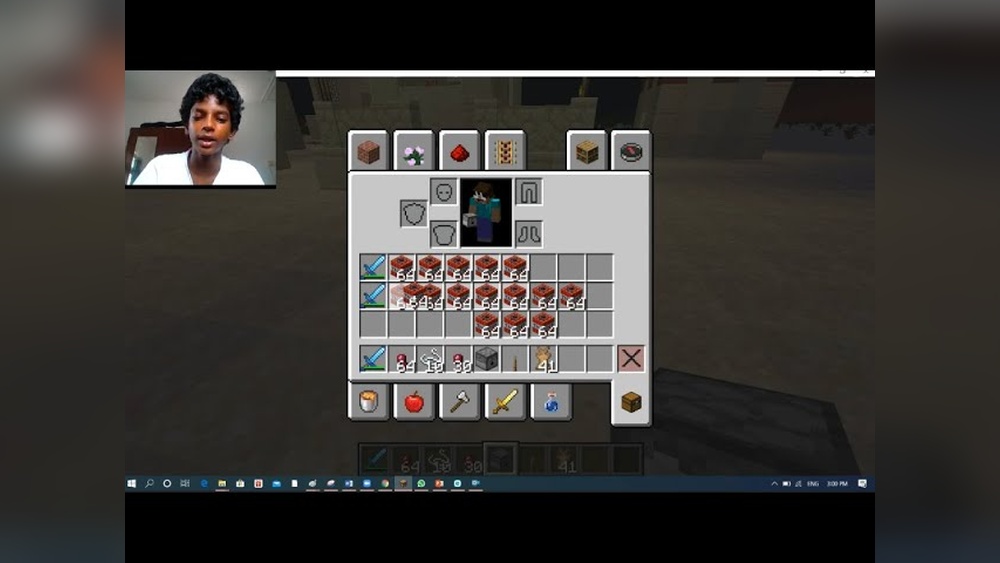
When you grab an item stack from the Creative inventory, you can drag it across your inventory slots while holding the mouse button. This fills each slot with a full stack.
Steps:
- Open your inventory and pick up a stack of an item.
- Hold down the mouse button and drag across empty slots.
- Release to fill all selected slots with stacks of that item.
This is perfect for quickly filling your hotbar or inventory with the same block.
Shift-click For Instant Stacks
When you shift-click on an item in the Creative inventory, it instantly fills the selected slot with a full stack. You can do this repeatedly to fill up your inventory.
Example:
If you want multiple stacks of oak planks, shift-click them in the inventory and each click adds another stack.
Mouse Wheel Trick
Some players don’t realize that you can use the mouse wheel to scroll through your hotbar while hovering over the Creative inventory. Scrolling quickly fills hotbar slots with stacks of the selected item.
Non-obvious tip:
Combine this with drag-and-fill to duplicate many stacks even faster.
Advanced Duplication Techniques
While the basic methods are fast, there are more advanced tricks that allow for even greater efficiency, especially when you want to duplicate complex items, containers, or blocks with data.
Duplicating Shulker Boxes And Containers
Shulker boxes can hold 27 stacks of items. Duplicating a filled shulker box means you are also duplicating all the items inside.
Steps:
- Fill a shulker box with items you want to duplicate.
- Place it in the world.
- Use Ctrl + Pick Block to copy the shulker box, including its contents.
- Place as many copies as you like.
Key insight:
This method works for containers like chests, barrels, and dispensers. It’s especially useful for mapmakers and server admins.
Using Command Blocks
Command blocks open up advanced item duplication and customization. With commands, you can summon any item, block, or container with precise data.
Example command:
`/give @p minecraft:diamond_sword 1`
This gives the nearest player one diamond sword when commands are enabled. Enchantment component syntax differs between Minecraft versions; consult documentation for your specific edition before adding custom item data.
Practical use:
Create a command block setup that spawns filled shulker boxes, enchanted gear, or custom loot chests.
Cloning Structures With The Clone Command
The /clone command allows you to duplicate entire structures, including all blocks and contents.
Steps:
- Select two corners of the area you want to clone.
- Example:
/clone 0 64 0 4 68 4 20 64 20copies the source region into a destination region. Replace these example coordinates with positions in your world. - The structure, including containers with items, is duplicated at the destination.
Advanced tip:
Clone command is powerful for duplicating redstone contraptions, decorated rooms, or filled storage rooms.
Using Structure Blocks
Structure blocks are special blocks for advanced mapmaking. They allow you to save, load, and duplicate builds and items.
How to use:
- Place a structure block and set it to Save mode.
- Define the area you want to save and give it a name.
- Place another structure block in Load mode at the target location.
- Load the saved structure.
Structure blocks duplicate all blocks, containers, and sometimes even entity data.
Non-obvious insight:
Structure blocks can export and import builds between worlds, which also means you can duplicate items across worlds.
Duplication Glitches: Are They Still Possible?
Over the years, Minecraft has had many duplication glitches—bugs that let you duplicate items in ways not intended by the game developers. Most of these glitches are patched quickly, but some still work in specific versions or on certain servers.
Popular Historical Duplication Glitches
- Dropper/Dispenser dupe: Involved complex redstone and block updates.
- Minecart dupe: Used rails and minecarts to duplicate items.
- Chunk duplication: Relied on chunk loading and unloading tricks.
Warning:
Using glitches on public servers is often against the rules and can result in bans. Always check server policies.
Current Duplication Bugs
Duplication glitches vary by edition and version and may be patched without notice. Creative inventory and supported commands are more dependable than exploiting glitches.
Pro insight:
Focus on official methods unless you are testing or developing, as glitches are unreliable and can corrupt worlds.
Comparing Duplication Methods
Here’s a quick comparison of the main duplication methods in Creative mode:
| Method | Speed | Data Copied | Best For |
|---|---|---|---|
| Pick Block | Very Fast | Yes (with NBT) | Blocks & Containers |
| Inventory Drag | Fast | No | Simple Items |
| Command Blocks | Medium | Yes (custom data) | Custom Items |
| Clone/Structure Blocks | Slower | Yes (entire area) | Structures & Builds |
Duplication In Minecraft Java Vs Bedrock
There are some differences between Java Edition and Bedrock Edition when it comes to duplication.
Java Edition
- Full access to all Creative inventory features.
- Pick Block with NBT copies almost all block data.
- Command blocks and structure blocks work well for advanced duplication.
Bedrock Edition
- Pick Block works, but NBT data copying is limited.
- Command blocks are more restrictive.
- Some duplication glitches exist only on Bedrock, but are patched often.
Non-obvious tip:
If you want to duplicate complex containers, Java Edition gives you more options.
Best Practices For Efficient Duplication
Duplicating items can get messy if you don’t organize your inventory and workspace. Here are practical tips for making duplication easy and efficient:
- Clear your inventory before starting, so new items don’t get mixed up.
- Label chests and shulker boxes to keep track of duplicated items.
- Use flat, open spaces for structure and clone commands to avoid accidents.
- Test commands in a backup world to prevent errors.
- Backup your world before using glitches or complex commands.
- Work with a friend if you need to duplicate for large builds—teamwork speeds things up.
Common Mistakes To Avoid
Even in Creative mode, some mistakes can slow you down or cause problems.
- Forgetting to hold Ctrl when using Pick Block on containers (result: Empty boxes).
- Accidentally overwriting important builds with the clone command.
- Filling your inventory with too many different items and losing track.
- Attempting duplication glitches on servers where it’s not allowed.
- Not backing up worlds before experimenting.
Pro tip:
Always double-check what you are duplicating, especially with containers or command blocks.
Credit: www.youtube.com
How Duplication Helps Mapmakers And Server Owners
For mapmakers, duplicating items means you can:
- Prepare loot chests for adventure maps in seconds.
- Fill dispensers and droppers for puzzles or traps.
- Set up test scenarios quickly without manual refilling.
For server owners, item duplication helps with:
- Stocking shops or kits for players.
- Setting up event rewards.
- Testing plugins or gameplay changes.
Example:
A minigame server owner might need 100 chests filled with gear. Using shulker box duplication and Pick Block, this can be done in minutes instead of hours.
Real-world Example: Duplicating For A Mega Build
Imagine you are building a giant medieval city in Creative. You need thousands of stone bricks, lanterns, and decorative banners. Here’s how duplication streamlines the process:
- Use Inventory Drag to fill your inventory with stone bricks.
- Pick Block custom banners from the build to get their exact pattern.
- Fill shulker boxes with lanterns, then duplicate the boxes using Ctrl + Pick Block.
- Place duplicated shulker boxes at each worksite.
This method keeps your workflow fast and your inventory organized, so you can focus on building, not searching for items.
Troubleshooting Duplication Issues
Sometimes, you might run into problems duplicating items in Creative:
- Item won’t duplicate: Make sure you’re using the correct input (middle mouse for Pick Block, Ctrl for NBT).
- Copied container is empty: Try using Ctrl + Pick Block instead of just Pick Block.
- Clone command fails: Check your coordinates and make sure the area isn’t protected or in use.
- Commands don’t work: Ensure cheats are enabled in your world settings.
If problems persist, check for version-specific bugs or conflicts with plugins or datapacks.
How To Duplicate Items On Servers
Duplicating items on multiplayer servers can be different from singleplayer worlds. Many servers have custom plugins that limit Creative features, especially duplication.
What you need to know:
- Some servers disable Pick Block or restrict command blocks.
- Duplication glitches are often patched or punished.
- Always follow server rules to avoid bans.
Practical advice:
If your server allows it, use shulker box or command block duplication for bulk item prep. If not, ask admins about approved methods.

Credit: gaming.stackexchange.com
Automation And Macros For Duplication
Some advanced players use macros or third-party tools to automate repetitive duplication. While this can save time, it comes with risks:
- Automation may be against server rules.
- Macros can cause mistakes if not carefully set up.
- Third-party tools might trigger anti-cheat systems.
Recommendation:
Stick to in-game methods unless you are working on a private world or have explicit permission.
Duplicating Items With Custom Data
Duplicating items with custom NBT data (such as named items, enchanted gear, or filled containers) requires extra care.
Best method:
Always use Ctrl + Pick Block or command blocks to ensure all data is copied. Regular duplication only copies the base item, not its custom properties.
Non-obvious insight:
This is especially important for minigames, adventure maps, and server kits, where custom data matters.
Duplicating Entities And Mobs
While not exactly “items,” you might want to duplicate mobs or entities with special properties.
How to do it:
- Use spawn eggs from the Creative inventory.
- Use the /summon command to spawn mobs with custom data.
- For complex entities (like armor stands with poses), use structure blocks or commands to duplicate them.
Note:
Entity duplication is more complex and may not always work the same as item duplication.
Data Table: Duplication Methods By Item Type
Here’s a quick reference for the best duplication method based on what you want to duplicate:
| Item Type | Best Method | Notes |
|---|---|---|
| Blocks | Pick Block | Ctrl for data |
| Simple Items | Shift-Click | Fastest for inventory fill |
| Containers | Ctrl + Pick Block | Copies contents |
| Custom Gear | Command Block | Use /give or /replaceitem |
| Structures | Clone/Structure Block | Copies builds & containers |

Credit: gaming.stackexchange.com
Staying Up To Date With Duplication Methods
Minecraft updates often change how duplication works. For the latest guides and bug reports, check official sources like the Minecraft Wiki. Staying informed helps you use the most efficient and safest methods.
Frequently Asked Questions
How Do I Quickly Fill My Inventory With Stacks Of The Same Item?
Use the drag-and-fill method. Pick up a stack from the Creative inventory, hold the mouse button, drag across your inventory slots, and release. Each slot fills with a stack of the item.
Can I Duplicate Items With Custom Names Or Enchantments?
Yes. Use Ctrl + Pick Block on the item or container in the world, or use a command block with the correct NBT data. This ensures all custom properties are copied.
Do Duplication Glitches Still Work In The Latest Versions?
Most duplication glitches are patched quickly by Mojang. As of 1. 20, few reliable glitches exist, especially in Creative. Always use official methods for stability and safety.
Is Duplicating Items Allowed On Multiplayer Servers?
It depends on the server. Some allow Creative duplication methods, but most ban glitches or automation. Always check the server rules before duplicating items.
What’s The Fastest Way To Duplicate Shulker Boxes Filled With Items?
Place a filled shulker box in the world, then use Ctrl + Pick Block to copy it. Now you can place as many filled copies as you need, each containing all original items.
Duplicating items in Minecraft Creative mode is about more than just multiplying resources—it’s about efficiency, organization, and unlocking creative potential. By mastering these duplication methods, you’ll spend less time managing inventory and more time building, testing, and enjoying your worlds. Whether you’re a mapmaker, server admin, or casual builder, knowing how to duplicate items makes your Minecraft experience smoother and more powerful.





