
Are you feeling overwhelmed by Google’s AI features popping up in your search results or apps? Maybe you prefer the classic, straightforward Google experience without AI-generated summaries or suggestions steering your way.
The good news is—you don’t have to accept AI on Google as a permanent part of your digital life. While there isn’t a single “off” switch to disable all AI functions, there are simple, effective steps you can take right now to turn off or reduce AI features on both desktop and mobile.
You’ll discover easy tricks and settings that put you back in control of your Google experience. Keep reading to learn how to disable Google AI and make your searches and apps work just the way you want.
Disable Ai Overviews In Search
Disabling AI Overviews in Google Search can improve your browsing experience. AI Overviews show summaries generated by artificial intelligence above search results. Some users prefer only traditional links without AI summaries. This section explains simple ways to turn off AI Overviews on desktop and mobile devices.
Google does not offer a direct switch to disable all AI features. Still, several workarounds help reduce AI content in search results. You can choose options that suit your device and preferences.
Switch To The “web” Tab In Search Results
After you perform a search, look near the top of the page. Find the “Web” tab next to “All” or “Images.” Click the “Web” tab to hide AI Overviews. This shows only the usual list of links without AI summaries.
If you do not see the “Web” tab, click “More” to find it. This step works on both desktop and mobile browsers.
Use Browser Extensions To Hide Ai Overviews
Install browser extensions to remove AI summaries automatically. Search for terms like “Hide Google AI Overviews” in the Chrome Web Store or Firefox Add-ons. These extensions block AI-generated content from your search results. They work quietly in the background after installation.
Disable Ai Overviews In The Google App
Open the Google app on your phone. Tap the “Labs” icon at the top of the screen. If you do not see it, tap the three dots menu and choose “Manage.”
Look for settings named “AI Overviews and more” or “AI in Search.” Toggle these off to reduce AI summaries inside the app. This option is available on some Android devices.
Use The Web Tab Filter
The Web Tab Filter offers a simple way to reduce Google AI features in search results. It allows users to see traditional search links without AI-generated summaries. This method works on both desktop and mobile devices. No need to change settings deeply or install extra software.
Using the Web Tab Filter keeps search results clear and straightforward. This helps users who prefer classic search results. It is especially useful when AI summaries seem confusing or distracting.
How To Find The Web Tab Filter
Perform a Google search as usual. Look at the top of the results page. Find the tabs like “All,” “Images,” or “Videos.” The “Web” tab should be near these options. Click or tap on “Web” to activate the filter.
What Happens When You Use The Web Tab
Clicking the “Web” tab removes AI-generated overviews. It shows only the traditional list of links. These links come directly from websites without AI summaries. The page looks cleaner and easier to read.
When The Web Tab Is Not Visible
Sometimes, the “Web” tab may be hidden. It could be under the “More” dropdown near the tabs. Click “More” to find additional filters. Select “Web” from this list to disable AI features in search results.
Install Browser Extensions
Installing browser extensions offers a simple way to disable Google AI features. These tools block or hide AI-generated content on search pages. Extensions work automatically after installation. No complex settings are needed.
Browser extensions can remove AI summaries that appear above search results. This helps users see only traditional links and pages. Extensions are available for popular browsers like Chrome and Firefox.
How To Find The Right Extension
Open your browser’s extension store. Use keywords like “hide Google AI” or “remove AI overviews.” Check the ratings and reviews before installing. Choose extensions with good feedback and regular updates.
Steps To Install The Extension
Click the “Add to Chrome” or “Add to Firefox” button. Confirm the installation when prompted. The extension icon will appear near the address bar. It will start working immediately.
Managing And Using Extensions
Click the extension icon to access settings. Turn the extension on or off with one click. Some extensions let you customize what to hide. Keep the extension updated for best results.
Turn Off Ai In Google App
The Google app uses AI to improve your search experience. Some users prefer to turn off AI features for a simpler interface. Disabling AI in the Google app is possible through specific settings. This section guides you on how to turn off AI within the app quickly and easily.
Open The Google App Settings
Start by launching the Google app on your phone. Tap your profile picture in the top right corner. Select “Settings” from the menu that appears. This opens the main settings page where you can adjust app features.
Find The Ai Features Section
Scroll through the settings to find options related to AI. Look for sections named “Search,” “Labs,” or “AI Overviews.” These areas control AI-generated results and suggestions. The exact name may vary depending on your app version.
Disable Ai Overviews And Suggestions
Inside the AI or Labs section, find the toggle for AI features. This might be labeled “AI in Search” or “AI Overviews.” Tap the toggle to turn it off. This stops AI from showing summaries or suggestions in your searches.
Restart The App To Apply Changes
Close the Google app completely after changing settings. Reopen it to ensure the AI features are disabled. Your searches will now appear without AI-generated content. This helps maintain a traditional search experience.
Adjust Gmail Smart Features
Adjusting Gmail smart features helps control how artificial intelligence assists your email experience. These features include smart reply, smart compose, and email nudges. Disabling them reduces AI involvement in your Gmail.
Turning off these smart features improves privacy and gives you more control over your inbox. The steps are simple and only take a few moments.
How To Turn Off Smart Compose
Smart Compose suggests text as you write emails. To disable it, open Gmail settings by clicking the gear icon. Select “See all settings,” then go to the “General” tab. Scroll down to “Smart Compose” and choose “Writing suggestions off.” Save your changes at the bottom.
How To Disable Smart Reply
Smart Reply offers quick response options below emails. To turn this off, stay in the “General” tab of settings. Find “Smart Reply” and select “Smart Reply off.” This stops Gmail from suggesting replies automatically.
How To Turn Off Email Nudges
Email nudges remind you to reply or follow up on emails. In the “General” tab, scroll to the “Nudges” section. Uncheck the boxes for “Suggest emails to reply to” and “Suggest emails to follow up on.” Save changes to apply.
:max_bytes(150000):strip_icc()/hide-google-ai-overview-063757b8931b4a97b9fa614a08428abb.png)
Credit: www.lifewire.com
Opt Out Via Search Labs
Opting out of Google AI via Search Labs gives you control over AI features in search. This method is useful for users who want to see traditional search results without AI summaries. Google offers this option inside the Search Labs settings for a smoother experience.
Accessing Search Labs
Open the Google app on your device. Look for the “Labs” icon at the top of the screen. Tap the icon to enter Search Labs and view available AI features.
Disabling Ai Overviews
Inside Search Labs, find the option labeled “AI Overviews” or similar. Toggle this option off. This stops Google from showing AI-generated summaries in your search results.
Saving Your Settings
After toggling off AI features, confirm your changes. Exit the Labs menu to apply the new settings. Your search results will now appear without AI overviews.
Modify Search Queries
Modifying search queries helps reduce Google AI’s influence on your results. You can control what appears by changing how you search. Simple tweaks keep your searches clear of AI summaries and suggestions.
Using specific keywords and filters can limit AI content. This method is easy and does not require extra tools or settings changes. It lets you see more traditional search results.
Use The “web” Tab For Cleaner Results
After typing your query, look for the “Web” tab near the top. This tab shows standard links without AI summaries. If it is hidden, click “More” to find it. Selecting “Web” removes AI-generated content from your view.
Include Keywords To Avoid Ai Summaries
Add words like “classic” or “without AI” in your search. These keywords tell Google you want basic results. It helps avoid AI overviews and keeps results simple. Try phrases like “news classic” or “search without AI.”
Use Quotation Marks For Exact Matches
Put your search terms inside quotation marks to get exact matches. This reduces AI interpretation of your query. It forces Google to show results that match your words precisely. For example, search for “best restaurants in Austin” to avoid AI suggestions.
Exclude Ai With Minus Operator
Use a minus sign to block AI-related terms from results. For example, type your query followed by “-AI” or “-artificial intelligence.” This excludes pages mentioning AI. It narrows results to traditional content only.
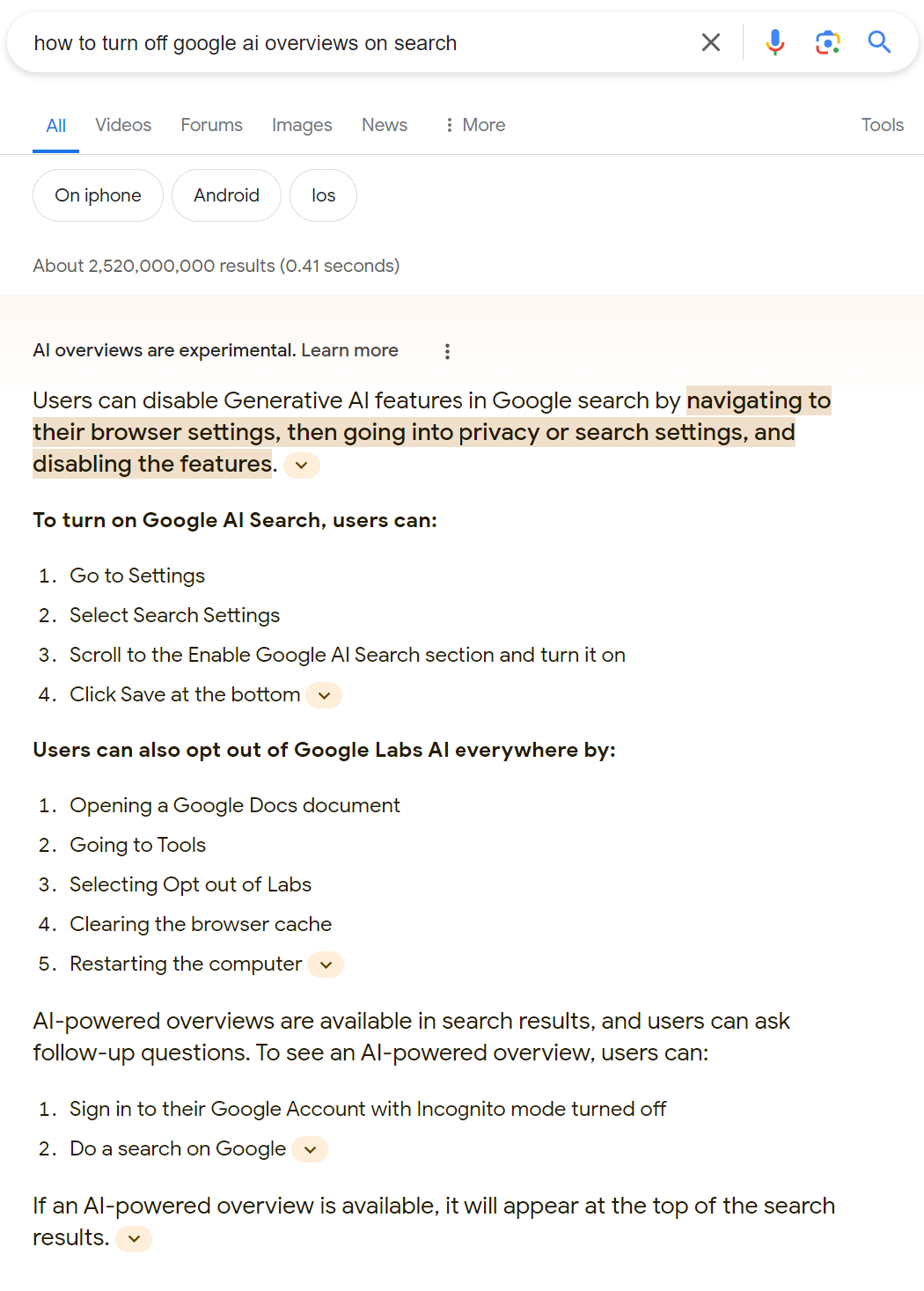
Credit: support.google.com
Set Up Custom Search Engine
Setting up a custom search engine helps control your Google search experience. You can limit AI-generated content by customizing what the search engine shows. This method works well for those who want to avoid AI results without leaving Google entirely.
A custom search engine lets you tailor search results to your preferences. You can exclude AI summaries and focus on classic web links. Setting this up is simple and requires only a few steps.
Access Google Custom Search Engine
Start by visiting the Google Custom Search Engine page. Sign in with your Google account to create a new search engine. This platform allows you to define which sites or content to include in your search results.
Create A New Search Engine
Click the “Add” button to start a new search engine. Enter sites you want to search or leave it blank for the whole web. Name your search engine something easy to remember. This name will help you find it later.
Customize Search Settings
Adjust search settings to exclude AI-generated results. Choose to search only specific websites or categories. You can also control how results appear on your screen. These options help keep your search clean and AI-free.
Get The Search Engine Link
After setup, Google provides a link to your custom search engine. Use this link to search without AI summaries. You can bookmark it or set it as your browser’s homepage. This makes accessing AI-free search quick and easy.
Use Custom Search In Your Browser
Set your browser to use the custom search engine by default. In browser settings, add the new search engine URL. Choose it as the main search option. This step ensures every search goes through your custom engine.
Manage Ai Settings On Android
Managing AI settings on Android helps control Google AI features on your device. You can customize how AI interacts with your apps and searches. This allows a more tailored experience without unwanted AI suggestions or summaries.
Disabling or adjusting AI settings is simple and does not require advanced skills. Follow the steps below to manage AI features easily on your Android phone or tablet.
Access Google App Settings
Open the Google app on your Android device. Tap your profile picture in the top right corner. Select “Settings” from the menu that appears. This opens various options related to Google services and AI features.
Disable Ai Features In Labs
In the Google app settings, find the “Labs” section. Tap it to view experimental AI options. You will see toggles like “AI Overviews” or “AI in Search.” Turn these off to stop AI summaries and suggestions in your search results.
Adjust Ai Settings Via Google Account
Go to your Google Account settings from the Google app. Look for “Data & personalization.” Scroll to “Web & App Activity” and turn off AI-related activity tracking. This limits AI learning from your searches and usage.
Use Search Filters To Avoid Ai Results
Perform a Google search on your Android device. At the top of the results page, tap the “Web” tab instead of “All” or “AI.” This hides AI-generated summaries and shows traditional search links only.

Credit: xfanatical.com
Switch Browsers Or Search Engines
Switching browsers or search engines offers a simple way to avoid Google AI features. This method lets you browse without AI-generated content or suggestions. It also gives control over your search experience and privacy.
Many browsers and search engines do not use AI in the same way Google does. Choosing a different tool can reduce AI influence on your results. This approach works well for users who want a straightforward solution.
Switch To A Privacy-focused Browser
Browsers like Firefox, Brave, and DuckDuckGo focus on privacy and minimal AI features. They block trackers and reduce personalized AI content. Using these browsers helps avoid Google’s AI-powered suggestions.
Try Alternative Search Engines
Search engines such as Bing, DuckDuckGo, and Startpage offer AI-free or limited AI results. DuckDuckGo does not track users or use AI to shape results. These engines provide a simple, clean search experience without AI overviews.
Use Browser Extensions To Control Ai Content
Extensions can block AI summaries and features on search pages. Look for add-ons like “Hide Google AI Overviews” in the Chrome Web Store or Firefox Add-ons. These tools remove AI-generated content automatically.
Frequently Asked Questions
How Do I Turn Off Ai On Google?
To turn off AI on Google Search, click the “Web” tab after searching to hide AI summaries. Use browser extensions like “Hide Google AI Overviews” to block AI content. In Google apps, disable AI features under “Labs” or settings. No universal off switch exists.
Can I Opt Out Of Using Ai On Google?
You can’t fully opt out of AI on Google. Use the “Web” tab, disable AI in app settings, or install extensions to limit AI features.
How Do I Turn Off Meta Ai?
To turn off Meta AI, go to your account settings and disable AI features or integrations. Some apps may require manual toggling off within their settings.
Why Does Google Assistant Keep Turning On?
Google Assistant keeps turning on due to accidental activation by voice or button presses. Disable “Hey Google” detection or adjust sensitivity in settings.
How Do I Disable Google Ai On Desktop Search?
Click the “Web” tab after searching to hide AI-generated summaries on desktop Google search.
Can I Turn Off Ai Features In The Google App?
Yes, open Google app Labs and toggle off “AI Overviews” or “AI in Search” features.
Is There A Way To Hide Ai Overviews Using A Browser?
Install browser extensions like “Hide Google AI Overviews” to remove AI summaries automatically.
How To Switch Off Ai In Gmail Smart Features?
Go to Gmail settings, find General tab, and disable “Smart features and personalization. “
Can I Opt Out Of Google Ai Completely?
You cannot fully opt out, but you can limit AI using filters and settings.
How To Use Filters To Reduce Ai On Google Search?
Select the “Web” filter near the top of search results to see only regular links.
Conclusion
Disabling Google AI features takes a few simple steps. Use the “Web” tab to see regular search results without AI summaries. Browser extensions can help block AI-generated content automatically. Adjust settings in the Google app or Search Labs to turn off AI modes.
Remember, no single switch fully removes AI from all Google services. These tips let you control your experience and reduce AI’s presence. Try them out and enjoy a cleaner, more familiar search environment.





