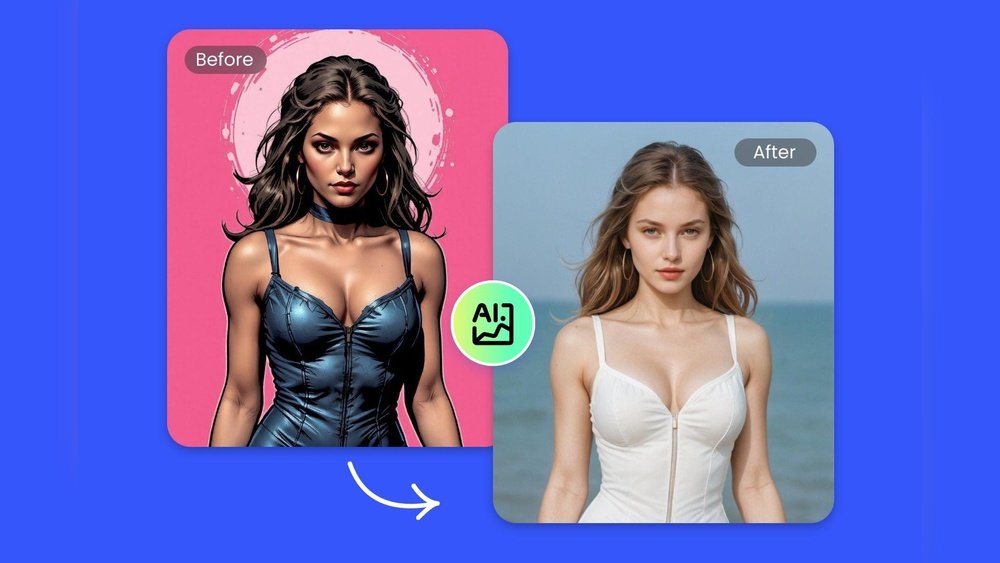
Want to turn your favorite cartoon images into stunning, realistic photos? You’re in the right place.
With Fotor’s AI-powered tools, you don’t need any special skills or complicated software. Just upload your cartoon image, and watch as it transforms into a lifelike picture with incredible detail. This simple process can bring your creative ideas to life, impress your friends, or enhance your projects effortlessly.
Keep reading, and you’ll learn exactly how to create cartoon to realistic AI images using Fotor, step by step. Your next amazing transformation is just a few clicks away!
Fotor Ai Cartoon To Realistic Tool
The Fotor AI Cartoon to Realistic Tool transforms cartoon images into lifelike photos. It uses advanced AI technology to add realistic details. The process is quick and easy for everyone. Upload any cartoon picture, and the tool creates a real-like version instantly.
This tool suits artists, designers, and casual users. It helps visualize how cartoons would look in real life. The results have clear textures, natural colors, and smooth shading. Users can save or share the realistic images directly from Fotor.
How To Upload Your Cartoon Image
Start by visiting the Fotor website. Find the AI Cartoon to Realistic Tool on the homepage. Click the upload button and select your cartoon image from your device. The tool accepts common file types like JPG and PNG.
Selecting The Realistic Style
After uploading, choose the realistic style preset. Fotor offers multiple options for different realism levels. Pick one that matches your preference. The AI will apply the style and adjust details automatically.
Generating The Realistic Image
Click the generate button to start the transformation. The AI processes the cartoon image within seconds. Watch the cartoon turn into a detailed, realistic photo. The tool preserves the original pose and expression.
Downloading And Sharing Your Image
Once the image is ready, preview it on screen. If satisfied, click the download button to save the image. Fotor supports high-resolution downloads for quality prints. Share your new realistic photo on social media or with friends.
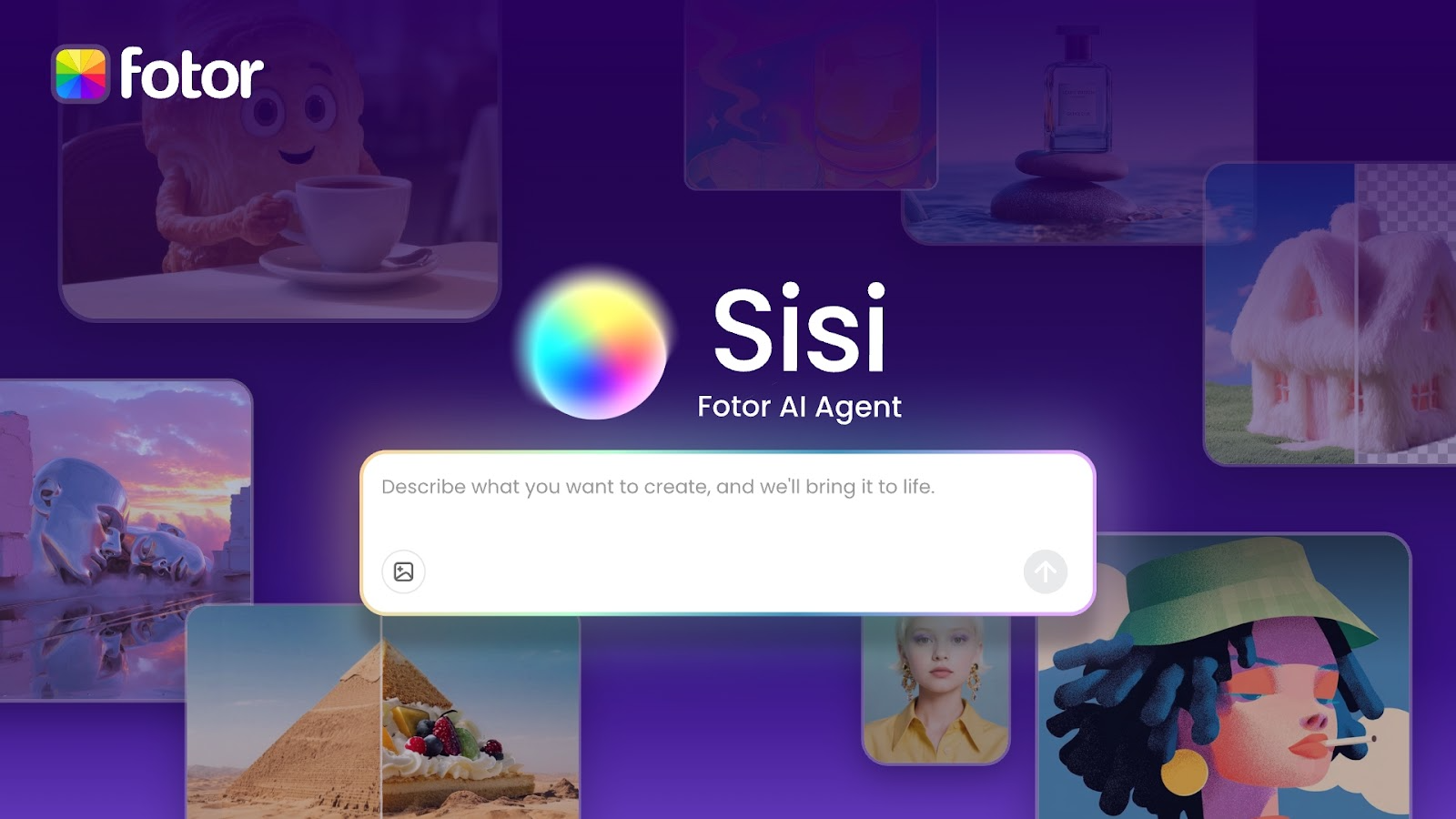
Credit: www.techloy.com
Setting Up Your Fotor Account
Starting your journey with Fotor is simple and quick. Creating an account gives you access to all the AI tools, including the cartoon to realistic converter.
With an account, your projects save automatically. You can return anytime to edit or create new images. It also helps keep your work organized and easy to manage.
Visit The Fotor Website
Open your web browser and go to www.fotor.com. The homepage shows all the available features clearly. Look for the sign-up or register button at the top right corner.
Create Your Account
Click the sign-up button to start. You can register using your email address or connect through social accounts like Google or Facebook. Choose the method that suits you best.
Enter your details carefully. Use a valid email and create a strong password. This keeps your account safe and secure.
Verify Your Email
After registration, check your email inbox. Fotor sends a confirmation message to verify your address. Click the link in the email to activate your account fully.
Log In And Explore
Return to the Fotor homepage and log in with your new credentials. Explore the dashboard and find the AI tools section. You are now ready to create cartoon to realistic AI images.
Uploading Cartoon Images
Uploading cartoon images is the first step in creating realistic AI portraits with Fotor. The process is simple and fast. It sets the foundation for transforming your cartoon into a lifelike image.
Start by preparing your cartoon image. Use a clear and high-quality file. This helps the AI capture details better and produce a sharper result.
Supported Image Formats
Fotor accepts common image formats such as JPEG, PNG, and BMP. Ensure your cartoon image is saved in one of these formats. Avoid using low-resolution or heavily compressed files.
How To Upload Your Cartoon Image
Visit the Fotor AI tool page. Click the “Upload” button. Locate your cartoon image on your device and select it. The upload usually takes a few seconds depending on your internet speed.
Tips For Choosing The Best Cartoon Image
Pick an image with clear lines and distinct colors. Avoid overly complex or blurry cartoons. Simple designs help the AI understand the shapes and features better.
What To Expect After Uploading
Once uploaded, Fotor’s AI scans the cartoon image. It analyzes facial features and style. The tool then prepares the image for the realistic transformation phase.

Credit: standrewssidney.bc.anglican.ca
Choosing Realistic Ai Styles
Choosing realistic AI styles is key to turning cartoons into lifelike images. The right style adds depth and natural details. It creates a believable and visually pleasing result.
Fotor offers various AI styles that mimic real-world features. Selecting a style depends on your image’s tone and the final look you want. Each style highlights different textures, colors, and facial features.
Understanding Different Ai Style Options
Fotor provides styles that range from soft and smooth to highly detailed. Soft styles focus on gentle shading and subtle colors. Detailed styles emphasize sharp lines and realistic skin textures. Choose a style that fits your cartoon’s complexity and your desired realism.
Matching Style To Image Content
Consider the original cartoon’s colors and shapes. Bright cartoons may suit vibrant, clear styles. Darker cartoons look better with muted, natural tones. Matching style to content helps keep the character’s personality while making it real.
Testing Styles Before Finalizing
Try multiple AI styles before choosing the final one. Fotor allows quick previews to compare effects. Testing helps find the best balance between cartoon charm and realistic detail. It ensures your image looks natural and appealing.
Adjusting Ai Parameters
Adjusting AI parameters is a key step in creating a realistic look from a cartoon image with Fotor. These settings control how the AI interprets and transforms your original cartoon. Small changes to parameters can greatly improve the final image’s detail and clarity.
Fotor offers several adjustable options that let you fine-tune the transformation. Understanding each parameter helps you get the best result for your specific image. This section explains the main controls and how to use them effectively.
Brightness And Contrast Settings
Brightness adjusts the light level of your image. Increasing brightness makes the image look lighter and more natural. Contrast controls the difference between dark and light areas. Higher contrast adds depth but too much can create harsh edges. Balance these two to keep the image clear and realistic.
Smoothness And Detail
Smoothness reduces rough edges and noise. It helps the image look softer and more polished. Detail sharpens textures and fine lines. Increasing detail brings out facial features and clothing textures. Adjust smoothness and detail together for a natural finish without losing important parts.
Color Saturation
Saturation changes the intensity of colors. Lower saturation creates a muted, subtle look. Higher saturation makes colors pop and appear vivid. For realistic images, keep saturation moderate. Too much color can make the image look artificial.
Face And Skin Tone Adjustments
Fotor’s AI can refine facial features and skin tone. Use these settings to correct uneven color or enhance facial details. Adjust skin tone to match natural human shades. These tweaks improve realism and make the face look lifelike.
Preview And Fine-tuning
Always preview your changes before finalizing. Use the preview window to compare different settings. Make small adjustments and check how each affects the image. Fine-tuning helps avoid over-editing and keeps the final image balanced.
Previewing Realistic Transformations
Previewing realistic transformations is a key step in turning cartoons into lifelike images using Fotor. It lets you see how well the AI changes your cartoon into a realistic style. This process helps you check the details before saving the final image.
Fotor provides instant previews, so you can compare the cartoon and realistic versions side by side. This feature makes it simple to decide if you want to adjust settings or try a different style. It saves time and ensures satisfaction with your result.
How To Access The Preview Feature In Fotor
After uploading your cartoon image, look for the preview option on the editing page. Click it to view the AI’s realistic transformation. The preview updates quickly, showing changes in real time. This lets you watch the transformation step by step.
Evaluating Details In The Realistic Preview
Focus on facial features, skin texture, and colors. The AI tries to add natural shadows and highlights. Check if the eyes, nose, and mouth look real. Notice any odd or unnatural parts. If something looks off, tweak the settings for better results.
Adjusting Settings Based On Preview Feedback
Use sliders or filters to improve realism. Brightness, contrast, and smoothness can make a big difference. Preview changes after each adjustment. Keep editing until the image looks natural and true to life. The preview helps you avoid final mistakes.
Editing And Fine-tuning Results
Editing and fine-tuning results is a crucial step in creating realistic images from cartoons using Fotor. This process helps improve details and ensures the final image looks natural. Small adjustments can make a big difference in quality.
Fotor provides easy-to-use tools that let you refine your AI-generated images quickly. You can adjust colors, sharpness, and textures to enhance realism. Careful editing makes the transformation more believable and visually pleasing.
Adjusting Color Balance And Tone
Start by correcting the color balance to match natural skin tones and backgrounds. Use Fotor’s sliders to warm or cool the image colors. Adjust brightness and contrast to add depth and life to the picture. These changes help remove any artificial look from the cartoon base.
Enhancing Details And Texture
Zoom in and check for blurred or flat areas. Use sharpening tools to bring out facial features and hair strands. Adding subtle texture improves the skin’s appearance and overall image clarity. This step creates a more lifelike and detailed portrait.
Using Smoothing And Noise Reduction
Apply smoothing effects carefully to soften harsh lines that remain from the cartoon style. Noise reduction helps clear up grainy parts without losing important details. Balancing these effects keeps the image clean but still natural looking.
Final Touches With Cropping And Framing
Crop the image to focus on the subject and remove distracting background parts. Use Fotor’s framing options to add a professional finish. Proper framing highlights the subject and improves the visual impact of the final photo.
Downloading And Sharing Images
After transforming your cartoon image into a realistic photo using Fotor, saving and sharing your creation is simple. Downloading your image allows you to keep a high-quality copy on your device. Sharing options help you showcase your artwork on social media or send it to friends easily.
How To Download Images From Fotor
Once the AI finishes creating your realistic image, look for the download button. It is usually below or near the image preview. Click it to save the picture to your computer or mobile device. The image downloads in a common format like JPG or PNG, which works on most platforms.
Make sure to choose the right folder on your device to find the image quickly later. If needed, rename the file with a clear, simple name. This step helps you stay organized and locate your images without trouble.
Sharing Your Realistic Images On Social Media
Fotor often includes quick sharing buttons for popular social media sites. Click the icon for Facebook, Instagram, Twitter, or others to post your image directly. You can add a caption or message before sharing. This method saves time and keeps your followers updated.
If you prefer, download the image first and then upload it manually on your social accounts. This way, you control exactly how and where to share your art. Always check the image quality before posting to make sure it looks its best.
Sending Images Via Email Or Messaging Apps
To share your realistic cartoon images privately, use email or chat apps. Attach the downloaded file to an email or message. This method is great for sending images to friends or clients. It keeps your creations safe and easy to access for others.
Choose a clear subject line or message so recipients understand what you sent. Keeping your files small helps them download faster and avoids email issues. Compress images if needed before sending.
Tips For Best Cartoon To Realistic Results
Achieving the best cartoon to realistic results with Fotor requires careful attention. Small details can make a big difference in the final image. Follow these tips to enhance your transformation process. These simple steps improve the quality and realism of your images.
Understanding how to prepare your cartoon image and use Fotor’s tools effectively will lead to better results. Keep your images clear and focused. Avoid clutter or too many elements in one picture.
Choose High-quality Cartoon Images
Start with sharp, clear cartoon images. Blurry or pixelated pictures reduce the AI’s ability to add realistic details. Use images with good lighting and contrast. The cleaner the original, the better the final result.
Adjust Image Size And Resolution
Upload images with at least 1080 pixels in width or height. Larger images give the AI more data to work with. Avoid very small images as they can cause poor detail in the realistic version. Resize images before uploading if needed.
Use Fotor’s Editing Tools Before Conversion
Enhance your cartoon image using Fotor’s brightness, contrast, and sharpness tools. These adjustments help the AI detect edges and colors better. Clear outlines and balanced tones improve the AI’s output. Simple edits can boost realism.
Focus On Facial Features
Faces need special care for realism. Make sure eyes, nose, and mouth are visible and well-defined. If the cartoon is too abstract, the AI may struggle to create a realistic face. Use images with clear facial expressions for best results.
Experiment With Different Styles
Try various realistic styles Fotor offers. Each style changes how details and textures appear. Test multiple options to find the one that fits your image best. Sometimes, a subtle style works better than a highly detailed one.
Use The Preview Feature To Compare
Always check the preview before finalizing. This step helps spot issues early. If something looks off, go back and adjust the original image or style. Preview saves time and improves the overall quality of your final picture.
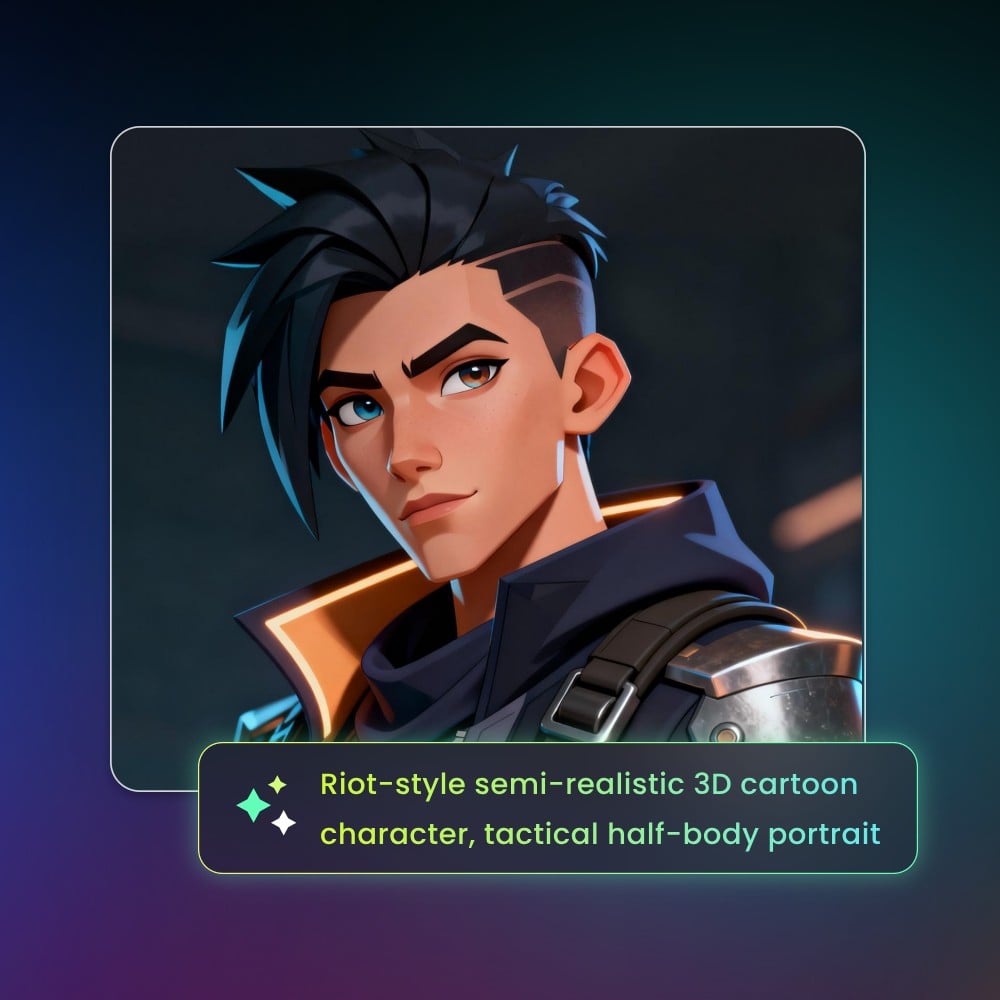
Credit: www.fotor.com
Comparing Fotor With Other Ai Tools
Comparing Fotor with other AI tools reveals key differences in ease, quality, and features. Many tools offer cartoon to realistic AI conversion. Yet, Fotor stands out with its balance of simplicity and output quality.
Exploring various AI tools helps find the best fit for your needs. Some prioritize advanced controls but require more skill. Others focus on speed but may reduce image detail. Fotor blends user-friendliness with impressive results.
Ease Of Use
Fotor features a clear, simple interface for quick conversions. Upload your cartoon image and let the AI process it fast. Other tools often have complex menus or require multiple steps. Beginners will find Fotor easier and less confusing.
Image Quality
Fotor produces realistic images with sharp details and natural tones. It preserves facial features better than many competitors. Some AI tools create overly smooth or artificial results. Fotor balances realism with artistic style effectively.
Speed And Performance
Fotor processes images quickly, usually within seconds. This speed suits users needing fast results. Some AI tools take longer due to heavy processing or server load. Fotor’s optimized system ensures smooth performance.
Customization Options
Fotor offers basic style choices with some adjustment sliders. Users can tweak brightness, contrast, and detail levels. Other AI tools may provide more filters but can overwhelm users. Fotor keeps customization simple and effective.
Cost And Accessibility
Fotor provides free access with essential features and paid plans for advanced tools. Many AI tools follow similar models but limit free usage more strictly. Fotor’s accessible pricing makes it a practical choice for many users.
Frequently Asked Questions
Can Ai Make A Cartoon Look Real?
Yes, AI can make cartoons look real by transforming animated characters into detailed, lifelike images quickly and easily.
How To Turn A Picture Into An Ai Cartoon?
Upload your photo to an AI cartoonizer tool like Neural Frames, Canva, or Picsart. Select a cartoon style, generate the image, and download it. The process is quick, easy, and requires no design skills.
How To Make An Ai Image Realistic?
To make an AI image realistic, use high-quality input, adjust lighting and textures, and enhance details carefully. Choose advanced AI tools with fine-tuning options. Ensure natural colors and shadows for authenticity. Regularly refine the image to avoid artificial or exaggerated effects.
How To Convert A Cartoon Image To A Real Image?
Use AI tools like Fotor’s cartoon-to-realistic converter. Upload your cartoon image, apply the real-life filter, and download the realistic photo instantly.
What Is Fotor’s Cartoon To Realistic Ai Feature?
It turns cartoon images into realistic photos using AI technology quickly and easily.
How Do I Upload A Cartoon Image To Fotor?
Click the upload button and select your cartoon image from your device.
Can I Use Fotor For Free To Create Realistic Images?
Yes, Fotor offers free access with basic features for cartoon to realistic conversions.
What File Types Does Fotor Support For Cartoon Images?
Fotor supports common image files like JPG, PNG, and BMP for uploads.
How Long Does Fotor Take To Convert Cartoons To Realistic Photos?
The AI usually processes and converts images within a few seconds.
Can I Customize The Realism Level In Fotor’s Ai Tool?
Fotor provides some style options but mainly focuses on automatic realistic conversion.
Conclusion
Creating a realistic image from a cartoon with Fotor is simple and fast. Just upload your cartoon and let the AI do the rest. The tool adds natural details that make your picture look real. No special skills or software needed.
This method helps you make unique images for social media or personal use. Try it often to see how your cartoons can come alive. Fotor’s AI brings creativity to life with just a few clicks. Give it a shot and enjoy the fun transformation.





