Want to create a website that looks professional without spending hours learning complicated tools? You’re in the right place.
With Canva, building your own website is easier than you think. Whether you want a simple portfolio, a business landing page, or a personal site, Canva’s drag-and-drop interface and ready-made templates help you design a stunning website quickly. In this guide, you’ll discover step-by-step how to turn your ideas into a beautiful, fully functional website—no coding skills required.
Ready to make your online presence shine? Let’s get started!
Start With Canva
Starting your website with Canva is simple and user-friendly. Canva offers easy tools to create a website even without coding skills. The platform provides ready-made templates designed for different website styles. You can customize every part to fit your needs and brand.
Using Canva saves time and effort. You focus on design and content while Canva handles the technical details. It is a good choice for small businesses, portfolios, or personal projects.
Creating A Free Canva Account
First, sign up for a free Canva account. Use your email or social media to register. The free plan has many features suitable for website creation. You can upgrade later if needed.
Selecting A Website Template
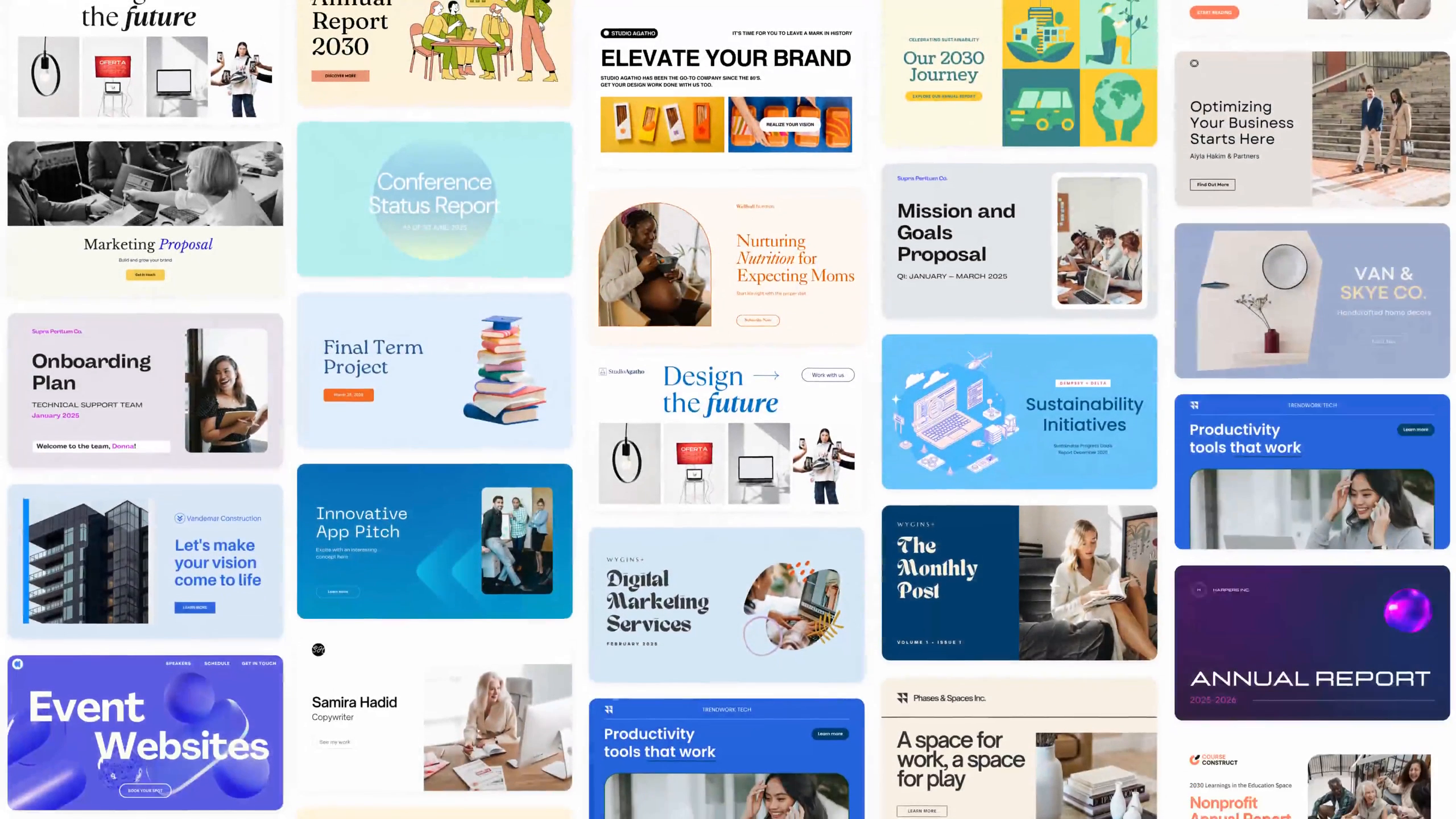
After logging in, search for “Website” in the Canva templates. Browse through many professional designs. Pick one that matches your style and purpose. Templates help you start with a solid layout.
Customizing Your Website Design
Change text, images, colors, and fonts easily. Drag and drop elements to rearrange your pages. Add your logos and photos for a personal touch. Canva’s editor is intuitive and responsive.
Adding Interactive Elements
Enhance your site with buttons, links, and videos. These features make your website more engaging. You can link to other pages or external sites. Keep navigation simple for visitors.
Previewing Your Website
Use the preview tool to see how your site looks on desktop and mobile. This ensures your design works well on all devices. Make adjustments as needed before publishing.
Select A Website Template
Selecting the right website template is a key step in creating your site with Canva. Templates provide a ready-made structure that saves time and effort. They help you start with a professional design that fits your purpose.
Canva offers many templates for different types of websites. Choosing a template that matches your content makes customization easier. It also ensures your website looks attractive and organized.
Select A Template That Matches Your Website Purpose
Canva has templates for portfolios, business sites, blogs, and more. Pick a design that fits the message you want to share. This keeps your website focused and clear to visitors.
Consider The Layout And Style Of The Template
Look at how the template arranges text and images. A clean layout helps users find information fast. Choose a style that matches your brand colors and tone.
Check Template Responsiveness For Mobile Devices
Your website must look good on phones and tablets. Canva templates are built to adjust to different screen sizes. Test the template on various devices before finalizing.
Choose A Template Easy To Customize
Pick a template that you can edit without hassle. Canva’s drag-and-drop editor allows simple changes. Make sure you can add your own images, text, and links easily.
Design From Scratch
Designing a website from scratch in Canva gives full creative control. It lets you build a unique site that fits your style and needs. You start with a blank canvas and add elements step by step. This method is perfect for custom websites without limits.
Canva’s easy tools help create a clean, professional look. The drag-and-drop feature saves time and effort. Even beginners can design pages that look great on all devices. Let’s explore how to design your website from scratch in Canva.
Create A New Blank Project
Open Canva and select “Custom Size” to start fresh. Set the dimensions for your website pages. Common sizes include 1920 x 1080 pixels for desktop view. Starting with a blank page lets you place elements anywhere.
Add And Arrange Elements
Use Canva’s menu to add text, images, and shapes. Drag each item to the desired position. Adjust sizes and colors to match your brand. Group related elements to keep your design organized.
Use Grids And Frames
Grids help align your content evenly. Frames let you crop images neatly inside shapes. These tools keep your layout clean and balanced. They also make the design process faster and easier.
Choose Fonts And Colors
Pick simple fonts for easy reading. Use two or three colors that suit your brand style. Consistent colors and fonts make your site look professional. Canva offers preset color palettes to simplify choices.
Preview And Adjust Your Design
Regularly preview your website design on different devices. Check for readability and element spacing. Make adjustments to improve user experience. This step ensures your site looks great everywhere.
Customize Text And Fonts
Customizing text and fonts is a key step in creating a website with Canva. Text style shapes how visitors feel about your site. Clear, readable fonts improve user experience and keep people engaged.
Canva offers many options to change font types, sizes, colors, and effects. These tools help make your website unique and match your brand’s voice. Adjusting text also helps highlight important messages and calls to action.
Choosing The Right Font
Start by selecting a font that fits your website’s theme. Canva has a large library of fonts, from classic to modern styles. Pick fonts that are easy to read on all devices. Avoid using too many different fonts to keep your design clean.
Adjusting Font Size And Color
Change the font size to make headings stand out. Use larger sizes for titles and smaller sizes for body text. Select colors that contrast well with your background. This makes your text clear and easy to read. Stick to a color palette that matches your branding.
Applying Text Effects
Canva lets you add effects like shadows, outlines, and highlights. These effects draw attention to key text. Use them sparingly to avoid clutter. Effects can also improve text visibility on busy backgrounds.
Formatting Text For Better Readability
Break text into short paragraphs or bullet points. Use bold or italics to emphasize important words. Align text properly to create a neat layout. Good formatting helps visitors scan your content quickly.
Add Images And Videos
Adding images and videos to your Canva website makes it lively and engaging. Visual content helps visitors understand your message quickly. It breaks text and keeps the page interesting. Canva offers many tools to insert and edit media easily. Follow simple steps to enhance your site with pictures and videos.
Add Images From Canva’s Library
Canva has a large collection of free and paid images. Use the search bar to find photos that fit your website’s theme. Click an image to add it to your design. Resize or move it to place perfectly. You can also apply filters or adjust brightness for a unique look.
Upload Your Own Photos
Upload personal photos for a custom touch. Click the Uploads tab and select files from your device. Drag and drop images onto your page. This option keeps your website original and personal. Always choose clear and high-quality photos for best results.
Insert Videos Into Your Design
Videos catch attention and explain ideas faster. Canva allows you to add videos from its library or upload your own. Use the Videos tab to browse clips by category. Click to add a video and adjust its size. Videos can play automatically or on click, depending on your settings.
Edit And Arrange Media Elements
After adding images or videos, arrange them well. Use Canva’s grid and alignment tools for neat layouts. Layer elements by sending them forward or backward. Crop images to focus on key parts. Editing tools help your media look professional and clean.
Credit: www.canva.com
Organize Website Layout
Organizing your website layout is key to a clear, easy-to-navigate site. A well-structured layout helps visitors find information quickly. Canva makes it simple to arrange elements so your website looks neat and professional.
Start by deciding the sections your website needs. Think about the homepage, about page, services, and contact info. Use Canva’s grid and frame tools to align items perfectly. This keeps your design balanced and visually pleasing.
Use Grids And Frames For Structure
Grids divide your page into clean sections. Frames hold images or text neatly in place. Drag and drop these tools from Canva’s side panel. They help keep your layout organized and consistent across pages.
Plan Your Navigation Menu
Place the navigation menu where visitors expect it. Usually, this is at the top or side of the page. Use simple text or buttons for menu items. Clear navigation improves user experience and reduces bounce rates.
Group Related Content Together
Group similar information in one area. For example, put all contact details in a footer or sidebar. This makes the site easier to scan. Canva’s alignment guides help keep groups tidy and aligned.
Keep Plenty Of White Space
White space prevents the page from feeling crowded. It makes text easier to read and images stand out. Use Canva’s spacing tools to adjust margins and padding around elements.
Include Interactive Elements
Including interactive elements on your Canva website makes it lively and user-friendly.
Visitors enjoy engaging with clickable buttons, links, and embedded media.
Interactive features guide users and improve their overall experience on your site.
Use Clickable Buttons For Easy Navigation
Buttons help visitors move between pages smoothly. Canva lets you add links to buttons easily. Choose clear text like “Contact Us” or “Learn More” for better clicks.
Embed Videos To Capture Attention
Videos explain your message faster than text. Canva allows embedding videos from YouTube or other sources. Place videos where visitors can see them without scrolling too much.
Add Links To Images And Text
Link images and text to other pages or websites. This makes your site interactive and useful. Canva’s link feature is simple and quick to use.
Create Interactive Forms And Surveys
Gather feedback or contact details with forms. Canva supports embedding forms created with other tools like Google Forms. Interactive forms encourage visitors to share their thoughts.
Include Social Media Buttons
Social media buttons connect your site to your profiles. Canva offers icons for Facebook, Instagram, and more. These buttons help visitors follow you easily.

Credit: www.kseniiakrasilich.com
Preview Your Website
Previewing your website is a key step in creating it with Canva. It lets you see how your site will look to visitors. This helps spot design or content issues early. You can check if images, text, and links appear correctly on all devices.
Previewing gives a clear view of your website’s flow and layout. This process saves time by avoiding mistakes before publishing. You get a feel for the visitor experience and can make final tweaks.
How To Access The Preview Mode
Open your Canva website design. Look for the “Preview” button at the top right corner. Click it to enter preview mode. This shows your website as a live page.
You can test navigation by clicking buttons and links. Preview mode simulates the visitor’s view. Exit preview to return to editing anytime.
Check Website On Different Devices
Preview your website on desktop, tablet, and mobile views. Canva offers device icons to switch views in preview mode. This ensures your website looks good everywhere.
Adjust text size, image placement, and buttons for each device. Mobile users need easy navigation and readable text. Testing device views avoids layout problems later.
Test All Links And Buttons
Click every link and button in preview mode. Make sure they lead to the right pages or websites. Broken links can frustrate visitors and hurt your site’s ranking.
Check internal links to sections on your page. Confirm external links open in new tabs. Fix any errors before publishing.
Review Content And Design Details
Read all text carefully for spelling and grammar mistakes. Look for consistency in fonts, colors, and spacing. A clean design builds trust and looks professional.
Check images for quality and relevance. Replace any blurry or pixelated pictures. Previewing helps polish your website’s appearance.
Publish And Share
Publishing and sharing your Canva website is the final step to reach your audience. This process makes your site live and accessible on the internet. It allows others to view your work and interact with your content easily.
Canva offers simple tools to publish your website quickly. You can share your site with a link or connect it to a custom domain. This flexibility helps you control how visitors find and use your website.
Publishing Your Website On Canva
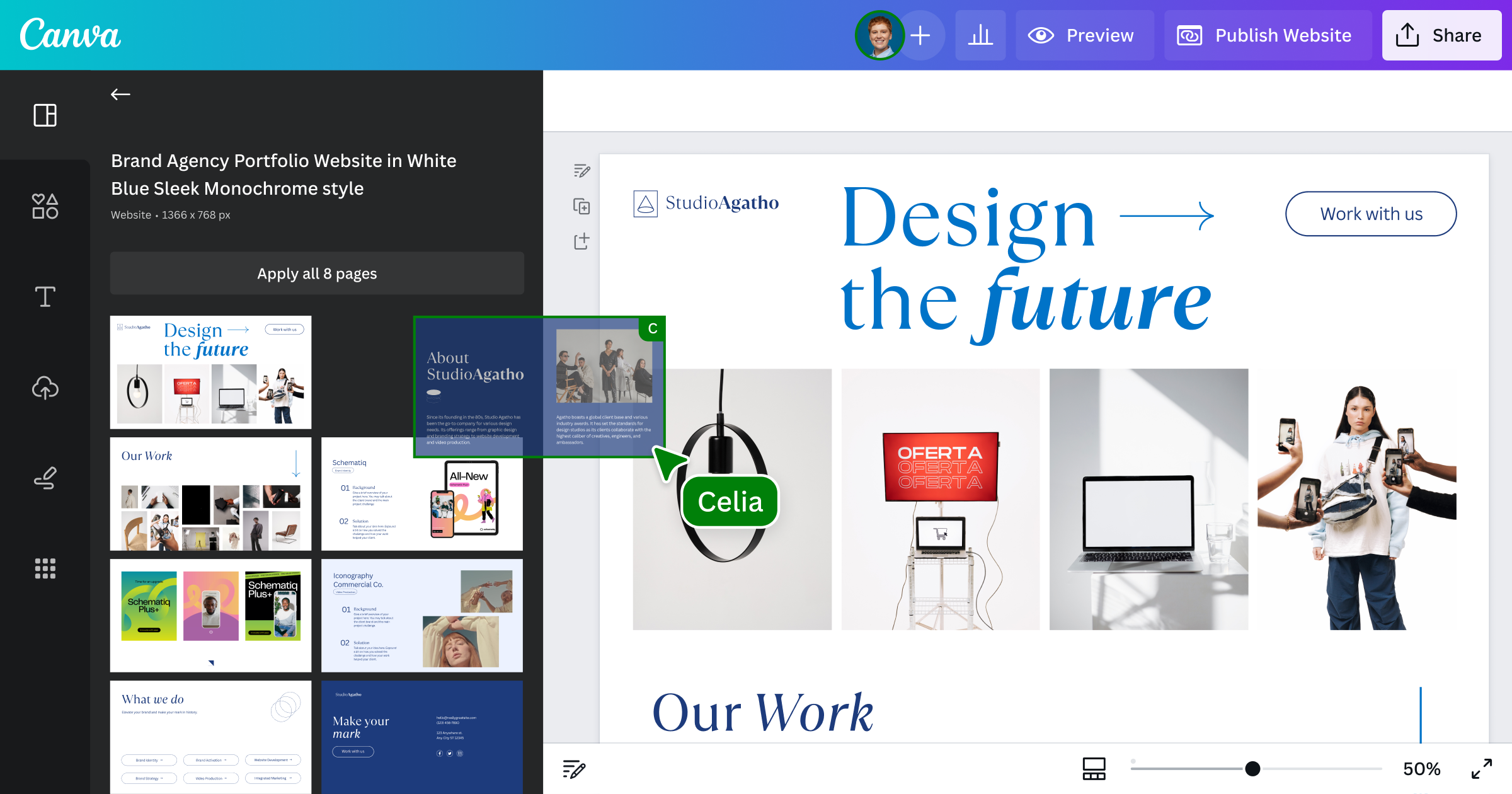
Open your design in Canva. Click the Share button at the top right. Select Publish Website from the menu. Choose a publishing option that fits your needs, such as Standard, Presentation, or Scrolling. Finally, click Publish to make your website live instantly.
Choosing The Right Website Url
Canva provides a free domain with canva.site. You can use this to share your site quickly. To use a custom domain, upgrade to Canva Pro. Connect your own URL for a professional web address. This improves branding and trust with visitors.
Sharing Your Website Link
Once published, copy your website link from Canva. Share it on social media, email, or messaging apps. Embed the link on your blog or other websites. This helps drive traffic to your new Canva website. Keep your link easy to find for your audience.
Maintain And Update
Maintaining and updating your Canva website keeps it fresh and relevant. Regular updates improve user experience and help your site rank better in search engines. A well-maintained site builds trust with visitors and encourages them to return.
Monitor Website Performance
Check your website’s loading speed often. Fast sites keep visitors engaged. Use free tools like Google PageSpeed Insights to spot issues. Fix slow-loading images or unnecessary animations. Keep your site smooth and easy to navigate.
Update Content Regularly
Change text and images to reflect new information. Add recent news, offers, or events. Remove outdated content that no longer applies. Fresh content attracts search engines and visitors alike. Keep your message clear and current.
Check And Fix Broken Links
Broken links frustrate users and harm SEO. Test all links on your site every few weeks. Replace or remove any that do not work. This keeps your website professional and reliable. Use tools like Broken Link Checker for help.
Backup Your Website
Save your Canva design files regularly. Backups protect your work from accidental loss. Store copies on your computer or cloud storage. Frequent backups ensure quick recovery if problems occur. Protect your website content with simple steps.
Credit: www.canva.com
Frequently Asked Questions
Can I Create A Website With Canva?
Yes, you can create a website with Canva using its drag-and-drop editor and customizable templates. It suits portfolios, landing pages, and simple business sites. Publish directly from Canva without coding knowledge.
How Do I Convert A Canva Design To My Website?
Open your Canva design, click Share, then select Publish Website. Copy the provided URL or embed code to add it to your site.
Is Canva Good For A Business Website?
Canva offers easy, professional website design with drag-and-drop tools and templates. It suits portfolios, landing pages, and small business sites well.
What Website Builder Is Best For Beginners?
Wix offers an easy drag-and-drop interface and versatile templates, making it ideal for beginners. Squarespace provides simple design tools and professional results. GoDaddy enables quick setup, while Shopify suits beginners focused on ecommerce. Canva also works well for simple, visually appealing websites.
What Is Canva’s Website Builder Feature?
Canva’s website builder lets you design and publish simple websites easily.
Can I Create A Free Website With Canva?
Yes, Canva allows you to build and publish websites for free.
How Do I Start Making A Website In Canva?
Choose a website template or start a blank design to begin.
Can I Add Videos And Images To Canva Websites?
Yes, you can insert videos, images, charts, and other media.
Is Canva Suitable For Business Websites?
Canva works well for simple business sites like portfolios and event pages.
How Do I Publish My Canva Website Online?
Click “Publish Website” in Canva and select your preferred publishing option.
Conclusion
Creating a website with Canva is simple and fun. The drag-and-drop tools help you build pages quickly. Choose from many ready-made templates to save time. Customize your site with images, text, and videos easily. Your website will look clean and professional without much effort.
Share your design online with just a few clicks. Keep your site updated as your needs change. Canva offers a great way for beginners to create websites. Start your website project today and enjoy the process!