Are you tired of juggling dozens of passwords or worried about the security of your online accounts? A free password manager might be just what you need to take control of your digital life without spending a dime.
But with so many options out there, how do you know which ones are truly safe and reliable? You’ll discover trusted free password managers that protect your data with strong encryption and smart security features. You’ll also learn what to watch out for to avoid common risks, so you can confidently choose the best tool to keep your passwords secure and your mind at ease.
Ready to simplify your online security? Let’s dive in.
Free Password Manager Safety
Free password managers help store and protect your passwords safely. They keep your data locked with strong security methods. Choosing a safe one is important to protect your personal information.
Some free options offer great protection, but not all are equal. Understanding key safety features helps you pick the best tool for your needs.
Strong Encryption Protects Your Data
Encryption changes your passwords into unreadable codes. Good password managers use strong end-to-end encryption. This means only you can read your stored passwords.
Without strong encryption, hackers could steal your data easily. Always check if the manager uses advanced encryption standards.
Zero-knowledge Architecture Keeps You Private
This feature means the service cannot see your passwords. Even if servers are hacked, your data stays safe. Your master password unlocks everything locally on your device.
Zero-knowledge ensures no one else, not even the provider, can access your information.
Open-source Code Allows Security Checks
Some free managers share their code publicly. This lets experts check for security problems. Open-source tools are often safer because many eyes review the code.
Closed-source managers may hide risks. Choosing open-source software adds trust and transparency.
Watch Out For Limited Features
Free versions may miss features like secure sharing or password recovery. They might also limit the number of devices you can use. Consider your needs before deciding.
Missing features do not always mean poor security but can affect convenience and safety.
Master Password Strength Is Crucial
Your master password protects your entire vault. A weak master password makes all your data vulnerable. Use a long, unique password that others cannot guess.
Regularly update your master password to maintain strong security over time.
Top Free Tools To Try
Choosing a reliable free password manager can improve your online security. Many tools offer strong protection without costing a dime. These options help you store and manage passwords safely. Below are some of the top free password managers to try.
Bitwarden
Bitwarden is a popular open-source password manager. It offers unlimited password storage with strong encryption. Its code is open to public review. This transparency boosts trust and security. Bitwarden works on many devices and browsers. It also supports two-factor authentication for extra protection.
Proton Pass
Proton Pass focuses on privacy and security. It provides unlimited passwords in its free plan. The tool uses end-to-end encryption to keep data safe. Proton Pass does not track or sell your data. It is a good choice for users who value privacy.
Lastpass Free
LastPass Free allows password storage on one device type. It offers password generation and autofill features. Strong encryption keeps your passwords safe. The free version lacks some advanced tools but covers basic needs well. It is easy to use and widely trusted.
Dashlane Free
Dashlane Free stores up to 50 passwords. It includes password health reports and autofill. The app uses AES-256 encryption for security. Dashlane also alerts users about password breaches. The free version is great for casual users.
Keepass
KeePass is a free, open-source password manager. It stores passwords locally on your device. This means you control your data fully. KeePass supports plugins and customization. It suits users who prefer offline password management.
Bitwarden Features
Bitwarden offers a wide range of features for free users. It keeps your passwords safe and easy to access. The open-source nature of Bitwarden adds trust and transparency. Users can audit the code anytime. It uses strong encryption to protect your data from hackers.
The interface is simple and works on many devices. You can store unlimited passwords without paying. Bitwarden also helps you generate strong passwords. It fills in passwords automatically on websites. Sharing passwords with trusted people is possible too.
Strong End-to-end Encryption
Bitwarden uses AES-256 bit encryption to protect data. Your passwords stay safe from others, even Bitwarden itself. Encryption happens on your device before data is sent. This method keeps your information private and secure.
Cross-platform Compatibility
Bitwarden works on Windows, macOS, Linux, Android, and iOS. Browser extensions support Chrome, Firefox, Safari, and Edge. You can sync passwords across all devices. Access your vault anytime, anywhere without hassle.
Unlimited Password Storage
The free plan lets you save unlimited passwords. No limits on how many logins you store. Perfect for users with many accounts. It keeps your digital life organized and secure.
Password Generator
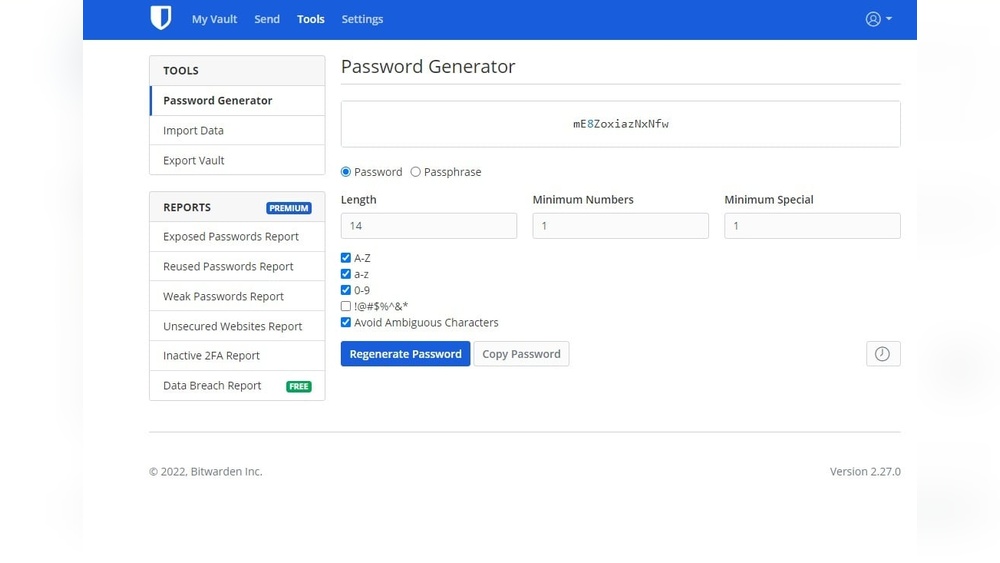
Bitwarden creates strong and unique passwords for you. It helps avoid weak or repeated passwords. You can customize length and character types. This feature improves your online security easily.
Secure Password Sharing
Share passwords safely with family or friends. Bitwarden encrypts shared data to keep it private. You control who can see or edit passwords. This feature works well for group accounts.
Proton Pass Benefits
Proton Pass offers several benefits for users who want a free, secure, and easy-to-use password manager. It focuses on privacy and strong security, making it a solid choice for everyday password protection. The free tier provides unlimited password storage without hidden costs or upsells. This section explains the key advantages of Proton Pass that help users keep their online accounts safe.
Strong End-to-end Encryption
Proton Pass uses strong end-to-end encryption to secure your passwords. This means your data is encrypted on your device and only you can decrypt it. Even Proton’s servers cannot access your passwords. This level of security protects your information from hackers and data breaches.
Zero-knowledge Privacy Architecture
The zero-knowledge design ensures Proton Pass cannot see or store your password data. Your master password and vault remain private. This privacy model builds trust because your sensitive information stays with you only. No third party has access to your stored passwords.
Unlimited Password Storage
The free Proton Pass plan allows unlimited password entries. You can save passwords for all your accounts without limits. This feature makes it useful for people with many online accounts who need a reliable password manager without extra cost.
User-friendly Interface
Proton Pass features a clean and simple interface. Users can easily add, edit, and organize passwords. It works smoothly on different devices like phones and computers. This ease of use helps users manage passwords without confusion or technical skills.
Cross-platform Syncing
Passwords saved in Proton Pass sync automatically across your devices. Whether on a phone, tablet, or computer, your password vault stays updated. This syncing makes it easy to access passwords anytime and anywhere securely.
Security Features To Check
Choosing a free password manager means trusting it to keep your data safe. Not all free options offer the same level of security. Understanding key features helps you pick a reliable tool. These features protect your passwords from hackers and data leaks.
Strong Encryption
Encryption scrambles your passwords so no one can read them without a key. A good password manager uses strong end-to-end encryption. This means your data is encrypted on your device before sending to the server. Look for AES-256 encryption, the current standard for safety.
Zero-knowledge Architecture
Zero-knowledge means the provider cannot see your passwords. Even if the company’s servers are hacked, your data stays safe. This design keeps your master password and vault contents private. Choose managers that clearly state they use zero-knowledge technology.
Open-source Code
Open-source software lets security experts review the code publicly. This openness helps find and fix vulnerabilities quickly. Free password managers with open-source code often build more trust. They allow users to verify security claims independently.
Two-factor Authentication (2fa)
Two-factor authentication adds a second layer of security. Besides your master password, you enter a code from your phone or email. This stops hackers from accessing your vault even if they get your password. Always pick a manager that supports 2FA.
Secure Password Sharing
Some free managers allow sharing passwords safely with trusted people. This feature uses encryption to protect shared data. It helps families or teams manage shared accounts without risking password leaks. Check if secure sharing is included in the free plan.
Regular Security Updates
Security threats evolve constantly. Good password managers update their software regularly. These updates fix bugs and improve defenses against new attacks. Choose providers known for timely updates and strong security practices.
Credit: www.soft-o.com
Risks Of Free Managers
Free password managers offer convenience without cost, but they come with risks. These risks can affect your data safety and privacy. Understanding these dangers helps you make safer choices.
Limited Security Features
Free managers often lack advanced security tools. Features like multi-factor authentication or breach alerts may be missing. This absence can leave your passwords more vulnerable to attacks.
Data Privacy Concerns
Some free services collect user data to profit from ads or sales. Your password information could be exposed or shared without clear consent. This risk raises questions about how much you can trust the service.
Less Frequent Updates
Free password managers may not receive timely security updates. Without regular patches, software can have unaddressed vulnerabilities. Hackers can exploit these weaknesses to access your data.
Limited Customer Support
Free versions usually offer minimal or no customer support. If you face problems, help can be slow or unavailable. This lack of support can leave you stuck during critical security issues.
Potential For Data Loss
Some free managers limit backup options or cloud syncing. Losing your master password could mean losing access to all stored data. Paid versions often provide safer recovery methods.
Master Password Importance
The master password is the key to your entire password vault. It protects all your saved passwords and sensitive data. If someone guesses or steals this password, they can access everything stored in your password manager.
Choosing a strong master password is critical for your security. A weak master password makes your password manager vulnerable to hacking. Make sure it is long, unique, and hard to guess.
Never reuse a master password from another account. Each password should be unique to prevent a single breach from affecting multiple sites. Use a mix of letters, numbers, and symbols for added strength.
Remembering a strong master password might seem hard, but it is essential. Avoid writing it down or storing it in an unsafe place. Practice typing it often to commit it to memory.
What Makes A Strong Master Password?
A strong master password has at least 12 characters. It includes uppercase and lowercase letters, numbers, and special characters. Avoid common words, names, or simple patterns like “1234” or “password.”
Risks Of A Weak Master Password
A weak master password can be cracked by hackers using simple tools. This exposes all your saved passwords and personal information. Cybercriminals can steal your identity or access your financial accounts.
Tips To Create And Remember Your Master Password
Create a sentence or phrase that is easy for you to recall. Use the first letter of each word combined with numbers and symbols. For example, “I love summer 2024!” becomes “IlS2024!”
Store a hint in your memory, not in writing. Practice entering your master password regularly to keep it fresh in your mind.
Google Password Manager
Google Password Manager is a free tool built into Google accounts. It helps store and manage passwords securely across devices. Users can save passwords when logging into websites or apps. The tool syncs passwords to Google Chrome and Android devices automatically.
This password manager offers a simple way to keep passwords safe without extra apps. It uses strong encryption to protect data. Google Password Manager also alerts users about weak or compromised passwords to improve security.
How Google Password Manager Works
Google Password Manager saves passwords when you sign in to sites. It fills in passwords automatically on Chrome and Android. This saves time and prevents typing errors. You can view and edit saved passwords in your Google account settings.
Security Features Of Google Password Manager
Google Password Manager encrypts your passwords with strong methods. Only you can access your saved passwords using your Google account. It detects weak or reused passwords and suggests changes. The tool also warns about passwords found in data breaches.
Using Google Password Manager Across Devices
Passwords saved in Google Password Manager sync across devices. You can access saved passwords on any device logged into your Google account. This works on Android phones, tablets, and Chrome browsers. Syncing keeps passwords up to date everywhere.
Limitations Of Google Password Manager
Google Password Manager lacks some advanced features. It does not support password sharing or secure notes. It also has limited options for managing multiple accounts. Users needing more control might consider dedicated password managers.
Using Google Manager On Devices
Google Password Manager is built into your Google account. It works across many devices without extra setup. This tool stores your passwords safely and fills them in automatically. It helps keep your online accounts secure and easy to access.
You can use Google Password Manager on smartphones, tablets, and computers. It syncs passwords so you have them wherever you sign in. This makes managing multiple passwords simple and convenient. The manager also alerts you about weak or reused passwords.
How To Enable Google Password Manager On Devices
To use Google Password Manager, sign in to your Google account. On your device, open the settings for passwords or autofill. Turn on the option to save and fill passwords. This allows Google to remember your login details securely.
On Android devices, go to Settings > Google > Autofill > Autofill with Google. On iOS, use the Google app or Chrome browser to manage passwords. On desktop, access passwords through your Chrome browser settings.
Syncing Passwords Across Devices
Google Password Manager syncs your passwords using your Google account. Once enabled, passwords saved on one device appear on others. This keeps your login information up to date everywhere. Syncing works automatically as long as you are signed in.
This feature saves time and prevents password loss. It also reduces the need to remember many passwords. Just use your Google login to access all stored passwords safely.
Security Features Of Google Password Manager
Google uses strong encryption to protect your stored passwords. Your data is encrypted both in transit and on Google servers. The manager also checks if your passwords were part of any data breaches.
It warns you to change weak or compromised passwords. Google Password Manager does not share your data with third parties. You control your information through your Google account settings.

Credit: www.pcmag.com
Comparing Free Password Managers
Free password managers help keep your online accounts safe. They store passwords securely and save you time. Choosing the right one can be tricky. Each has unique features and limits.
This section compares popular free password managers. It highlights their strengths and weaknesses. You will learn which tools offer the best security and ease of use.
Security Features
Strong encryption is a must for any password manager. Many free options use end-to-end encryption. This keeps your data safe from hackers. Zero-knowledge architecture means the provider cannot see your passwords. Open-source software lets experts check for security flaws.
Storage Limits
Some free managers limit how many passwords you can store. Others allow unlimited storage without extra cost. Check these limits before choosing. Unlimited storage is better for users with many accounts.
Usability And Platform Support
User-friendly design helps you manage passwords easily. Look for apps that work on your phone and computer. Cross-platform syncing lets you access passwords everywhere. Some free managers support browsers and mobile devices well.
Additional Features
Free versions often miss advanced functions. Features like password sharing or emergency access may be locked. Some offer basic password generation and autofill. Decide which features matter most to your needs.
Privacy Policies
Privacy is key when choosing a password manager. Read policies to see how your data is handled. Providers with strong privacy practices gain more trust. Avoid services that collect or sell your personal information.

Credit: www.theverge.com
Frequently Asked Questions
Can You Trust A Free Password Manager?
Yes, many free password managers are trustworthy if they use strong encryption and zero-knowledge architecture. Choose open-source options like Bitwarden for added security. Avoid weak master passwords and be aware free versions may lack advanced features. Always research the provider’s reputation before trusting your data.
Does Google Have A Free Password Manager?
Yes, Google provides a free password manager built into Chrome and Android. It saves, autofills, generates strong passwords, and offers security checks.
Which Password Managers Have Not Been Hacked?
Bitwarden and Proton Pass have strong security and no known breaches. No password manager is completely hack-proof, so choose trusted providers.
Is Nordpass Really Free?
Yes, NordPass offers a free version with basic features like password storage and autofill. Advanced features require a paid plan.
What Is A Free Password Manager?
A free password manager stores and secures your passwords without cost.
Are Free Password Managers Safe To Use?
Many free password managers use strong encryption but may lack advanced security features.
Which Free Password Managers Have Strong Security?
Bitwarden and Proton Pass offer strong encryption and privacy-focused features for free.
Can I Store Unlimited Passwords For Free?
Some free managers like Bitwarden and Proton Pass allow unlimited password storage.
What Features Do Free Password Managers Usually Miss?
Free versions often miss features like secure sharing and emergency access.
How Does Zero-knowledge Encryption Protect My Data?
It means the provider cannot read your passwords, even if servers are hacked.
Conclusion
Free password managers help keep your accounts safe and organized. Many trusted options provide strong encryption and good security. Remember to choose one with features you need and a solid reputation. Always create a strong master password to protect your data.
Using a password manager makes managing passwords easier and safer. Start securing your online life today with a reliable free password manager.





