
Are you tired of wasting precious time clicking through Canva’s menus? What if you could speed up your design work with just a few simple keystrokes?
Mastering Canva keyboard shortcuts can transform how you create, letting you focus more on your ideas and less on hunting for tools. Whether you’re adding text, adjusting elements, or navigating pages, these shortcuts give you the power to work smarter and faster.
Ready to unlock your design potential? Keep reading to discover the must-know Canva keyboard shortcuts that will change the way you design forever.
Credit: kristinrappaport.com
Essential Editing Keys
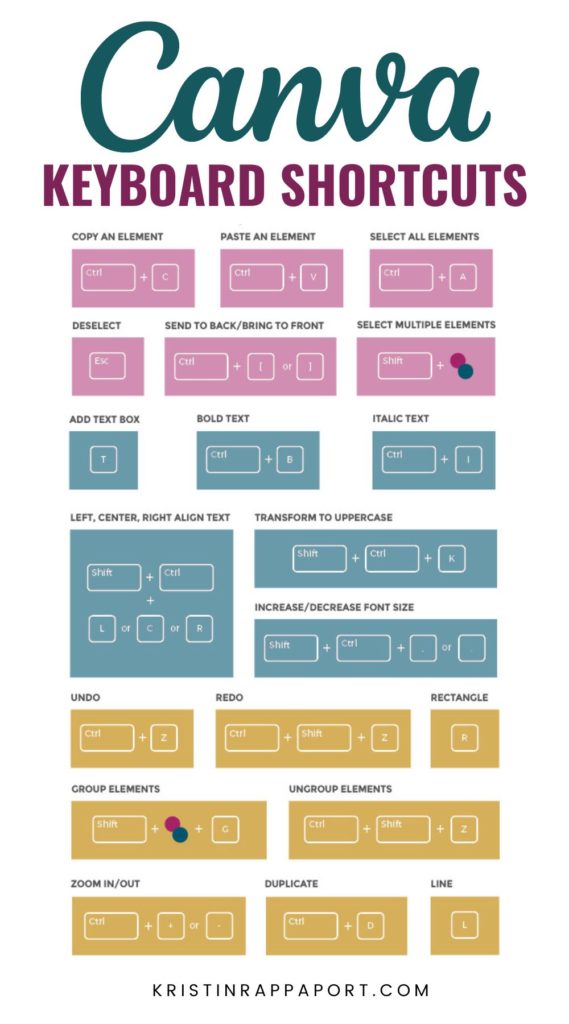
Essential editing keys in Canva save time and simplify your design work. These shortcuts help you edit faster without reaching for the mouse. You can copy, paste, undo, and format text quickly. Using these keys makes your workflow smoother and more efficient.
Copy, Paste, And Undo
Copy selected items with Ctrl + C (Windows) or Cmd + C (Mac). Paste them using Ctrl + V or Cmd + V. Undo your last action by pressing Ctrl + Z or Cmd + Z. These are the most basic and useful shortcuts for editing.
Text Formatting Keys
Make text bold by pressing Ctrl + B or Cmd + B. Italicize text with Ctrl + I or Cmd + I. Underline text by hitting Ctrl + U or Cmd + U. Increase font size using Ctrl + Shift + > or Cmd + Shift + >. These keys help you style text fast.
Quick Element Addition
Add a text box using the T key. Draw a line with L. Insert a rectangle by pressing R. Create a circle using the C key. These shortcuts add design elements without clicking menus.
Credit: www.kindawonderful.com
Text Formatting Shortcuts
Text formatting shortcuts in Canva speed up your design work. They help change text style without using the mouse. These shortcuts save time and keep your focus on creativity.
Simple key combinations let you bold, italicize, or underline text quickly. Adjusting font size and case also becomes easier. Using these shortcuts improves your workflow and design quality.
Bold, Italic, And Underline Text
Press Ctrl + B (Windows) or Cmd + B (Mac) to bold your text. Use Ctrl + I or Cmd + I for italics. To underline, press Ctrl + U or Cmd + U. These shortcuts help highlight important words fast.
Increase And Decrease Font Size
Change font size with ease. Use Ctrl + Shift + > (Windows) or Cmd + Shift + > (Mac) to increase size. Press Ctrl + Shift + < or Cmd + Shift + < to decrease. This adjusts text size without opening menus.
Convert Text Case
Switch text between lowercase and uppercase using Ctrl + Shift + K (Windows) or Cmd + Shift + K (Mac). This shortcut changes text style instantly. It is useful for headings or emphasis.
Add A Text Box Quickly
Press the T key to add a new text box on your design. This shortcut lets you start typing immediately. No need to click toolbar options.
Adding Elements Quickly
Adding elements quickly in Canva saves time and keeps your design flow smooth. Keyboard shortcuts let you insert shapes, text, and lines without reaching for the mouse. This speed boosts your productivity and helps you focus on creativity.
Using shortcuts to add elements means fewer clicks and less distraction. You can build your design step-by-step with simple key presses. It is a quick way to bring your ideas to life.
Add Text Boxes Instantly
Press the T key to add a new text box fast. No need to find the text tool in the menu. Just hit T and start typing. This shortcut is perfect for adding titles, subtitles, or paragraphs in seconds.
Insert Shapes With One Key
Use R for rectangles and C for circles. These shortcuts let you add basic shapes quickly. Shapes help to organize your layout or highlight important areas. You can customize their size and color after adding them.
Draw Lines Effortlessly
Press the L key to insert a line instantly. Lines separate sections or add style to your design. This shortcut helps keep your design neat without hunting through menus.
Managing Pages Efficiently
Managing pages in Canva can be fast and simple using keyboard shortcuts. These shortcuts save time and keep your design flow smooth. You can add, delete, and navigate pages without leaving the keyboard. This efficiency helps you focus more on creativity and less on clicking around.
Add New Pages Quickly
Press Ctrl + Enter (Windows) or Cmd + Return (Mac) to add a new page below the current one. This shortcut avoids using the mouse and speeds up adding multiple pages. Use it to build your design layout fast.
Delete Empty Pages
Remove empty pages with Ctrl + Delete (Windows) or Cmd + Delete (Mac). This shortcut helps keep your project clean and organized. It stops extra blank pages from cluttering your workspace.
Move Between Pages
Use the Page Up and Page Down keys to jump between pages quickly. This way, you can check your design progress without scrolling. It makes reviewing and editing easier in long projects.
Duplicate Pages Fast
Copy a page by selecting it and pressing Ctrl + D (Windows) or Cmd + D (Mac). This shortcut helps reuse layouts or elements across pages. Save time by duplicating instead of recreating designs.
Grouping And Ungrouping Objects
Grouping and ungrouping objects in Canva is essential for managing multiple design elements. Grouping lets you treat several items as one. It helps move, resize, or rotate them together. Ungrouping breaks the group back into separate parts. This makes it easier to edit individual objects inside the group.
Using keyboard shortcuts speeds up this process. It saves time and keeps your workflow smooth. Knowing these shortcuts helps you design faster and with less hassle.
How To Group Objects Quickly
Select the objects you want to group. Hold the Shift key and click on each item. Then press Ctrl + G (Windows) or Cmd + G (Mac). This groups all selected elements instantly. You can now move or resize them as a single unit.
Ungroup Objects With A Shortcut
To ungroup, select the grouped object. Press Ctrl + Shift + G (Windows) or Cmd + Shift + G (Mac). This breaks the group into individual parts. You can edit or move each piece separately after ungrouping.
Benefits Of Grouping And Ungrouping
Grouping keeps your design organized. It prevents accidental movement of individual elements. Ungrouping allows detailed editing when needed. These shortcuts reduce clicks and save your effort. They make Canva easier and faster to use.

Credit: www.socialassumptions.com
Copying And Pasting Styles
Copying and pasting styles in Canva saves time and keeps your design consistent. This feature lets you apply the same colors, fonts, and effects from one element to another quickly. Instead of adjusting each setting manually, use keyboard shortcuts to copy and paste styles in seconds. It helps make your workflow smoother and your designs cleaner.
How To Copy Styles In Canva
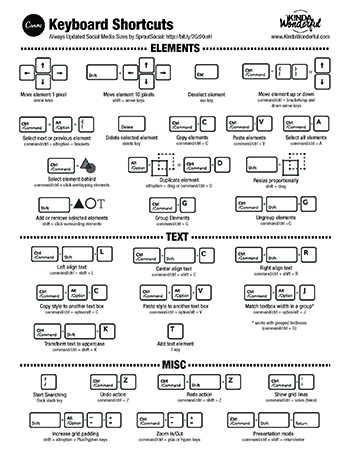
Select the element with the style you want to copy. Press Ctrl + Alt + C on Windows or Cmd + Option + C on Mac. This command copies the style without copying the element itself. Your clipboard now holds the style settings ready to use.
How To Paste Styles In Canva
Click the element where you want to apply the copied style. Press Ctrl + Alt + V on Windows or Cmd + Option + V on Mac. The style from the first element applies instantly. This shortcut works for colors, fonts, sizes, and effects all at once.
Tips For Using Copy And Paste Styles
Use this shortcut to keep your design uniform across pages. It works best when elements share similar shapes or functions. Avoid using it on very different objects to prevent style clashes. Try combining it with grouping elements for faster editing.
Zoom And View Controls
Zoom and view controls help you see your Canva design clearly. They let you focus on details or the whole project quickly. Using keyboard shortcuts saves time and keeps your workflow smooth.
With simple keys, you can zoom in to check small elements or zoom out to view your entire design. You can also fit your design to the screen or switch between different zoom levels fast.
Zoom In
Press Ctrl and + (Windows) or Cmd and + (Mac) to zoom in. This shortcut makes your design bigger. It helps you edit tiny details easily without using the mouse.
Zoom Out
Press Ctrl and – (Windows) or Cmd and – (Mac) to zoom out. This shows more of your design at once. It is useful for checking the overall layout quickly.
Fit To Screen
Use Ctrl + 0 (Windows) or Cmd + 0 (Mac) to fit your design to the screen. This shortcut adjusts the view so the whole design fits perfectly. It helps you see the big picture in one go.
Actual Size (100%)
Press Ctrl + 1 (Windows) or Cmd + 1 (Mac) to view your design at 100% size. This shows your work in real size. It is good for checking exact details and text clarity.
Using Magic Shortcuts
Using magic shortcuts in Canva speeds up your design work. These shortcuts help perform tasks quickly without searching menus. They save time and keep your focus on creativity.
Magic shortcuts work with simple key presses. You can blur slides, add animations, or duplicate elements fast. Learning these saves effort and makes design easier for everyone.
What Are Magic Shortcuts In Canva?
Magic shortcuts are special keys that trigger effects or actions instantly. For example, pressing B blurs your slide. Press B again to remove the blur. These shortcuts add fun and ease to your design process.
How To Use Magic Shortcuts
Press the shortcut key while working on your design. For instance, press Q to bring up a character or animation tool. Use Alt/Option + Drag to quickly copy elements. These shortcuts work without needing extra clicks.
Common Magic Shortcuts To Try
- B: Blur or unblur the current slide.
- Q: Open character or animation options.
- T: Add a new text box.
- L: Draw a line quickly.
- R: Insert a rectangle shape.
- C: Add a circle shape.
Benefits Of Using Magic Shortcuts
Magic shortcuts reduce clicks and make editing smooth. You finish designs faster and with less distraction. They improve your workflow and help keep ideas flowing.
Navigating With Selection Tools
Navigating your design in Canva becomes faster with selection tools. These tools help you pick, move, and adjust elements on your canvas. Using keyboard shortcuts for selection tools saves time and improves workflow. It feels easier to work without clicking around too much. Let’s explore key shortcuts for selecting and managing elements.
Select Single Element
Press the V key to activate the selection tool. This lets you click on any element to select it quickly. No need to search through menus. Once selected, you can move or resize the element using your mouse or arrow keys.
Select Multiple Elements
Hold Shift and click on different elements to select many at once. This shortcut is useful for grouping or moving several items together. It avoids the hassle of selecting each item individually. Adjust all selected elements at the same time.
Select All Elements
Use Ctrl + A (Windows) or Cmd + A (Mac) to select everything on your page. This shortcut works well when you want to move or delete all design parts quickly. It saves time especially on complex projects with many elements.
Deselect Elements
Press Esc to deselect all elements. This clears your current selection so you can start fresh. It helps prevent accidental changes to objects you no longer want selected. A simple key press keeps your workflow smooth.
Move Selected Elements
Use arrow keys to nudge selected elements in small steps. Hold Shift with arrow keys to move them faster. This method gives precise control over element placement. It is perfect for fine-tuning your design alignment without using the mouse.
Customizing Your Shortcut Workflow
Customizing your shortcut workflow in Canva helps you work faster and smarter. You can adjust shortcuts to fit how you design. This makes your process smoother and saves time. A good shortcut setup reduces clicks and keeps your focus on creativity.
By changing shortcuts, you control your design flow. You avoid repeating long steps. This helps keep your ideas clear and your work quick. Small changes can make a big difference in your daily tasks.
How To Access Shortcut Settings In Canva
Start by opening Canva and going to your account settings. Look for the keyboard shortcuts section. Here, you can see all current shortcuts. This area lets you edit or add new ones. The interface is simple and easy to use.
Choosing Shortcuts That Fit Your Style
Pick shortcuts that feel natural. Use keys you press often and can reach quickly. Avoid complex combinations that slow you down. Test new shortcuts to find what works best. Your goal is to make actions faster and easier.
Tips For Creating Effective Custom Shortcuts
Keep shortcuts short and memorable. Use letters related to the action for easy recall. Avoid conflicts with existing system shortcuts. Save your changes and try them out in real projects. Change them if they do not feel right.
Frequently Asked Questions
What Are The Canva Shortcuts?
Canva shortcuts include Ctrl/Cmd+C to copy, Ctrl/Cmd+V to paste, and Ctrl/Cmd+Z to undo. Use T for text box, Ctrl/Cmd+B to bold, and Ctrl/Cmd+Shift+K to uppercase text. Add shapes with L (line), R (rectangle), and C (circle). Use Ctrl/Cmd+Enter to add a new page.
What Are The 20 Keyboard Shortcuts?
Here are 20 essential keyboard shortcuts: Copy (Ctrl/Cmd+C), Paste (Ctrl/Cmd+V), Undo (Ctrl/Cmd+Z), Redo (Ctrl+Shift+Z), Select All (Ctrl/Cmd+A), Delete, Group (Ctrl/Cmd+G), Ungroup (Ctrl+Shift+G), Deselect (Esc), New Page (Ctrl/Cmd+Enter), Add Text (T), Bold (Ctrl/Cmd+B), Italic (Ctrl/Cmd+I), Underline (Ctrl/Cmd+U), Uppercase (Ctrl+Shift+K), Increase Font (Ctrl+Shift+>), Add Line (L), Add Rectangle (R), Add Circle (C), Quick Copy (Alt/Option+Drag).
How To Use Keyboard In Canva?
Use Canva keyboard shortcuts for faster editing: Ctrl/Cmd + C to copy, Ctrl/Cmd + V to paste, and T to add text box. Press Ctrl/Cmd + B for bold, Ctrl/Cmd + I for italic, and Ctrl/Cmd + U to underline.
Add shapes using L (line), R (rectangle), and C (circle).
How To Do Magic Shortcuts On Canva?
Use keyboard shortcuts in Canva like Ctrl/Cmd + C to copy, Ctrl/Cmd + V to paste, and Ctrl/Cmd + Z to undo. Press B to blur or unblur slides. Add elements quickly: T for text box, L for line, R for rectangle, C for circle.
Group with Ctrl/Cmd + G.
What Are The Most Useful Canva Keyboard Shortcuts?
Copy with Ctrl/Cmd+C, paste with Ctrl/Cmd+V, and undo with Ctrl/Cmd+Z are very handy.
How Do I Add A New Page Using Shortcuts?
Press Ctrl/Cmd + Return key to quickly add a new page in Canva.
Can I Select Multiple Elements With A Shortcut?
Yes, hold Shift and click on elements to select multiple items at once.
Which Shortcut Deletes An Empty Page In Canva?
Use Ctrl/Cmd + Delete key to remove an empty page swiftly.
How Do I Add A Comment Using Keyboard Shortcuts?
Press Ctrl/Cmd + Option/Alt + M to open the comment box instantly.
What Shortcut Creates A New Text Box In Canva?
Simply press the T key to add a new text box anywhere on your design.
Conclusion
Using Canva keyboard shortcuts saves time and boosts your workflow. Shortcuts like Ctrl+C and Ctrl+V make copying and pasting easy. Quick commands help add text boxes or shapes fast. Practice these keys to design more smoothly and efficiently. Small habits create big improvements in your projects.
Keep exploring shortcuts to enhance your Canva experience.





