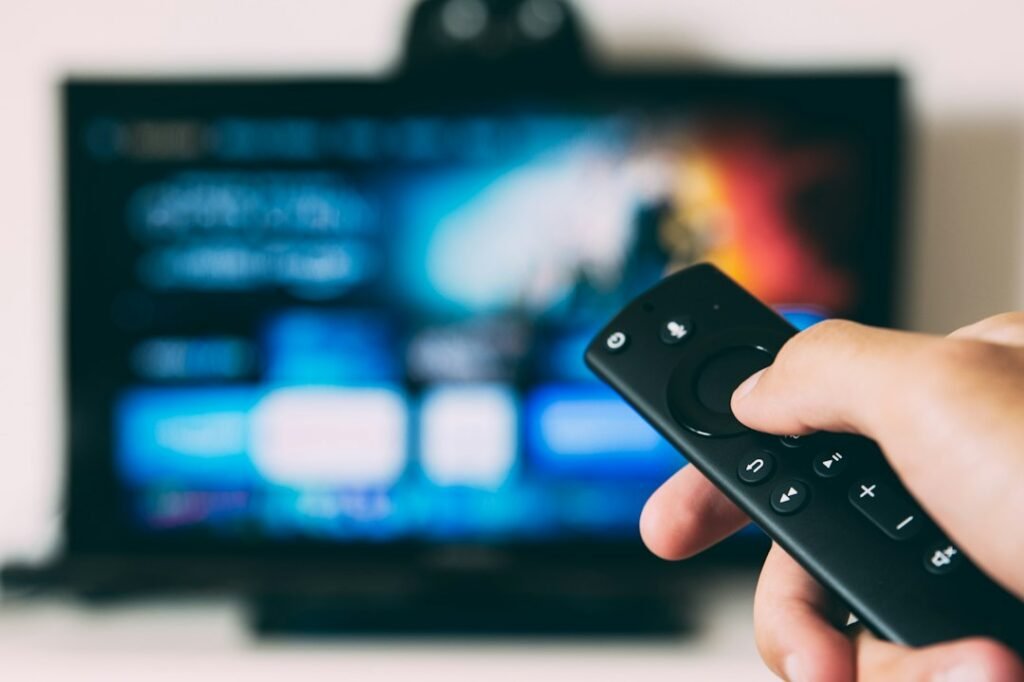
Streaming app subtitles not working? Before resetting your TV, check the video player’s caption track, try another episode, and compare the same program on a second device. This US-focused guide explains how to diagnose missing, delayed, unreadable, or incorrect captions across popular streaming devices and browsers.
Reviewed October 2026. Controls vary by app, device model, and software version.
Why streaming subtitles stop working
Captions can fail for several unrelated reasons. The title may not offer captions in the selected language, the streaming app may have saved a different preference, or the device may be overriding the app. Sometimes the captions are technically enabled but rendered off-screen or in a color that blends into the picture. Begin by identifying the exact symptom: missing text, delayed text, wrong language, captions that cannot be turned off, or text that disappears after an advertisement. Test a second episode and another service. This first comparison is important because a title-specific caption defect should be reported to the provider, while a device-wide problem usually requires checking accessibility or display settings. Do not immediately reset the television or delete your entire profile.
Start with the caption control inside the player
Open the video player controls while a program is playing. Look for an audio and subtitles menu, a speech-bubble symbol, or an accessibility control. Select the desired caption track explicitly, even if a general account preference already says captions should be on. Some services distinguish between subtitles, which translate speech, and closed captions, which can include sound effects and speaker identification. An English audio track may offer English subtitles and English closed captions as separate options. If neither is offered for the selected program, check another title before concluding the app is malfunctioning. Menu locations change across platforms and updates, so rely on the visible labels rather than a screenshot from an older guide.
Check whether the title supports your language
Not every movie or television episode has every caption or subtitle language. Availability can depend on the distributor, region, program version, and device. A title with English captions on one service may lack them on another. If you are watching a live channel, captions may also be handled differently from on-demand programs. Test a recent on-demand episode with known caption options and compare it with the problematic title. If the menu offers only one language, repeatedly restarting your device will not create a missing track. If a particular language should be available according to the provider’s listing but does not appear, capture the title, episode, device, and language selection and contact support. Avoid relying on unofficial subtitle downloads from unknown websites.
Restart the stream before restarting the device
A temporary playback error can prevent a caption track from loading. Pause the video, exit the player, and reopen the same title. If the app allows you to change the subtitle track, turn it off and select it again. Then test a different episode. Only after those quick checks should you fully close and restart the app. A television remote’s power button may put the device into standby instead of fully restarting its software. Use the device’s restart option when available. This sequence preserves your account settings and avoids disruptive steps. If the problem started during an advertisement, see whether the captions return when the program resumes; the advertising segment and the program may have different caption behavior.
Roku caption settings
Roku devices can have system-level accessibility settings that interact with app-specific controls. While a program is playing, check the app’s subtitle menu first. Then review Roku’s accessibility or captions settings if several apps are affected. Roku software versions and remote layouts vary, so the menu path may differ. Some devices offer caption modes such as on, off, or replay-related behavior. Confirm that the selected mode matches your preference. If captions work in one Roku channel but not another, focus on the affected channel rather than changing every device setting. Restart the Roku and update the affected app if needed. Reinstalling should be a later step because it can reset local app preferences without fixing a title whose caption track is missing.
Fire TV caption settings
Fire TV has accessibility options, but individual apps may manage captions inside their own players. Start a video and look for its subtitle or audio menu. Select the intended language, then check Fire TV’s accessibility settings if captions remain absent across multiple services. Make one change at a time so you know which setting matters. Restart the Fire TV device after confirming app and operating-system updates are available. If subtitles appear on one profile but not another, inspect profile-level playback preferences. Do not assume that the same remote shortcut works across every Fire TV application. When a particular show has out-of-sync text, record the program and episode because the underlying caption file may be at fault rather than the device.
Apple TV and other streaming boxes
Apple TV and other dedicated streaming boxes may expose both operating-system caption preferences and controls within individual apps. Use the video player’s subtitle selector first, then review accessibility settings if the issue is widespread. If captions appear but are difficult to read, inspect the caption style settings rather than disabling captions entirely. A custom style may have a very small font or insufficient contrast. If the issue occurs only when using an external receiver or unusual display configuration, compare playback directly through the television where possible. Keep the operating system and streaming apps updated. If captions vanish after resuming from sleep, fully restart the app and test again before resetting the streaming box.
Samsung, LG, and other smart TVs
Smart televisions run different operating systems, and some caption options apply only to broadcast television inputs rather than internet apps. For streaming, first use the controls inside the specific service. If those controls are missing or ineffective, consult the TV’s accessibility menu and the app’s support instructions. Do not assume a TV’s broadcast closed-caption toggle automatically governs Netflix, Hulu, or another streaming app. Check the television’s software updates and the app’s version. If a television is old, app behavior may differ from current documentation. Testing the same account on a phone can show whether the problem follows the account or is limited to the television. A factory reset should be a last resort for broader device issues, not the default caption fix.
Phone and tablet subtitle controls
On iPhone, iPad, and Android devices, captions can be influenced by app settings and accessibility preferences. Start by tapping the video to reveal its controls, then select the desired subtitle track. If text remains invisible, inspect system caption appearance settings for font size, background, and contrast. Test portrait and landscape orientations if the text seems clipped. Update the app from the official store and restart it. If captions work on Wi-Fi but fail on cellular data, compare whether the app is loading the same title and quality; avoid assuming the network itself removes subtitles. Reinstalling may erase downloads or settings, so check before deleting the app. For downloaded videos, the caption track may need to have been included with the download.
Browser subtitle troubleshooting
When watching in Chrome, Edge, Firefox, or Safari, open the player’s subtitle menu first. If captions are selected but invisible, test another supported browser or a private window. Extensions that alter video playback or page styles can interfere with player controls, so temporarily disable one suspected extension at a time. Re-enable it after the test. Check browser zoom and fullscreen behavior if text is cut off near the bottom of the screen. Clear only the affected site’s data when necessary rather than deleting all saved logins. Browser updates can also resolve rendering bugs. If captions are missing only on a single title across multiple browsers, gather the title and episode information for the streaming provider instead of repeatedly clearing your browser cache.
Subtitles are out of sync
Captions that arrive early or late may reflect a bad subtitle track, a playback glitch, or a delay introduced by the audio system. First pause and resume the program, then seek backward briefly. Compare another title. If only one episode is affected on multiple devices, the caption file may need correction by the content provider. If the delay changes when using Bluetooth headphones or a soundbar, test with the television’s built-in speakers. An audio-delay control may help sound synchronization but will not necessarily fix incorrectly timed text. Avoid changing several audio and video settings simultaneously. Record whether the captions are consistently early, consistently late, or drift progressively over time; that distinction makes a support report more useful.
Wrong language or subtitles that keep returning
If subtitles appear in the wrong language, check both the subtitle track and the profile’s preferred language. Some services remember a selection per profile, while others use the most recently selected track or device language. Change the setting during playback, exit the title, and reopen it to see whether the choice persists. If the captions keep returning after you turn them off, inspect the device’s accessibility settings and any other profiles that may share the television. Do not assume the app is intentionally ignoring your preference; a conflicting system setting or a temporary profile sync problem may explain it. If the behavior persists across devices, report the account and profile behavior without sharing passwords or sensitive account information.
Captions are too small, too large, or hard to read
Caption appearance matters as much as whether text appears. If words blend into a bright scene, look for a background box, text shadow, or higher-contrast style. If captions are clipped, reduce excessive font size or check the TV’s picture overscan and display scaling settings. Some apps offer extensive caption customization, while others inherit device accessibility settings or support only limited styles. Test a few scenes with both dark and light backgrounds. Choose a readable style rather than the most decorative one. If a custom caption style makes text invisible, switch temporarily to the default style. These changes are usually reversible and should be tried before clearing app data or reinstalling software.
Live TV captions versus on-demand subtitles
Live channels and on-demand movies do not always use the same caption delivery process. A live broadcast may have delays or errors that do not appear in prerecorded programs. Sports and breaking-news captions can lag behind speech, particularly when generated or transmitted in real time. Test an on-demand title to determine whether the device can display captions at all. If live captions are delayed but on-demand captions work, changing the television’s general subtitle setting may not solve the underlying timing issue. Report the specific channel, time, and region. Do not claim a channel has no captions based on a single short segment; wait for spoken content and verify the correct track or accessibility setting is enabled.
Downloaded episodes and offline viewing
Offline playback adds another possible cause: a downloaded video may not include the caption language you want, or the app may require a separate subtitle download. Before traveling, open the downloaded title while connected and inspect its available audio and subtitle options. If a language is missing offline but appears online, check the provider’s documented download behavior. Delete and download the specific episode again only after confirming the desired track should be supported. Avoid deleting an entire library of downloads to troubleshoot one title. Storage limits and download expiration can create other playback symptoms, so distinguish those from captions alone. If the provider cannot supply offline subtitles in a chosen language, a different title or viewing arrangement may be necessary.
What to include in a support request
When the simple fixes fail, contact the official streaming service or device support team. Include the service name, device model, operating-system version, app version, country, program title, season and episode, selected audio language, selected subtitle language, and a description of the failure. Mention whether captions work on other titles and other devices. If possible, provide a screenshot that does not expose private account details. Explain the steps already tried and whether the issue started after an update. Avoid posting account passwords, authentication codes, or payment information. A precise report about one missing track is more useful than a generic statement that subtitles are broken everywhere.
Frequently asked questions
Why are captions on but no words appear?
The selected title may lack the track, the app may not have loaded it, or the caption style may make text difficult to see. Test another title and reset the style to default.
Do smart TV caption settings control streaming apps?
Not always. Broadcast television caption controls and internet streaming app controls may be separate.
Will reinstalling the app fix subtitles?
It can help with a damaged local installation, but it cannot add a missing language track to a program.
Why do subtitles work on my phone but not my Roku?
Device settings, app versions, and caption style differences can explain the mismatch. Compare the same episode and track.
Can I change subtitle font size?
Many platforms offer caption appearance controls, although the options vary by app and device.
Final checklist and related guides
Start with the player’s subtitle menu, verify the title and language, test another episode, and compare another device. Check accessibility styles if text is invisible or unreadable. Restart and update the app before considering a reinstall. For service-specific viewing problems, see our Pluto TV troubleshooting guide, Peacock TV setup guide, and HBO Max sign-in guide. Always use the streaming provider’s official support resources for current app-specific instructions.






1 thought on “Streaming App Subtitles Not Working? Fix Captions on TV, Roku and Phone”