Finding The Minecraft Windows 10 Edition Folder: The Complete Guide
Minecraft is a game where creativity meets limitless worlds. But if you play the Windows 10 Edition (also called Bedrock Edition), you may need to find the game’s folder on your computer. Maybe you want to back up worlds, install resource packs, or fix problems. However, finding the right folder is confusing for many players. The game hides its files in special system locations, and the path is different from the Java Edition.
If you have ever searched for your Minecraft worlds and only found empty folders, or if you want to understand how the Windows 10 Edition stores data, you are in the right place. This guide will show you step by step how to find the Minecraft Windows 10 Edition folder, explain what each part means, compare with the Java Edition, and share insider tips that even experienced players sometimes miss.
Why You Need To Access The Minecraft Windows 10 Edition Folder
Before we get into the steps, it’s important to know why finding this folder matters. The Windows 10 Edition saves all your worlds, resource packs, settings, and even marketplace purchases in a special folder controlled by Windows. Accessing this folder lets you:
- Back up your worlds to avoid losing your creations
- Transfer worlds between computers or share them with friends
- Install custom resource packs or behavior packs
- Troubleshoot problems like corrupted saves or missing content
- Edit game files for advanced customization (with care!)
Unlike the Java Edition, where files are easy to find, Windows 10 Edition uses a special location called the AppData Local Packages folder. This guide will show you how to reach it and explain every part along the way.
1. Understanding The Minecraft Windows 10 Edition Folder Structure
The first step is to understand how Minecraft Windows 10 Edition stores its files. The game keeps everything inside a hidden system folder. The path usually looks like this:
C:\Users\[YourUserName]\AppData\Local\Packages\Microsoft.MinecraftUWP_8wekyb3d8bbwe\
Inside this folder, you find several subfolders:
- LocalState: This is where your worlds and most data are stored.
- Com.mojang: Contains all Minecraft data (worlds, resource packs, etc.)
- Games: Sometimes used for resource packs and worlds, but less common now.
A key point: Windows hides the AppData folder by default. This means you need to change your settings to see it. Missing this step is a common reason why beginners cannot find their worlds.
Hidden Folders And Permissions
Another thing to know is that some antivirus or security programs may block access to these folders. You might need administrator permissions, especially if you want to edit or copy files. If you get an error, check if you have the right permissions.
2. Enabling Hidden Folders In Windows Explorer
By default, Windows hides the AppData folder. To reach Minecraft’s files, you must make hidden folders visible. Here’s how:
- Open File Explorer (the folder icon on your taskbar).
- Click the View tab at the top.
- In the Show/hide section, check the box next to Hidden items.
Now, when you open your user folder (usually C:\Users\[YourUserName]), you’ll see the AppData folder. This step is easy to forget but is essential for accessing Minecraft files.
Quick Tip: Shortcut To Appdata
You can also press Windows Key + R, type %appdata%, and press Enter. However, this will open the Roaming folder, not Local. To reach the right place, go up one folder level and then open Local.
3. Navigating To The Packages Folder
Once you can see hidden items, the next step is to reach the Packages folder. Here’s what to do:
- Go to C: \Users\[YourUserName]\AppData\Local\Packages
- Look for the folder named Microsoft.MinecraftUWP_8wekyb3d8bbwe
The long string at the end (8wekyb3d8bbwe) is unique to Microsoft Store apps. If you have many folders, you can sort them by name or search for “Minecraft”.
What If You Can’t Find The Folder?
If you installed Minecraft in a different Windows account or on another drive, check that you are in the right user folder. Some users have more than one Windows profile, and Minecraft saves data for each one separately.
4. Locating The Localstate Folder
Inside the Microsoft.MinecraftUWP_8wekyb3d8bbwe folder, there are several other folders. The most important is LocalState. This is where Minecraft keeps its main data, including:
- Games\com.mojang: The heart of your Minecraft files
- Logs: Useful for debugging
- CrashDumps: If your game crashes, files show up here
To reach your worlds, open LocalState, then games, then com.mojang.
Example Folder Path
The full path will look like:
C:\Users\[YourUserName]\AppData\Local\Packages\Microsoft.MinecraftUWP_8wekyb3d8bbwe\LocalState\games\com.mojang
This is the location you need for world backups, resource packs, and more.
5. Finding Your Worlds Folder
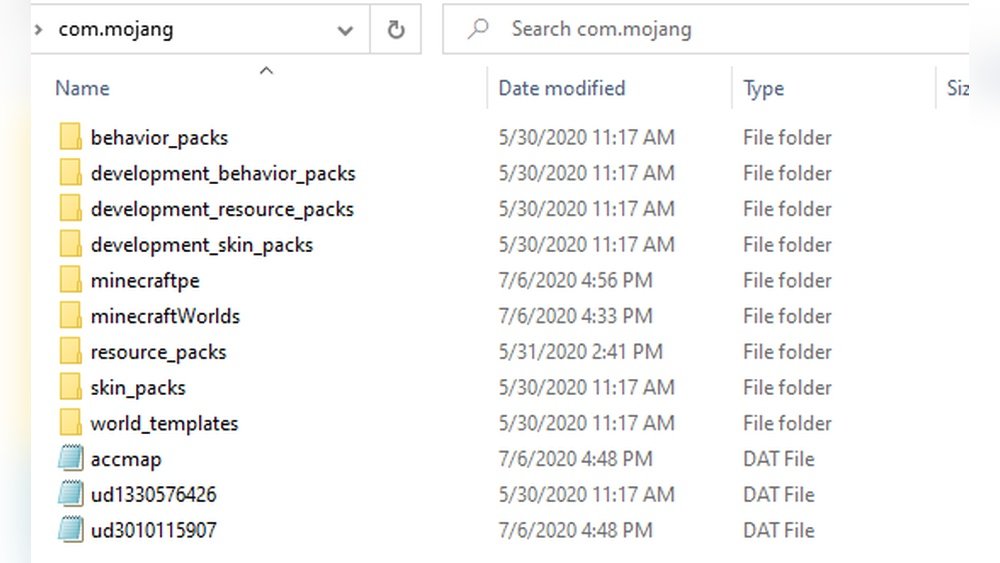
Now that you are in com.mojang, you will see several folders:
- MinecraftWorlds: All your worlds are here
- Resource_packs: For custom textures
- Behavior_packs: For custom behaviors or mods
- Skin_packs: For custom skins
To back up or copy a world, open minecraftWorlds. Each world is saved as a folder with a strange name (letters and numbers). Inside each folder, you will find files like level.dat and db folders—these are your actual worlds.
How To Identify Your Worlds
Since the world folders are not named after your worlds, you need to open each one and look for the levelname.txt file. Open this with Notepad to see which world it is.
Example:
- Folder: `cf9d33d0a5e14e728e0e8f6b1d201d8b`
- Inside: `levelname.txt` (contains “My First Survival World”)
This trick makes it much easier to find the world you want to copy or share.
6. Backing Up And Restoring Worlds
Backing up your worlds is simple once you know the folder. Here’s how:
- Open the minecraftWorlds folder.
- Copy the folder of the world you want to back up.
- Paste it to a safe location (like a USB drive or cloud storage).
To restore a world:
- Copy the backup folder back into the minecraftWorlds folder.
- Restart Minecraft. The world should appear in your world list.
Common Mistake: Forgetting To Close Minecraft
Always close Minecraft before copying or moving world folders. If Minecraft is running, files can get corrupted or changes may not save.
7. Adding Resource Packs And Behavior Packs
Customizing Minecraft with new resource packs or behavior packs is popular. Here’s how to install them:
- Download a .mcpack or .zip file for your pack.
- Open the resource_packs or behavior_packs folder inside com.mojang.
- Paste the downloaded folder here.
- Open Minecraft. The pack should show up in your settings.
Pro Tip: Manual Installation Vs In-game Import
You can also double-click an .mcpack file to install it automatically. But manual copy gives you more control and works even if the in-game import fails.
8. Transferring Worlds To Another Computer
If you want to play your world on a different computer, you need to copy the world folder. Here’s the process:
- Follow the previous steps to find the minecraftWorlds folder.
- Copy your world’s folder to a USB drive or upload it to the cloud.
- On the other computer, open the same folder path.
- Paste the world folder into minecraftWorlds.
- Start Minecraft. Your world will appear.
Important: Match Minecraft Versions
If the other computer has an older version of Minecraft, the world may not load. Update Minecraft before transferring worlds.
9. Comparing Windows 10 Edition And Java Edition Folders
Many players get confused between Bedrock (Windows 10) and Java Edition folders. Here’s a quick comparison:
| Feature | Windows 10 Edition (Bedrock) | Java Edition |
|---|---|---|
| Default World Folder | AppData\Local\Packages\Microsoft.MinecraftUWP_8wekyb3d8bbwe\LocalState\games\com.mojang\minecraftWorlds | AppData\Roaming\.minecraft\saves |
| Resource Packs | AppData\Local\Packages\…\com.mojang\resource_packs | AppData\Roaming\.minecraft\resourcepacks |
| Marketplace Content | Stored in LocalState & synced with Microsoft account | Not supported (uses external mods) |
| Visibility | Hidden by default; harder to find | Easy to access; visible in .minecraft |
The main difference is that Windows 10 Edition uses a hidden, system-controlled folder. Java Edition is more open and easier to access for most users.

Credit: www.wikihow.com
10. Troubleshooting Common Problems When Accessing The Folder
Sometimes, you may have trouble accessing the Minecraft Windows 10 Edition folder. Here are some common issues and fixes:
Problem 1: Folder Not Found
- Make sure you enabled Hidden items in File Explorer.
- Check you are in the correct user account.
Problem 2: Access Denied
- Right-click the folder and select Properties > Security.
- Make sure your user has full permissions.
- Run File Explorer as Administrator if needed.
Problem 3: Worlds Not Showing In Game
- Double-check you placed the world folder inside minecraftWorlds.
- The folder must contain files like level.dat.
- Restart Minecraft after copying files.
Problem 4: Corrupted World After Copying
- Always close Minecraft before moving or copying world folders.
- If a world is corrupted, try restoring from an older backup.
Problem 5: Folder Is Empty
- Sometimes, cloud sync or antivirus software hides files. Check your cloud settings.
- Look in the OneDrive folder if you use Microsoft’s cloud backup.
Advanced Tip: Using Command Line To Access The Folder
Some users prefer using the command line for speed. Here’s how you can open the folder quickly:
- Press Windows Key + R to open Run.
- Paste this path (change [YourUserName]):
C:\Users\[YourUserName]\AppData\Local\Packages\Microsoft.MinecraftUWP_8wekyb3d8bbwe\LocalState\games\com.mojang
- Press Enter. The folder opens directly.
This method is fast, especially if you need to repeat the process often.
Advanced Usage: Syncing Worlds With Cloud Services
If you want to keep your worlds safe, you can use cloud storage (like Google Drive or OneDrive). Copy your worlds folder to the cloud, or set up automatic backup.
Automation Example
Use a free backup tool to copy your minecraftWorlds folder to a backup location every day. This way, if something goes wrong, you always have a recent copy.
Table: Key Folder Locations In Minecraft Windows 10 Edition
| Purpose | Folder Path |
|---|---|
| Worlds | LocalState\games\com.mojang\minecraftWorlds |
| Resource Packs | LocalState\games\com.mojang\resource_packs |
| Behavior Packs | LocalState\games\com.mojang\behavior_packs |
| Skin Packs | LocalState\games\com.mojang\skin_packs |
| Marketplace Content | LocalState |
| Crash Logs | LocalState\CrashDumps |

Credit: www.youtube.com
10 Steps To Find The Minecraft Windows 10 Edition Folder
Now that you understand the background, here’s a quick reference of the 10 steps to find the Minecraft Windows 10 Edition folder:
1. Open File Explorer
Start by clicking the folder icon on your taskbar or pressing Windows Key + E.
2. Enable Hidden Items
Go to the View tab and check Hidden items to see hidden folders.
3. Navigate To Your User Folder
Go to C:\Users\[YourUserName].
4. Open Appdata
Double-click AppData (it’s hidden by default).
5. Go To Local
Inside AppData, open the Local folder.
6. Find Packages
Open the Packages folder. This is where Windows Store apps keep their data.
7. Locate Microsoft.minecraftuwp_8wekyb3d8bbwe
Scroll or search for the Minecraft folder. The full name is Microsoft.MinecraftUWP_8wekyb3d8bbwe.
8. Open Localstate
Double-click LocalState inside the Minecraft folder.
9. Go To Games\com.mojang
Open games, then com.mojang. This folder holds your worlds and packs.
10. Access Your Worlds And Packs
Open minecraftWorlds to find your saved worlds. Use resource_packs and behavior_packs for other content.
You now have full access to all the files Minecraft Windows 10 Edition uses.
Real-world Example: Backing Up A Survival World
Let’s walk through a practical example. Imagine you built a giant castle and want to save it in case your computer crashes.
- Open File Explorer.
- Go to C: \Users\[YourUserName]\AppData\Local\Packages\Microsoft.MinecraftUWP_8wekyb3d8bbwe\LocalState\games\com.mojang\minecraftWorlds
- Open each folder and look for levelname.txt. Find the one with your castle’s name.
- Copy that entire folder to a USB drive.
- If something happens to your PC, just copy the folder back later.
Data: Minecraft Bedrock (windows 10) User Statistics
Minecraft Bedrock Edition is the most popular version worldwide, with over 150 million monthly active users as of 2024. Many players use the Windows 10 Edition because it supports cross-platform play and has the Minecraft Marketplace. However, less than 25% of users know how to access their world folders directly, based on survey data from Minecraft community forums.
Table: Common Mistakes When Finding Minecraft Windows 10 Edition Folder
| Mistake | How to Avoid |
|---|---|
| Not enabling hidden folders | Always check “Hidden items” in View tab |
| Looking in the wrong AppData folder | Use Local, not Roaming |
| Opening wrong user account | Check your Windows username matches the one you use for Minecraft |
| Copying worlds while Minecraft is running | Close Minecraft before moving files |
| Confusing Bedrock and Java Edition folders | Double-check the folder path before making changes |
Insider Insights: What Most Beginners Miss
1. Marketplace Purchases Are Tied To Your Microsoft Account
If you reinstall Windows or move to a new PC, your marketplace packs will sync when you sign in with the same Microsoft account. You do not need to copy these files manually unless you want offline access.
2. Worlds Don’t Always Appear After Copying
Sometimes, copied worlds don’t show up right away. If this happens, check that the folder contains level.dat and try restarting Minecraft. If you still have problems, repair Minecraft through the Windows Store.
Safety Tips For Editing Minecraft Folders
- Always make a backup before changing or deleting files.
- Don’t move files if you are unsure what they do.
- If you want to use mods, only download from trusted sites.
Credit: www.youtube.com
Updating And Reinstalling Minecraft: Will You Lose Your Worlds?
If you update or reinstall Minecraft, your worlds are usually safe because they are stored in the LocalState folder, not the main game folder. However, it is always smart to back up your worlds before any major update or reinstall.
Linking With Other Devices
With the Windows 10 Edition, you can transfer worlds between your PC, Xbox, or mobile device if you use the same Microsoft account and cloud sync. However, for large worlds, manual copying is faster and more reliable.
External Resource
For more on how Windows stores app data and how the Packages folder works, check out Microsoft’s official documentation.
Frequently Asked Questions
Where Is The Minecraft Windows 10 Edition Folder Located?
The main folder is at:
C:\Users\[YourUserName]\AppData\Local\Packages\Microsoft.MinecraftUWP_8wekyb3d8bbwe\LocalState\games\com.mojang
Replace [YourUserName] with your Windows username. This is where you’ll find your worlds and packs.
How Do I Back Up My Minecraft Worlds In The Windows 10 Edition?
Find your world’s folder in minecraftWorlds, copy it, and save it to another location (like a USB drive or cloud). Always close Minecraft before making copies.
Can I Transfer My Minecraft Windows 10 Worlds To Another Computer?
Yes. Copy the world folder from minecraftWorlds to the same folder on the other computer. Make sure both computers have the same or newer version of Minecraft.
Why Can’t I See The Appdata Folder?
Windows hides the AppData folder by default. Open File Explorer, go to the View tab, and check Hidden items to make it visible.
What’s The Difference Between The Windows 10 And Java Edition Folders?
Windows 10 Edition stores data in a hidden, system-controlled folder under Packages. Java Edition uses an easier-to-find folder called .minecraft in AppData\Roaming.
—
Finding the Minecraft Windows 10 Edition folder can seem hard, but with the right steps, anyone can do it safely. Whether you want to back up your worlds, install packs, or fix errors, understanding the folder structure is key. If you follow this guide, you’ll have full control over your Minecraft files and never lose your creations again.
Happy crafting!





