Remove apps on a Moto phone by long-pressing the app or using Settings > Apps > Uninstall.
I’ve spent years fixing phones and helping friends tidy up their devices, and I’ll walk you through how to delete apps on Moto phone models step by step. This guide explains every safe method, from the quick app-drawer tap to advanced ADB removal for stubborn system apps, with practical tips, warnings, and real-world examples so you can free space and keep your Moto phone running clean.
Why and when to delete apps on your Moto phone
Deleting apps on your Moto phone frees storage, improves battery life, and reduces background data use. Unused apps can slow the device and clutter your home screen.
Think about removing apps when storage drops below 10%, when battery drains faster than usual, or after you notice slow app switching. Deleting apps also improves privacy by removing apps that request unneeded permissions.
Quick methods to delete apps on Moto phone
There are several safe ways to delete apps on Moto phone. Choose the one that fits your comfort level.
- Use the app drawer for a fast, visual uninstall.
- Remove apps from Settings when you want more control.
- Uninstall via Google Play for apps installed from the Play Store.
- Disable or uninstall updates for preinstalled apps you can’t remove.
- Use ADB to remove system apps only if you know the risks.
Below are clear steps for each method so you can delete apps on Moto phone without stress.

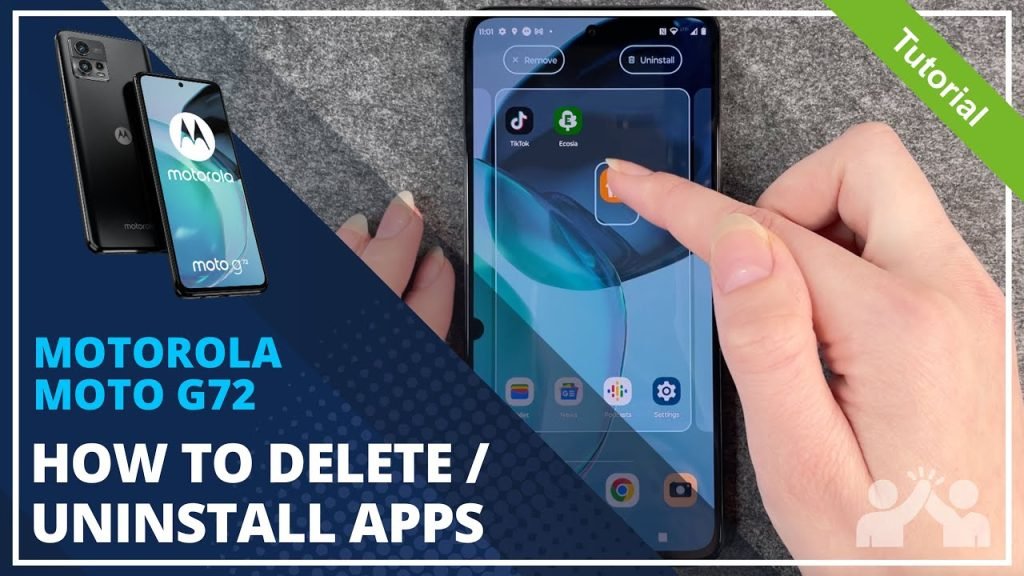
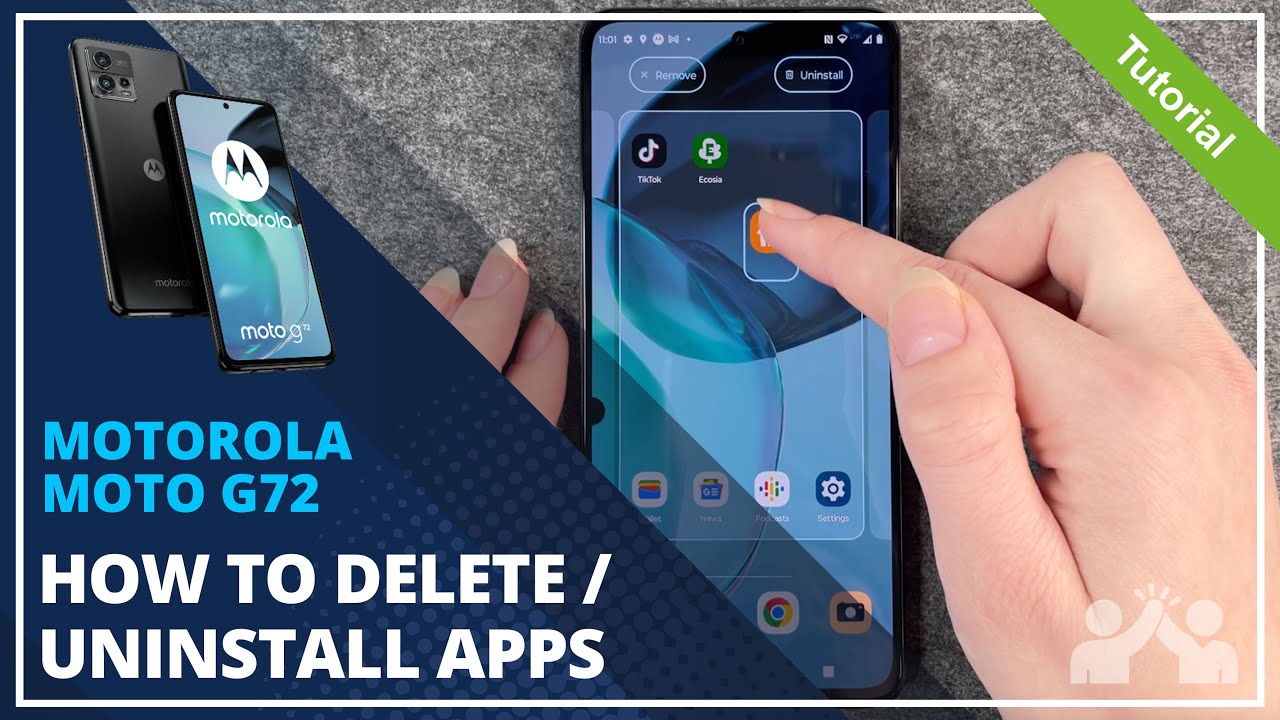
Uninstall from the app drawer (fastest)
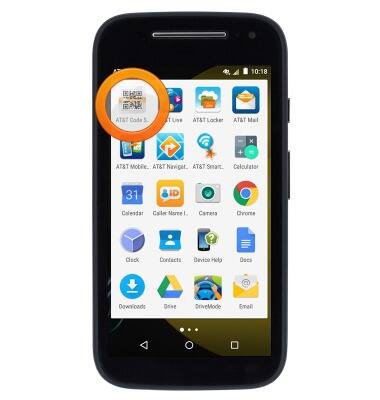
- Open the app drawer on your Moto phone.
- Tap and hold the app icon you want to remove.
- Drag it to Uninstall or tap Uninstall from the popup.
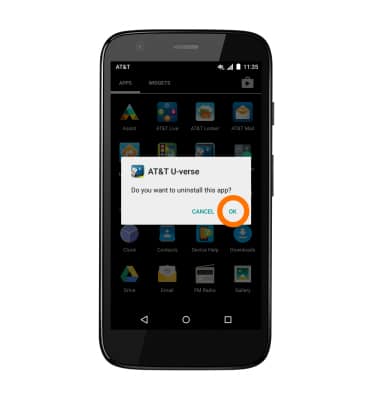
- Confirm Uninstall when prompted.
This is the quickest way to delete apps on Moto phone. It works for most user-installed apps.
Uninstall via Settings (more control)
- Open Settings > Apps & notifications > See all apps.
- Tap the app you want to remove.
- Tap Uninstall, then confirm.
Use this when you need to check permissions or storage use before uninstalling.
Uninstall from Google Play Store (if installed from Play)
- Open Google Play Store and search for the app.
- Tap the app, then tap Uninstall.
- Confirm Uninstall.
This is useful if you want to reinstall later or see app details first.
Disable or uninstall updates for preinstalled apps
- Open Settings > Apps & notifications > See all apps.
- Select the preinstalled app.
- Tap Disable or Uninstall updates if Uninstall is not available.
Disabling an app removes it from the app drawer and stops it from running. It’s reversible and safe for most system apps.
Remove system apps with ADB (advanced, use caution)
- Enable Developer options: Settings > About phone > Tap Build number 7 times.
- Turn on USB Debugging in Developer options.
- Install ADB on your computer and connect your Moto phone via USB.
- Run adb devices to confirm connection.
- Get the package name: adb shell pm list packages | grep name
- Uninstall: adb shell pm uninstall -k –user 0 package.name
Only use ADB if you know what the app does. Removing essential system apps can break features or the OS.
Remove system apps and bloatware safely on Moto phone
Not all preinstalled apps are removable. Many are marked as system apps. You can disable them or uninstall updates safely in most cases. Disabling is reversible and is usually enough.
- Disable apps you don’t use so they stop running.
- Uninstall updates to free storage used by updates.
- Use ADB as a last resort and make a backup first.
- Consider a factory reset only if the phone has too many issues.
If you’re unsure whether an app is safe to remove, search its package name or ask for help. Removing platform apps like Launcher, Settings, or Google Play Services can cause problems.

Troubleshooting and tips when you can't delete apps on Moto phone
If the Uninstall option is missing, try these fixes:
- Check for Device admin rights: Settings > Security > Device admin apps. Turn off admin for the app, then uninstall.
- Restart your Moto phone and try again.
- Boot into Safe Mode to remove stubborn apps: Hold the power button, then tap and hold Power off > Reboot to safe mode. Uninstall from safe mode.
- Free up storage: Clear cache or move media files to cloud or SD. Low storage can block installs and uninstalls.
- Update your phone: A bug in the system can prevent removals. Keep Android updated.
If an app reappears after uninstall, it may be part of a system package or restored by a backup. Disable auto-restore in Google settings if needed.
Personal experience and real-life tips deleting apps on Moto phone
I once helped a friend whose Moto phone ran out of space. We removed unused social apps and disabled several vendor apps. That improved speed and cut wake locks, and battery life rose by one hour. Lesson: delete first, then disable.
Tips I use personally:
- Backup app data with Google or a third-party backup before uninstalling important apps.
- Remove large apps first to free space quickly.
- Keep a short list of must-have apps to avoid reinstall clutter.
- Use Storage settings to see large files and apps.
Mistakes to avoid:
- Don’t remove unknown system packages with ADB unless you research them.
- Don’t ignore device admin permissions; they block uninstalls.

Frequently Asked Questions of how to delete apps on moto phone
How do I delete system apps on my Moto phone?
You can disable system apps or uninstall their updates via Settings. For permanent removal, use ADB with care because deleting core apps can break your phone.
Why won’t my Moto phone let me uninstall an app?
If Uninstall is missing, the app may be a system app or have device admin rights. Check Settings > Security > Device admin apps and disable it, then try uninstalling.
Can I remove apps without losing data on my Moto phone?
You can uninstall an app and keep cloud-synced data. For local data, back up the app or its files before uninstalling to avoid permanent loss.
Will uninstalling apps improve battery life on my Moto phone?
Yes. Removing apps that run in the background can reduce CPU and network use, which often improves battery life and phone speed.
Is it safe to use ADB to delete apps on Moto phone?
ADB is powerful and can be safe if you know the package names and consequences. Always back up your device and avoid removing core system packages.
What if an app reappears after I delete it?
An app may be restored from a cloud backup or reinstalled by a system update. Turn off auto-restore in Google Backup settings or remove the app again after disabling any auto-install features.
Conclusion
Deleting apps on your Moto phone is an easy way to reclaim space, boost speed, and protect privacy. Use the app drawer or Settings for everyday removals, and reserve ADB for advanced needs. Back up important data, disable instead of delete when unsure, and test after removing major apps.
Take one small step today: remove one unused app, restart your Moto phone, and notice the difference. If this guide helped, leave a comment or subscribe for more clear, hands-on phone tips.