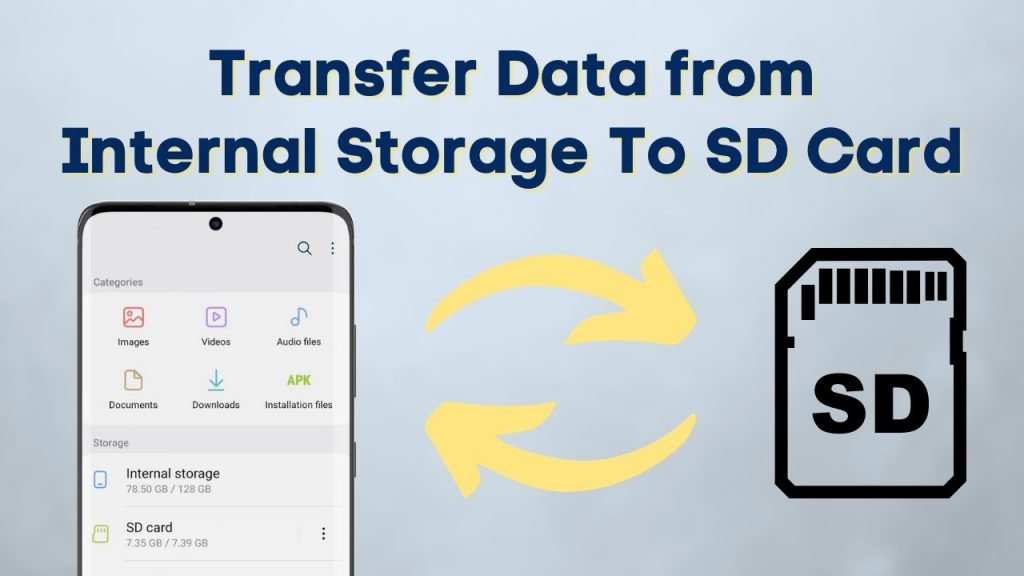
Move apps to your SD card using Android settings or adoptable storage for more space.
As an Android user and tech writer with years of hands-on experience, I’ll show you clear, reliable steps for how to put apps into sd card on compatible phones. This guide covers quick moves via Settings, deeper changes like adoptable storage, ADB options for advanced users, card selection tips, and real-world troubleshooting so you can free up space with confidence.

Why move apps to SD card?
Moving apps to an SD card frees internal storage and can make your phone feel faster. Knowing how to put apps into sd card helps when you run low on space for photos, updates, or new apps. It also helps extend the useful life of older phones with limited built-in memory.
Before you start: compatibility and precautions
Not every phone or app supports moving to an SD card. Some system apps and many apps that store lots of secure data will refuse to move. Learn whether your phone supports adoptable storage and check the app’s storage settings before you try to move it. Always back up important data and use a high-quality SD card to lower the risk of data loss.

Method 1: Move apps via Settings (simple method)
This is the easiest way to move supported apps to external storage.
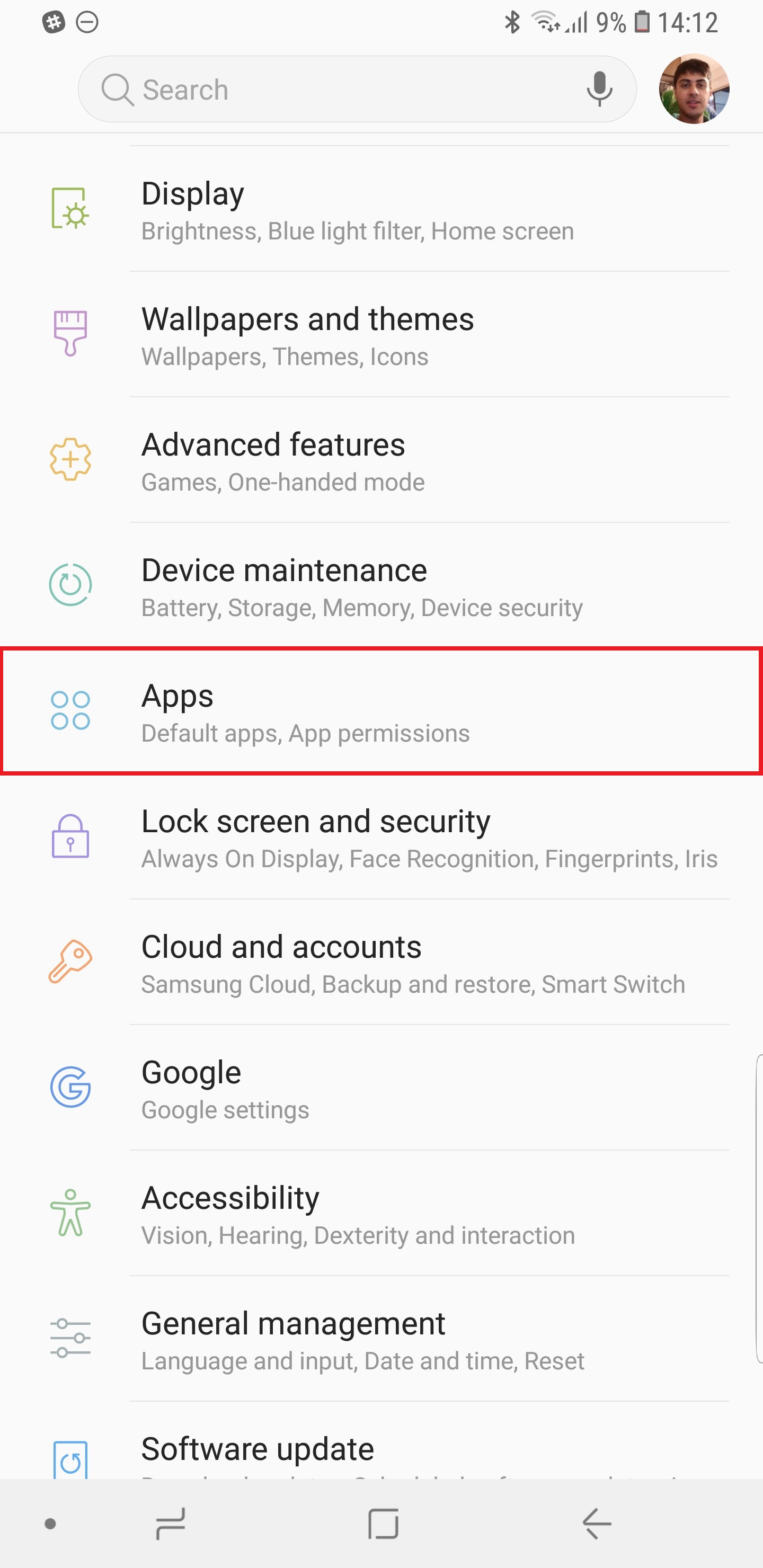
- Open Settings and tap Apps or Apps & notifications.
- Select the app you want to move.
- Tap Storage. If the app supports external storage, you’ll see a Change button.
- Tap Change and select SD Card, then follow prompts.
This method shows how to put apps into sd card for apps that allow external storage. If the Change option is missing, the app can’t be moved this way.

Method 2: Adoptable storage (format SD as internal)
Adoptable storage makes the SD card act like internal storage. It lets the system install apps to the card as if it were built-in memory.
- Insert the SD card and open Settings > Storage.
- Select the SD card, tap the menu, and choose Format as internal (this option varies by OEM).
- Confirm format and allow the phone to migrate data if offered.
- After formatting, apps and app data may be installed on the SD card automatically.
Adoptable storage is a strong way to expand app capacity, but it will encrypt the card to your device. Removing the card can break apps. This technique is a core answer for how to put apps into sd card when you need more internal-like space.

Method 3: Use ADB to move or force-install to SD (advanced)
For advanced users, ADB (Android Debug Bridge) can offer fine control without rooting.
- Enable Developer options and USB debugging on your phone.
- Install ADB on your PC and connect your phone via USB.
- Use adb shell pm set-install-location 2 to prefer external installs, or adb shell pm move-package
for specific moves. - Check available volumes with adb shell pm list-volumes all.
ADB commands can help when the Settings route fails. They require care and a basic comfort with command-line tools. This method is a technical option for how to put apps into sd card on devices that otherwise block moves.
:max_bytes(150000):strip_icc()/A3-move-files-pictures-apps-to-sd-card-android-annotated-c9413811e03e4e30a5e7ae54dbdef5df.jpg)
Tips: Choosing the right SD card and best practices
Pick a fast, reliable card to avoid slow app performance and corruption.
- Use card classes like A1, A2, or UHS for app use to improve random read/write speeds.
- Buy from trusted brands and check genuine capacity with simple tests.
- Avoid cheap slow cards; they make apps lag or crash.
- Back up before formatting or using adoptable storage, since formatting will erase the card.
Your experience with how to put apps into sd card will be much better with a quality card and regular backups.

Troubleshooting common issues
If an app stops working after moving, try moving it back to internal storage first. If the SD card isn't recognized, test it on another device or reformat it (after backing up). Slow performance usually points to a low-speed card or heavy app I/O; upgrade the card or move the app back. If an app won’t move at all, it likely needs internal-only storage for security or performance reasons.

Personal experience and lessons learned
I once moved dozens of apps to an SD card on an older phone using adoptable storage to keep it usable for podcasts and maps. The card choice made all the difference: a cheap card caused frequent crashes, while an A2-rated card worked reliably. Lesson: test your SD card first and keep a backup. When using adoptable storage, expect the card to be tied to that device for the long term.

Best practices to avoid mistakes
- Back up before major changes.
- Use adoptable storage only if you plan to keep the card in the same phone.
- Don't trust cheap, no-name cards for app storage.
- Keep important apps on internal storage if they handle secure data.
Frequently Asked Questions of how to put apps into sd card
Can I move all apps to my SD card?
No. Many system apps and some third-party apps won’t allow being moved. Apps that store sensitive data or need fast storage often must stay on internal memory.
Will moving apps to SD card slow them down?
It can, if the card is slow. Use A1/A2 or UHS cards for better app performance. Adoptable storage reduces speed differences, but card quality still matters.
Does formatting SD as internal delete my files?
Yes. Formatting as internal will erase the card and encrypt it. Back up any photos or files before formatting.
Can I use the same SD card on another phone after adoptable storage?
No. Adoptable storage encrypts the card for the device. Removing it will break apps and files unless you reformat and erase it.
Is there a way to force apps to install on SD without root?
Yes. You can use ADB commands to change install preferences or move packages. This requires USB debugging and comfort with command-line tools.
Conclusion
Moving apps to an SD card can free space and extend the life of a phone, but it takes the right method, a good SD card, and careful backups. Whether you use the Settings move, adoptable storage, or ADB, plan, test, and choose quality hardware. Try one method on a non-critical app first, back up your data, and share your results or questions below — I’d love to hear what worked for you and help troubleshoot.