If you’ve ever wished your Galaxy Watch 7 could do more than the apps in the official store allow, sideloading might be just what you need. Imagine unlocking new features, customizing your watch experience, and installing apps that aren’t readily available.
Sounds exciting, right? But if you’re unsure how to get started or worried about the technical steps, don’t worry. This guide will walk you through the simple, step-by-step process of sideloading apps on your Galaxy Watch 7. By the end, you’ll have the freedom to expand your watch’s capabilities and make it truly yours.
Ready to unlock your watch’s full potential? Let’s dive in!

Credit: www.reddit.com
Prepare Your Galaxy Watch 7
Preparing your Galaxy Watch 7 is the first step to sideload apps safely and smoothly. It involves adjusting some settings that allow your watch to accept apps from outside the official store. This preparation helps your watch recognize and install the new apps without issues.
Before you start sideloading, you need to make sure your watch is ready. Changing these settings is simple and takes only a few minutes. Follow these steps carefully to avoid any problems during installation.
Enable Developer Options
Developer Options unlock advanced settings on your Galaxy Watch 7. To enable this, open the Settings app on your watch. Scroll down to About Watch and tap it. Find Software Information and tap Build Number seven times. You will see a message saying Developer Mode is enabled. This mode lets you connect your watch to a computer for sideloading apps.
Allow Unknown Sources
Allowing apps from unknown sources lets your watch install apps not from the Galaxy Store. Go back to the main Settings menu. Tap Apps, then tap the three-dot menu icon at the top right. Choose Special Access, then tap Install Unknown Apps. Find the app you will use to sideload, like the file manager or ADB tool. Turn on Allow from this source for that app. Now your watch can accept apps from outside sources.
Set Up Adb For Your Watch
Setting up ADB (Android Debug Bridge) is essential to sideload apps on your Galaxy Watch 7. ADB allows your PC to communicate with the watch for app installation and debugging. This setup is simple and can be done in a few steps. Follow along to prepare your PC and connect your watch for wireless debugging.
Install Adb On Your Pc
Start by downloading the ADB tools for your computer. Visit the official Android developer website to get the latest platform tools. Extract the downloaded file to a folder you can easily access.
Next, open the Command Prompt (Windows) or Terminal (Mac/Linux). Navigate to the folder where you extracted the tools. Type adb version and press enter to check if ADB is installed correctly.
If you see the version number, ADB is ready to use. If not, verify your installation steps and try again.
Connect Watch Via Wireless Debugging
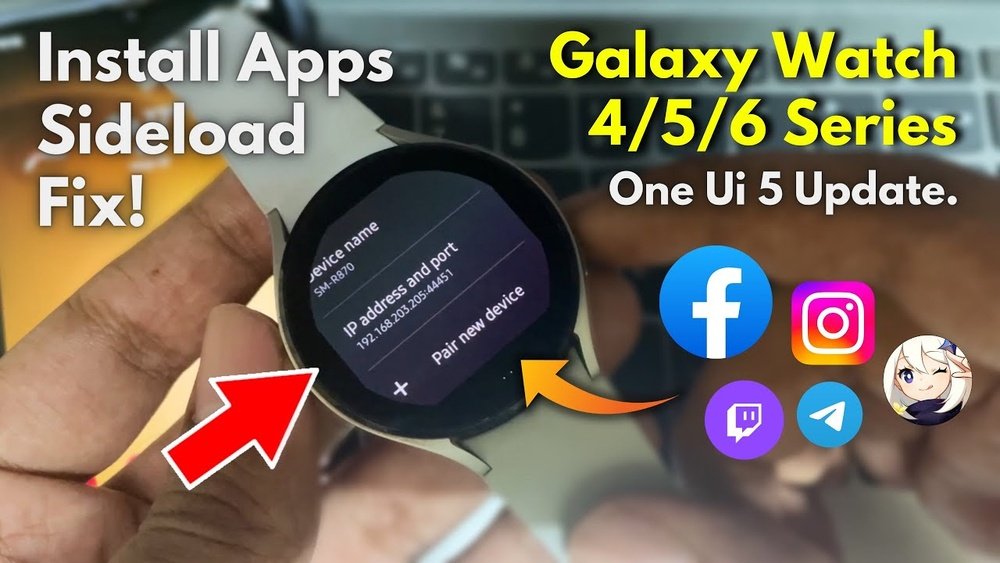
On your Galaxy Watch 7, open the Settings app. Go to About Watch, then tap Software to enable Developer Options by tapping the Build Number seven times. Return to Settings, find Developer Options, and turn on Wireless Debugging.
The watch will display an IP address and a port number. On your PC, type adb connect [IP address]:[port] replacing the brackets with the actual numbers. Press enter to connect.
You may see a pairing code on your watch. Confirm it matches the PC prompt to complete the connection. Your watch is now ready for app sideloading via ADB.
Download And Prepare Apk Files
Downloading and preparing APK files is the first step to sideload apps on your Galaxy Watch 7. This process involves finding the right APK files that work with your watch. You also need to make sure these files are safe to install. Proper preparation helps avoid issues during installation and keeps your device secure.
Find Compatible Apks
Not all APK files work on the Galaxy Watch 7. Choose files made for Wear OS or Samsung’s Tizen system. Check the app version and watch model compatibility. Using the wrong APK may cause errors or crashes. Use trusted sources that list compatibility clearly. This ensures the app will run smoothly on your watch.
Verify Apk Safety
Safety matters when downloading APK files. Scan files with antivirus software before installing. Avoid APKs from unknown or suspicious websites. Read user reviews and ratings for the app source. Confirm the file has not been altered or infected. This protects your watch from malware and data theft.
Sideload Apps Using Adb Commands
Sideloading apps using ADB commands on your Galaxy Watch 7 lets you install apps not available in the Galaxy Store. This process requires connecting your watch to a PC and using simple command-line tools. It is a reliable way to add new functions and customize your smartwatch beyond its defaults.
Follow the steps carefully to pair your watch with the PC and install APK files using ADB commands. This method works for various apps and helps you explore new features on your Galaxy Watch 7.
Pair Watch With Pc
Start by enabling Developer Options on the Galaxy Watch 7. Go to Settings > About Watch > Software and tap the Build Number seven times. This unlocks Developer Options in the Settings menu.
Inside Developer Options, turn on ADB Debugging and Debug over Wi-Fi. Note the IP address shown on your watch.
On your PC, open a command prompt or terminal window. Type adb connect [IP address] using the IP from your watch. Your PC will pair with the Galaxy Watch 7 wirelessly.
Once connected, check the connection by typing adb devices. Your watch should appear on the list.
Install Apk Via Command Line
Download the APK file of the app you want to sideload to your PC. Keep the file location handy for the next step.
In the command prompt, enter adb install [path-to-apk]. Replace [path-to-apk] with the full path to your APK file.
Wait for the installation to finish. You will see a success message once the app installs properly.
Check your Galaxy Watch 7 for the new app icon. Launch it to confirm the app works as expected.
Manage Sideloaded Apps
Managing sideloaded apps on your Galaxy Watch 7 keeps your device organized and efficient. After installing apps, it is important to launch and test them. This helps ensure they work properly and fit your needs. Regular checks improve your watch’s performance and user experience.
Keeping control over your sideloaded apps also means knowing how to uninstall or update them. Removing apps you no longer use frees up space. Updating apps brings new features and fixes bugs. This keeps your watch running smoothly and safely.
Launch And Test Installed Apps
Open your sideloaded app from the apps list on your watch. Check if it starts quickly and runs without errors. Explore the app’s main functions to confirm they work. Use the app for a few minutes to notice any issues. If the app crashes or freezes, it might not be compatible. Testing helps you decide which apps to keep or remove.
Uninstall Or Update Apps
To uninstall an app, press and hold its icon on the watch screen. Select the uninstall option to remove it. This frees up space and declutters your device. For updates, check if a newer app version is available. Use a companion phone app or sideload the updated file. Installing updates improves security and adds features. Regular maintenance of sideloaded apps keeps your Galaxy Watch 7 running well.

Credit: www.youtube.com
Troubleshoot Common Issues
Troubleshooting common issues helps make sideloading apps on Galaxy Watch 7 easier. Problems may occur during connection or installation. Fixing these issues ensures a smooth experience. Follow simple steps to solve common errors fast. Stay patient and try each solution carefully.
Connection Problems
Connection problems stop your watch and phone from syncing. Check if Bluetooth is turned on both devices. Restart the Galaxy Watch 7 and your phone. Make sure both devices are close to each other. Disable airplane mode if it is active. Try turning off other Bluetooth devices nearby. This reduces interference and improves connection. If the watch still does not connect, reset network settings on your phone.
Installation Failures
Installation failures happen when the app does not load properly. Confirm that the app file is compatible with Galaxy Watch 7. Enable installation from unknown sources in the watch settings. Clear storage space by deleting unused apps or files. Restart the watch before trying to install again. Avoid interrupting the installation process. If failure continues, uninstall previous versions of the app. Use a trusted sideloading tool to reduce errors.

Credit: www.cnet.com
Frequently Asked Questions
How To Install Any Apps On Galaxy Watch 7?
Open Galaxy Wearable app on your phone. Go to Galaxy Store, search for apps, and tap Install. For unknown apps, enable “Install from unknown sources” in watch settings. Use ADB debugging and wireless debugging for sideloading apps.
Can You Sideload Apps On Galaxy Watch?
Yes, you can sideload apps on a Galaxy Watch by enabling Developer Options and using ADB debugging.
What Apps Can You Put On A Galaxy Watch 7?
You can install apps like Samsung Health, Spotify, SmartThings, Samsung Pay, Strava, and Map My Run on Galaxy Watch 7. Sideloading allows additional third-party apps. Use Galaxy Store or enable developer options for sideloading.
How To Install Unknown Apps On Samsung Watch?
Open Settings on your Samsung watch. Go to Apps > Menu > Special access > Install unknown apps. Enable “Allow from this source” for the app. Use ADB or a sideloading tool to install the unknown app safely.
What Does Sideloading Apps On Galaxy Watch 7 Mean?
Sideloading means installing apps manually, not from the official store. It allows more app choices on your watch.
Can I Sideload Apps Without Using My Phone?
No, your phone is needed to transfer apps to the Galaxy Watch 7. The phone connects to the watch for installation.
How Do I Enable Unknown Sources For Galaxy Watch 7?
Go to Settings > Apps > Special access > Install unknown apps. Turn on permission for the app you use to sideload.
Is Sideloading Safe On Galaxy Watch 7?
Sideloading apps from trusted sources is generally safe. Avoid unknown or suspicious files to protect your watch.
What Tools Do I Need To Sideload Apps On Galaxy Watch 7?
You need a USB cable or Wi-Fi connection and ADB (Android Debug Bridge) software on your computer. These help move and install apps.
Can I Sideload Android Apps On Galaxy Watch 7?
Only apps compatible with Galaxy Watch 7’s Tizen or Wear OS can be sideloaded. Regular Android phone apps may not work.
Conclusion
Sideloading apps on your Galaxy Watch 7 opens new possibilities. You can enjoy apps not found in the store. Just follow the steps carefully to avoid errors. Keep your watch and phone connected during the process. Always check app compatibility before installing.
This method lets you personalize your watch easily. Experiment with different apps to find what works best. Stay safe by downloading apps from trusted sources only. Sideloading adds flexibility without much hassle. Enjoy exploring new features on your Galaxy Watch 7!