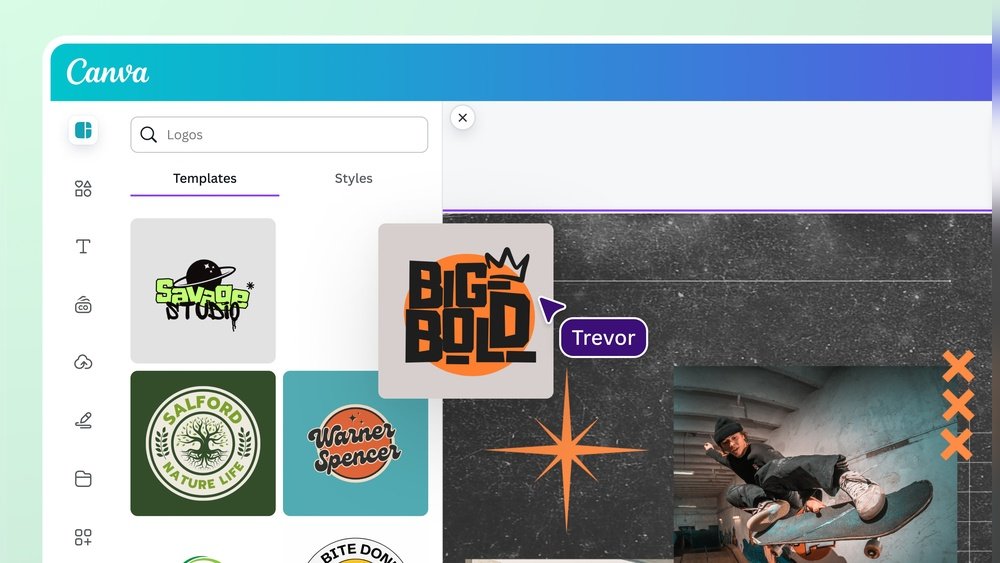
Are you ready to create a logo that truly represents your brand without spending a fortune or needing advanced design skills? Canva makes it incredibly simple for you to design a professional and eye-catching logo in just minutes.
Whether you’re starting a new business, refreshing your brand, or just want a unique symbol that speaks to your audience, this step-by-step guide will walk you through the entire process. You’ll learn how to pick the perfect style, customize colors and fonts, and add the right icons to make your logo stand out.
Keep reading, and by the end, you’ll have a logo that looks polished and ready to impress everywhere you use it. Let’s dive in and make your vision come alive!
Credit: www.canva.com
Brand Identity Basics
Building a strong brand identity is the first step in creating a memorable logo. It defines how people see your business. A clear brand identity sets you apart from competitors and connects with your audience. It shows your values, style, and personality through visual elements.
Before designing your logo in Canva, understand your brand deeply. This helps you choose the right colors, fonts, and shapes. These elements work together to tell your brand’s story without words. A consistent brand identity improves recognition and trust.
What Is Brand Identity?
Brand identity includes all visual and verbal elements that represent your business. It covers your logo, colors, fonts, and tone of voice. These elements create a unique image in your customer’s mind. Strong brand identity makes your business easier to remember.
Why Brand Identity Matters For Your Logo
Your logo is a key part of your brand identity. It is the face of your business. A good logo reflects your brand’s personality and values. It helps customers feel connected and trust your business. A logo without a clear identity may confuse or lose potential clients.
How To Define Your Brand Identity
Start by listing your brand’s core values and mission. Think about who your ideal customers are and what they like. Choose words that describe your business style, such as modern, friendly, or professional. These details guide your logo design choices in Canva.
Logo Styles And Types
Choosing the right logo style and type shapes your brand’s identity. A clear logo helps customers remember your business. Different styles convey different messages. Some logos feel modern, others classic or playful. Picking the correct type ensures your logo suits your brand’s voice and goals.
Canva offers many options to try various logo styles and types. Understanding these basics helps you design a logo that fits well and looks professional.
Icon-based Logos
Icon-based logos use a simple symbol or image. They are easy to recognize and work well in small sizes. Many brands use icons to create a strong visual link. Choose icons that relate to your business or values. Canva has many icons to customize and combine with text.
Wordmark Logos
Wordmark logos focus on the brand name alone. They use unique fonts and styles to stand out. This type is ideal when the name is catchy or unique. Canva lets you pick fonts that match your brand’s personality. You can adjust size, spacing, and color to perfect the look.
Combination Logos
Combination logos mix icons and text. They give flexibility to show both a symbol and the brand name. This style works well for new brands to build recognition. Canva’s drag-and-drop tools make combining elements simple. Adjust placement and size to create balance and harmony.
Emblem Logos
Emblem logos place text inside shapes like circles or shields. They give a classic and formal feel. Many schools, clubs, and government agencies use emblems. Canva provides badge and frame templates to create this style easily. Customize colors and fonts to fit your brand identity.
Abstract Logos
Abstract logos use shapes and colors without clear images. They express ideas or feelings uniquely. This style can be very creative and modern. Canva’s shape tools help build abstract logos. Experiment with colors and forms until you find a unique design.
Exploring Canva Tools
Exploring Canva tools is an important step to create a logo easily. Canva offers many simple options to design a logo. These tools help you change colors, shapes, and fonts quickly. Understanding these tools saves time and improves your design.
Each tool has a clear purpose. You can mix and match them to create a unique logo. The easy-to-use interface makes it simple for beginners and experts alike. Let’s explore the main Canva tools to help you design a great logo.
Using The Text Tool
The text tool lets you add words to your logo. You can type your brand name or slogan. Choose from many fonts that fit your style. Adjust the size, color, and spacing to make the text clear and attractive.
Working With Shapes And Icons
Shapes and icons give your logo a unique look. Canva has many free shapes and symbols. Use circles, squares, or custom icons to represent your brand. Resize and color these elements to match your design theme.
Applying Colors And Backgrounds
Colors show your brand personality. Canva lets you pick colors from a palette or enter specific codes. Choose colors that reflect your message. You can also add backgrounds or keep your logo simple with transparent areas.
Using The Alignment And Grid Tools
Alignment tools help place elements evenly. Use grids to keep your design balanced. Canva’s guides show when items are centered or spaced correctly. This makes your logo look professional and neat.
Saving And Exporting Your Logo
Once finished, save your logo in different formats. PNG is best for most uses, especially with transparent backgrounds. You can also download your logo in JPG or PDF. Canva allows you to save your work and edit it later too.
Picking The Right Template
Picking the right template is a key step in creating a logo in Canva. The template sets the foundation for your design. It helps you start with a professional layout and style.
Choosing a suitable template saves time and guides your creativity. Canva offers many templates for different industries and styles. Picking one that fits your brand will make your logo look polished and clear.
Select Templates That Match Your Brand
Choose templates that reflect your brand’s personality. Look for colors, shapes, and fonts that fit your business style. For example, a tech company may want a modern, clean look. A bakery might prefer a warm, friendly style.
Make sure the template’s mood matches your brand message. This helps create a strong connection with your audience.
Consider Logo Type And Layout
Pick a template that fits your logo type. Canva offers icon-based, text-only, and combination logos. Think about what works best for your brand name and industry.
Also, check the layout. The logo should be balanced and easy to read. It should look good on different sizes and backgrounds.
Look For Easy Customization Options
Choose templates that allow easy changes. You will want to edit colors, fonts, and icons. Make sure the template elements are flexible and simple to modify.
Good templates let you add your unique touch without much effort. This makes the design process smooth and enjoyable.
Customizing Text Elements
Customizing text elements in Canva lets you make your logo unique and clear. Text is a key part of any logo. It shows your brand name and sets the tone for your business.
Canva provides simple tools to change fonts, colors, sizes, and styles. These changes help your text fit your brand’s personality and make your logo stand out. Below are steps to customize text elements effectively.
Changing Fonts
Select your text box on the canvas. Click the font dropdown menu at the top. Scroll through hundreds of fonts or search by name. Pick a font that matches your brand style. For example, use a bold font for strength or a script font for elegance.
Adjusting Font Size And Spacing
Use the size slider or type a number to resize text. Make sure your text is easy to read at small sizes. Adjust letter spacing to change the gap between characters. Line height controls the space between lines if you have multiple lines of text.
Changing Text Color
Click the text color icon to open the color picker. Choose a color that fits your brand palette. You can enter a hex code for exact colors. Contrast is important. Make sure your text stands out against the background.
Applying Text Effects
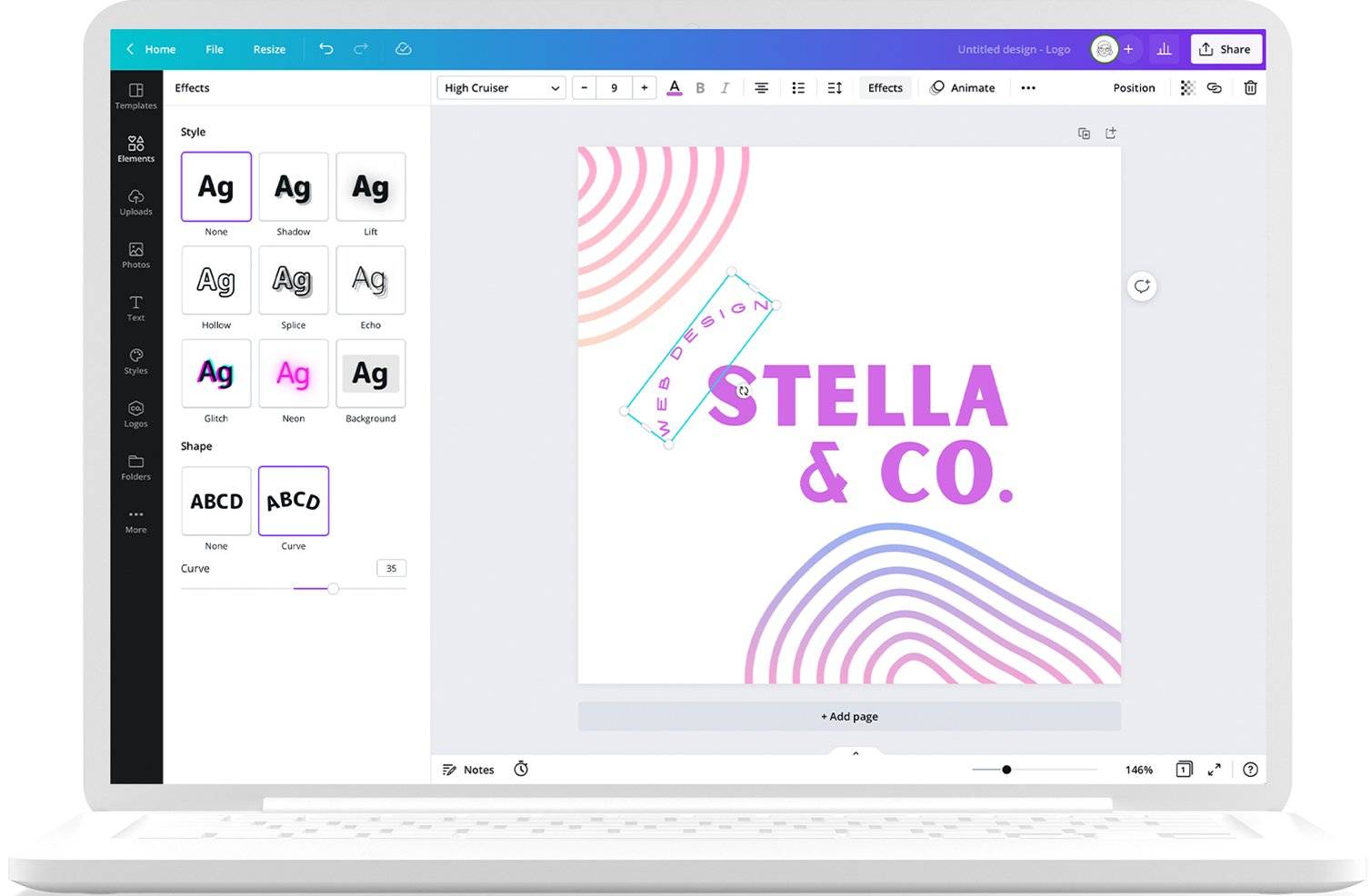
Canva offers effects like shadow, lift, and neon. Click “Effects” to explore options. Use effects to add depth or style to your text. Keep effects subtle to maintain readability and professionalism.
Choosing Colors Wisely
Choosing colors wisely is a key step in creating a logo in Canva. Colors affect how people feel about your brand. They can make your logo stand out or look dull. Picking the right colors helps your logo connect with your audience. It also makes your brand more memorable and professional.
Colors carry meaning and emotion. For example, red can show energy and passion. Blue often feels calm and trustworthy. Green links to nature and health. Knowing what your brand wants to say helps you pick the best colors. Use colors that match your brand’s message and personality.
Understand Color Psychology
Colors send messages without words. They can create feelings and moods. Think about the emotions your brand wants to evoke. Warm colors like red and orange show excitement and warmth. Cool colors like blue and green feel calm and safe. Use color psychology to guide your choices.
Limit Your Color Palette
Too many colors can confuse viewers. Stick to two or three main colors. This keeps your logo simple and clean. A limited palette helps your logo look balanced. It also makes your design easier to remember. Canva offers tools to test different color combos easily.
Choose Colors That Work Together
Colors should look good side by side. Use Canva’s color wheel to find matching colors. Complementary colors sit opposite on the wheel and create contrast. Analogous colors are next to each other and feel harmonious. Test combinations to see what fits your logo best.
Consider Your Audience
Your audience’s age, culture, and preferences matter. Colors can mean different things in different cultures. Bright colors might attract young people. Softer tones may appeal to older audiences. Think about who will see your logo and pick colors that connect with them.
Test Your Colors In Different Settings
Check how your logo colors look on screens and print. Colors can change depending on the background. Test your logo in black and white too. This ensures it stays clear and strong in any use. Canva allows quick previews for various formats and backgrounds.
Adding Icons And Graphics
Adding icons and graphics is a key step in creating a logo in Canva. These elements help your logo stand out and express your brand’s personality. Using the right icons can make your logo memorable and clear.
Canva offers a wide range of icons and graphics. You can find simple shapes, symbols, and detailed illustrations. Choosing the correct icon depends on your brand style and message. Keep your design clean and balanced.
How To Find Icons In Canva
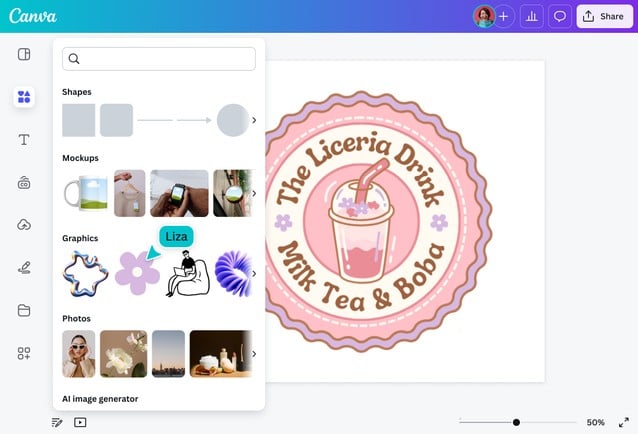
Start by opening your Canva logo design. Click on the “Elements” tab on the left side. Type a keyword related to your brand in the search box. For example, type “tree” for nature logos or “star” for achievement logos. Canva will show many icons and graphics matching your word.
Scroll through the options and pick the one that fits your style. You can use free or paid icons. Free icons are marked with a “Free” label. Click on the icon to add it to your design.
Customizing Icons And Graphics
After adding an icon, adjust its size by dragging the corners. Move it to the right spot on your logo. Change the icon’s color to match your brand colors. Click the color tile at the top toolbar and select a color or enter a hex code.
Use the transparency tool to make the icon lighter or darker. Rotate the icon if needed by using the rotate handle. Keep your icon simple and clear for easy recognition.
Combining Multiple Graphics
You can combine several icons to create a unique logo. Add one icon, then add another on top or beside it. Adjust their sizes so they look balanced. Group the icons by selecting them all and clicking “Group.” This keeps them together when moving or resizing.
Be careful not to overcrowd your logo with too many graphics. A simple and clean logo is easier to remember and looks professional.
Refining Your Design
Refining your logo design in Canva is a key step. It helps your logo look clean, clear, and professional.
Small changes can make a big difference. This stage focuses on perfecting colors, fonts, and spacing. Attention to detail improves the overall impact.
Adjusting Colors For Impact
Choose colors that match your brand personality. Use Canva’s color picker to test different shades. Keep contrast high so your logo stands out. Avoid too many colors to keep the design simple. Stick to two or three colors for balance.
Choosing The Right Font
Select fonts that reflect your brand style. Canva offers many font options to explore. Use one or two fonts to avoid clutter. Make sure the text is easy to read at small sizes. Adjust letter spacing for better clarity and style.
Aligning And Spacing Elements
Check the alignment of all logo parts. Use Canva’s grid and guide tools for precision. Keep equal spacing around text and icons. Balanced spacing makes the logo look tidy. Avoid crowding elements to maintain readability.
Testing Different Layouts
Try multiple logo arrangements in Canva. Move text and icons to find the best layout. Test horizontal and vertical versions. This helps decide what looks best on different platforms. Save each version to compare side-by-side.
Testing Logo Versatility
Testing logo versatility ensures your design works in all situations. A good logo looks great on websites, social media, and print. It remains clear and recognizable at different sizes and backgrounds. Testing helps avoid problems before finalizing the logo.
Check Logo Scalability
Resize your logo to small and large formats. View it as a tiny icon and a large banner. Make sure details stay clear and readable. Avoid designs that lose meaning when scaled down.
Test Logo In Black And White
Convert your logo to black and white. See if it keeps its shape and impact. Some colors may blend or disappear. A versatile logo should work without color.
Apply Logo On Different Backgrounds
Place your logo on light and dark backgrounds. Try it on colorful or patterned surfaces too. Check if the logo stands out or needs adjustments. Contrast matters for visibility.
Use Logo On Various Materials
Imagine your logo on business cards, shirts, and signs. Think about how it looks printed or embroidered. Test digital versions on screens and apps. Versatile logos adapt to all uses easily.
Credit: www.youtube.com
Saving And Using Your Logo
Saving and using your logo correctly ensures it looks great everywhere. A good logo file is key for websites, social media, and print materials. Canva makes this process simple and clear.
After finishing your design, saving your logo properly keeps quality intact. You can download it in formats that suit different uses. Knowing which format to pick helps avoid blurry or pixelated logos.
Saving Your Logo In Canva
Click the “Download” button at the top right of the Canva screen. Choose the file type based on your needs. PNG is best for most uses because it supports transparency. Transparent backgrounds let your logo fit any color or image.
For print, select PDF Print to get a high-resolution file. SVG files are ideal for scaling without losing quality. Canva Pro users can download SVGs easily.
Check the “Transparent background” box if you want a clean logo without a white box. Avoid low-resolution downloads to keep your logo sharp.
Using Your Logo For Different Platforms
Use PNG files for websites and social media profiles. They load quickly and look crisp. For printing on business cards or flyers, use PDF or high-res PNG.
Resize your logo properly for each platform. Canva lets you create different versions with adjusted sizes. This keeps your logo clear and professional everywhere.
Keep a folder with all your logo versions organized. Include different sizes and file types. This saves time when you need your logo for new projects.
Tips For Logo Placement And Consistency
Place your logo where it is easy to see but not distracting. Top corners or center headers work well on websites. On print, keep enough space around the logo to avoid clutter.
Use your saved logo files consistently across all marketing materials. Consistency builds brand recognition and trust. Avoid stretching or changing colors to keep your logo professional.
Credit: www.canva.com
Frequently Asked Questions
Is It Free To Make A Logo On Canva?
Canva offers free logo creation with many templates and tools. Some premium elements require purchase or subscription.
How To Design Your Own Logo?
Define your brand identity and choose a logo style that fits it. Use tools like Canva to customize fonts, colors, and icons. Test your logo’s clarity on different sizes and backgrounds. Save your design in multiple formats for versatile use across platforms.
Can I Legally Make A Logo On Canva?
You can legally create a logo on Canva using their tools and templates. Ensure your design is original and complies with Canva’s licensing terms. Avoid using copyrighted elements without permission to maintain legality.
Is Canva Good To Make Logos?
Canva is good for creating simple, professional logos quickly using customizable templates. It suits beginners and small businesses well.
Can I Create A Logo For Free Using Canva?
Yes, Canva offers free tools and templates to design logos without any cost.
What Are The Basic Steps To Create A Logo In Canva?
Choose a template, add your text, customize colors and icons, then save your design.
Can I Use My Own Images When Designing A Logo In Canva?
Yes, you can upload and use your own images or icons in your logo design.
How Do I Choose The Right Font For My Canva Logo?
Pick a clear, readable font that matches your brand’s style and personality.
Is Canva Suitable For Beginners Making Logos?
Absolutely. Canva’s user-friendly interface helps beginners create logos easily and quickly.
Can I Resize My Logo In Canva Without Losing Quality?
Yes, Canva allows resizing logos while keeping the design sharp and clear.
Conclusion
Creating a logo in Canva is simple and fun. Start with a clear brand idea. Choose a style that fits your business well. Use Canva’s tools to pick fonts, colors, and icons. Customize your logo until it looks just right.
Save your work and test the logo on different devices. A clear, easy-to-read logo helps your brand stand out. Keep practicing, and your design skills will improve. Canva makes logo design accessible for everyone. Give it a try and bring your brand to life.





