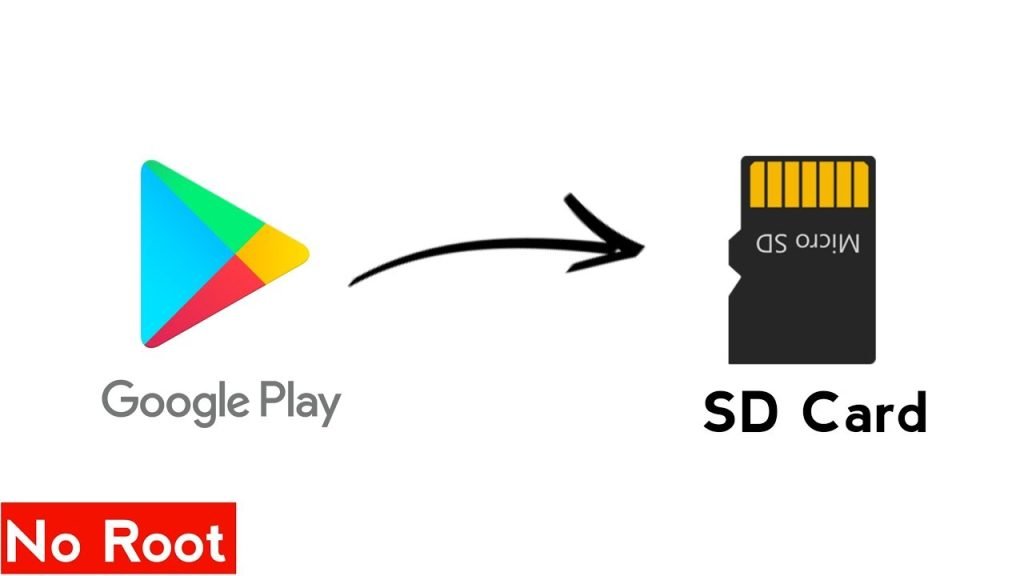
You can move or install many Android apps to an SD card via Settings or ADB.
I’ve guided hundreds of users through freeing up device storage. This article explains, step by step, how to download apps to SD, when it works best, and which method fits your phone. Read on to learn practical, tested ways to save space and keep apps running smoothly.
Why move apps to an SD card and when it helps
Moving apps to external storage frees internal space. Many phones have limited internal memory. Knowing how to download apps to SD helps when you run out of app storage and want to keep performance steady.
Benefits you get when you learn how to download apps to SD
- More free internal storage for system tasks and app updates.
- Ability to install more apps, games, or store app data.
- Useful for older phones with small built-in memory.
When moving apps to SD may not help
- Some apps won’t run properly from SD. System and security apps are usually locked to internal storage.
- Slow or low-quality SD cards can make apps lag.
Prepare your phone and SD card
Good prep prevents data loss and frustration. Before you try how to download apps to SD, take a few minutes to prepare.
Checklist before moving apps
- Back up important data to cloud or computer.
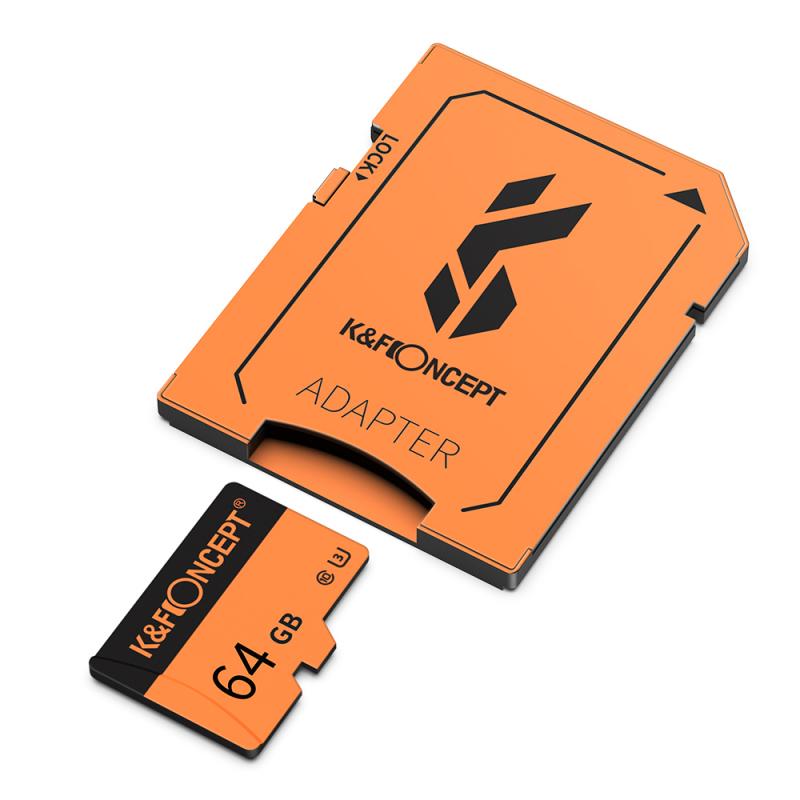
- Use a fast, class 10 or UHS-I microSD card for app storage.
- Check phone OS and model; not all Android versions support moving apps to SD.
- Charge your phone or keep it plugged in during the process.
How to check compatibility
- Go to Settings > Storage. If you see “Format as internal” or “Adoptable storage,” your phone supports formating the card for apps.
- If not, you may still move some apps manually.
Method 1 — Move apps to SD using App Settings (simple method)
This is the easiest, most common method for many Android phones. It shows how to download apps to SD without extra tools.
Step-by-step
- Open Settings > Apps or Apps & notifications.
- Select the app you want to move.
- Tap Storage > Change (if available), then choose SD card.
- Confirm and wait while the app moves.
Notes on this method
- Not all apps show the Change option. Games and large apps sometimes allow it.
- Data left on internal storage may remain. Check app storage details.

Method 2 — Adoptable storage (format SD as internal)
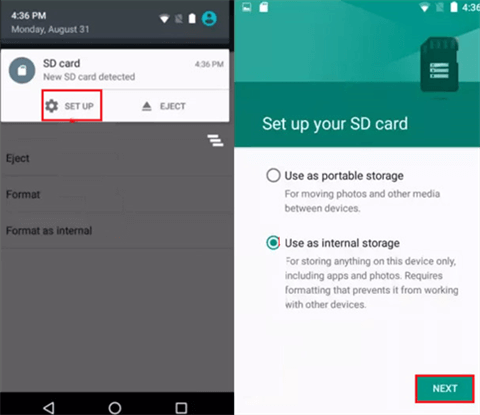
Adoptable storage treats your SD card as part of internal storage. This is a stronger way to download and run many apps from an SD card.
How to enable adoptable storage
- Insert the microSD card.
- Open Settings > Storage.
- Select the SD card and tap Format as internal or Format as adoptable.
- Move data when prompted, or go to Apps to move them.
Pros and cons
- Pros: Apps behave as if installed on internal storage. More usable space.
- Cons: Card is encrypted for that device only. Removing the card breaks app access. Performance depends on card speed.
Method 3 — Use ADB to set install location (advanced)
For phones that block moves, ADB (Android Debug Bridge) can change where apps install. This method is for tech-savvy users and shows another way to download apps to SD.
What you need
- A computer with ADB installed.
- USB cable and USB debugging enabled on the phone (Settings > Developer options).
Basic ADB flow
- Connect phone to PC and run adb devices to confirm connection.
- Use adb shell pm set-install-location 2 to prefer external storage.
- Install apps normally from Google Play or via sideload.
Caution
- This sets a global preference and may not move existing apps.
- Some apps ignore the setting for security or performance reasons.

Practical steps and examples for common phones
This section covers common scenarios and clear examples for how to download apps to SD on popular Android families.
Samsung and stock Android phones
- Samsung often restricts adoptable storage but lets you move some apps via Settings.
- Pixel and some stock Android phones support adoptable storage only in certain versions.
Example: Moving a large game
- Check app size in Play Store or Settings.
- Format a fast SD card as internal if allowed.
- Move the app via Settings > Apps > [App] > Storage > Change.
Example: Using ADB when Settings lacks options
- I used ADB on an older tablet to install educational apps when Settings had no move option. The apps installed to SD and ran fine after testing.

Tips, limitations, and best practices
Small choices affect performance and safety. Follow these tips when you learn how to download apps to SD.
Tips for best results
- Buy a high-quality microSD from known brands. Speed matters.
- Use adoptable storage for many apps, but accept the card is tied to a device.
- Keep an extra backup of important apps’ data.
Common limitations
- Widgets and system services may break if moved.
- Not all apps allow full move; developers can block it.
- Removing the SD card may corrupt app data.
Troubleshooting quick fixes
- If an app crashes after moving, move it back to internal storage.
- Reformat the card if Android reports errors. Back up data first.

My personal experience and lessons learned
I’ve moved apps to SD on several mid-range phones. Here are real lessons from those tests.
What worked well
- Adoptable storage on a fast card gave me extra space and stable app performance.
- Moving media-only apps freed internal storage quickly.
What I would avoid now
- Using cheap cards for adoptable storage. They caused slow app load and some crashes.
- Moving essential apps like banking or system tools to external storage.
Practical rule I follow
- Use adoptable storage only on phones I plan to keep. For temporary space, move noncritical apps manually.
Frequently Asked Questions of how to download apps to sd
How do I move an installed app to the SD card?
Open Settings > Apps, pick the app, tap Storage, and choose Change or Move to SD if available. If the option is missing, the app or Android version likely blocks the move.
Can I install new apps directly to the SD card?
If your phone supports adoptable storage and you formatted the card as internal, new apps will install there automatically. Otherwise, Android installs apps to internal storage by default.
Will apps run slower from an SD card?
Yes, they can if the card is slow. Use a class 10 or UHS-I card to reduce lag and improve performance.
Is adoptable storage reversible?
Yes, you can format the SD back to portable, but you must move or back up apps first. Formatting wipes the card and may break apps stored there.
Do I need special permissions to use ADB for installing to SD?
You need USB debugging enabled and a computer with ADB. The phone will prompt you to allow the computer when first connecting.
Will moving apps to SD save battery life?
Not directly. A slow card can increase CPU usage and slightly drain battery. Fast cards minimize any extra battery use.
Conclusion
You now know practical ways to download apps to SD, from simple Settings moves to adoptable storage and ADB tricks. Choose the method that matches your phone, card quality, and comfort level. Start by backing up, testing with one app, and using a reliable microSD. Try these steps, share what worked for you, and leave a comment if you want help with a specific phone model or error.