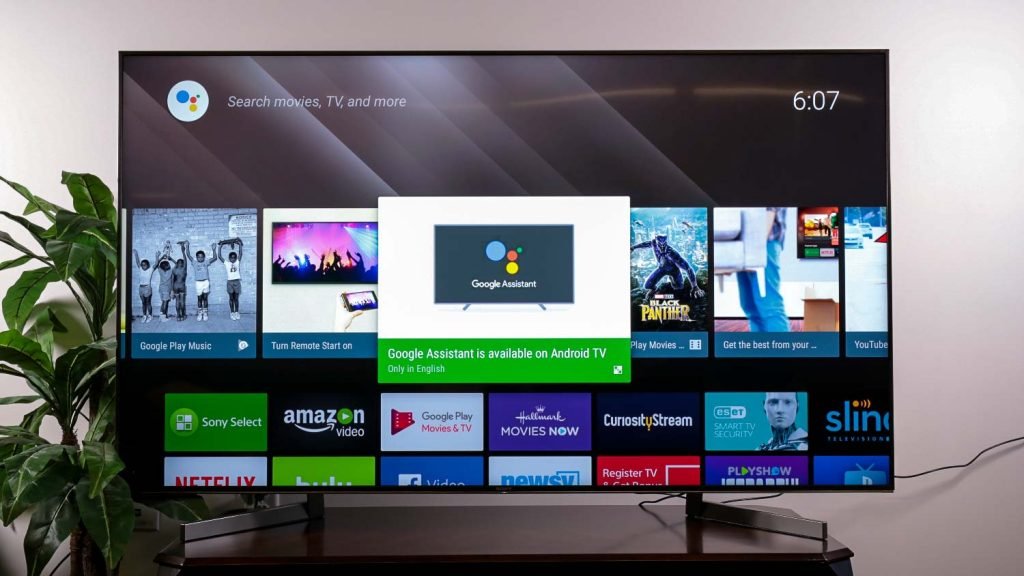
You can add apps on a Sony Smart TV via the Google Play Store or by sideloading with a few simple steps.
I’ve helped dozens of friends and clients set up apps on Sony smart TVs, so I know the common hurdles and easy wins. This guide explains exactly how to add apps on a Sony Smart TV, step by step, for both newer Google TV models and older Android TV units. I’ll cover prerequisites, the Play Store method, sideloading, casting alternatives, app management, troubleshooting, safety tips, and real-life lessons from my own experience. Read on to get your favorite streaming, music, and utility apps running fast and reliably.
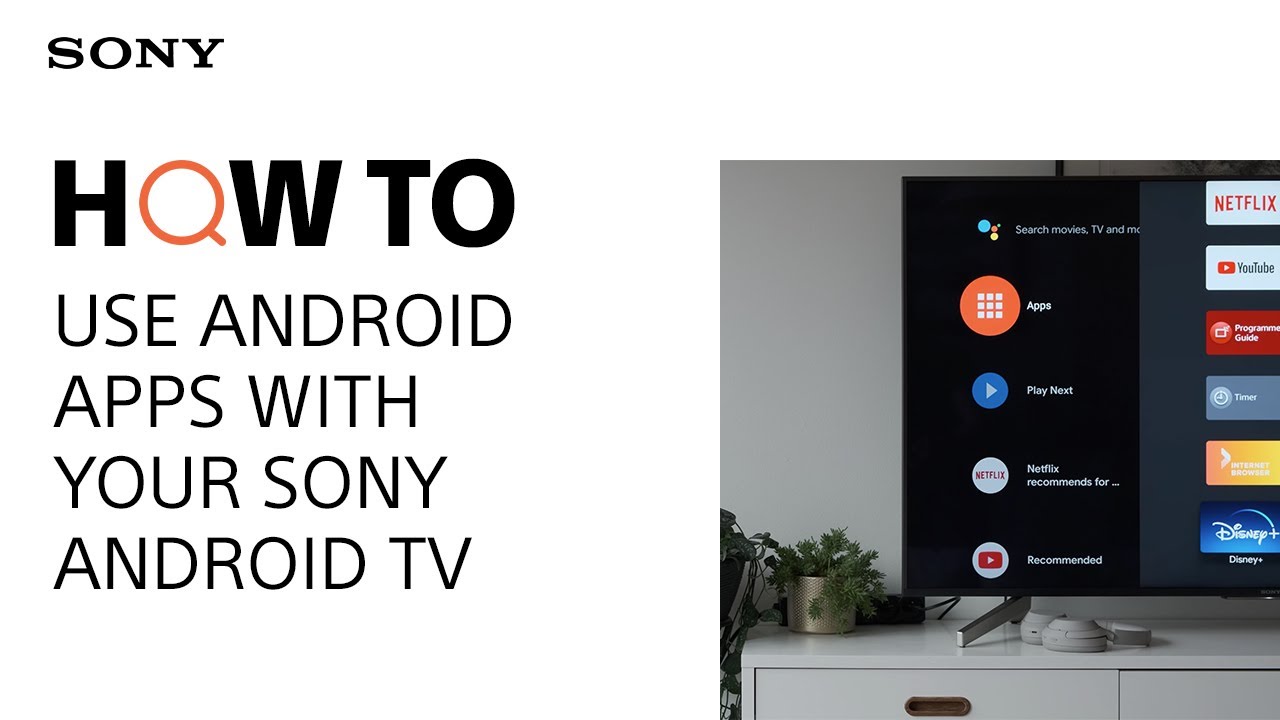
Overview: what it means to add apps on a Sony Smart TV and what you need
Adding apps on a Sony Smart TV means installing software from the Google Play Store, Sony’s storefront, or other sources so the TV can run streaming, gaming, or utility apps. Sony ships many models with Android TV or Google TV as the platform. The store and process vary a bit by model and OS.
You need a stable internet connection, a Google account for Play Store access, and enough free storage on the TV. Newer Google TV models use a browsable Play Store app. Older Android TV models may use Sony Select or a slightly different Play Store layout. Keep your TV firmware updated to avoid compatibility issues.

Step-by-step: install apps using the Play Store on a Sony Smart TV
This is the most common and safest method to add apps on a Sony Smart TV.
- Turn on the TV and connect to Wi-Fi
- Use the remote to open Settings. Select Network and connect to your home Wi‑Fi.
- Sign in to your Google account
- Open the Google Play Store app on the TV. Sign in with your Google account when prompted.
- Find the app
- Use the search box or browse categories. Type the app name with the remote or voice search.
- Install the app
- Select the app tile. Choose Install. Wait a minute or two while the TV downloads and installs the app.
- Open and sign in
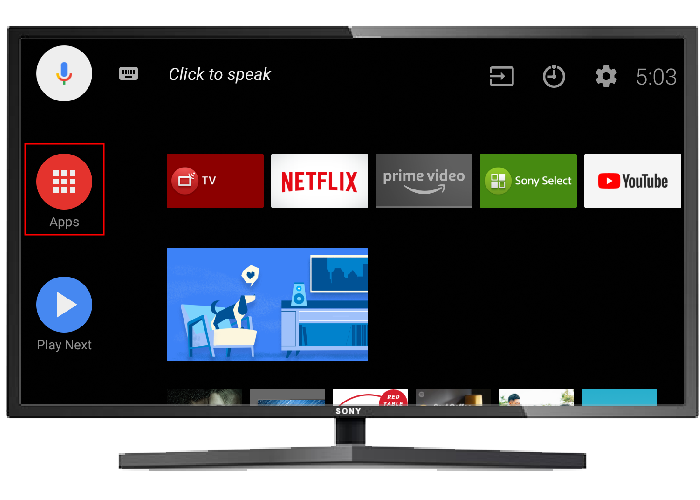
- Launch the app from the home screen or Apps menu. Sign in to the app with your account as needed.
Notes and tips
- If your remote has a Google Assistant button, press and speak the app name to search faster.
- Some apps may be labeled “Not compatible” on older TV models. Check for firmware updates.
- If you prefer, visit the Play Store on your phone or PC, sign in with the same Google account, and click Install to push the app to your TV.
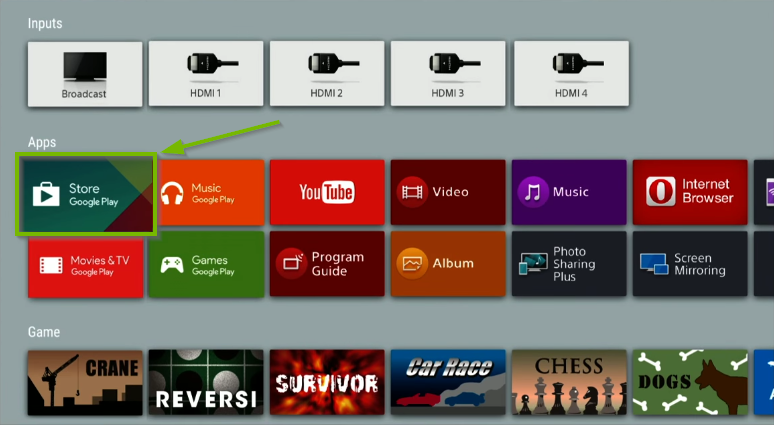
How to add apps on a Sony Smart TV when the Play Store is missing or limited
Some Sony TVs don’t show a full Play Store or have regional restrictions. Here are safe alternatives.
Sideloading APKs
- Enable Developer Options in Settings by selecting Build number repeatedly (on some models). Allow Unknown Sources for the installer app.
- Transfer the APK via USB or use a file manager app with cloud storage to install. Confirm permissions and be careful with sources.
Casting and streaming from a phone
- Use Chromecast built-in to cast apps like Netflix or YouTube from your phone. This avoids installation entirely.
Using the Play Store web interface
- From your phone or PC, open the Play Store in a browser, find the app, and choose your TV as the install target if it appears.
Older Sony Select apps
- Some legacy models use Sony Select. Browse the available apps there or update the TV OS if possible.
Cautions
- Sideloading risks installing unverified apps. Only use trusted APK sources. Keep system updates on.

Manage, update, and uninstall apps on Sony Smart TV
Keeping apps tidy helps performance and saves storage.
Update apps
- Open Play Store > My apps. Select Update for individual apps or Update all. Enable auto-update in Play Store settings to keep apps current.
Uninstall apps
- Go to Settings > Apps. Select the app and choose Uninstall or Disable. Some system apps can only be disabled.
Move or clear storage
- If an app supports external storage or cache clearing, use Settings > Storage to free space. Clear cache first before uninstalling to keep settings.
Pin and organize
- Move frequently used apps to the home screen. Long-press an app tile to move or remove it.
Troubleshooting: common problems and fixes when adding apps on a Sony Smart TV
Problem: Play Store not available
- Fix: Update TV firmware. Ensure Android TV/Google TV is supported in your region. Reset network and sign in again.
Problem: App shows “Not compatible”
- Fix: Check TV model and OS version. Some apps require newer Android TV/Google TV builds. Consider casting from another device.
Problem: Insufficient storage
- Fix: Uninstall unused apps. Clear app cache. Use a USB drive if the TV supports external app storage.
Problem: App crashes or won’t open
- Fix: Clear app data and cache. Reinstall the app. Restart the TV and check for app updates.
Problem: Slow downloads
- Fix: Test your internet speed. Move the router closer. Use Ethernet for large downloads.
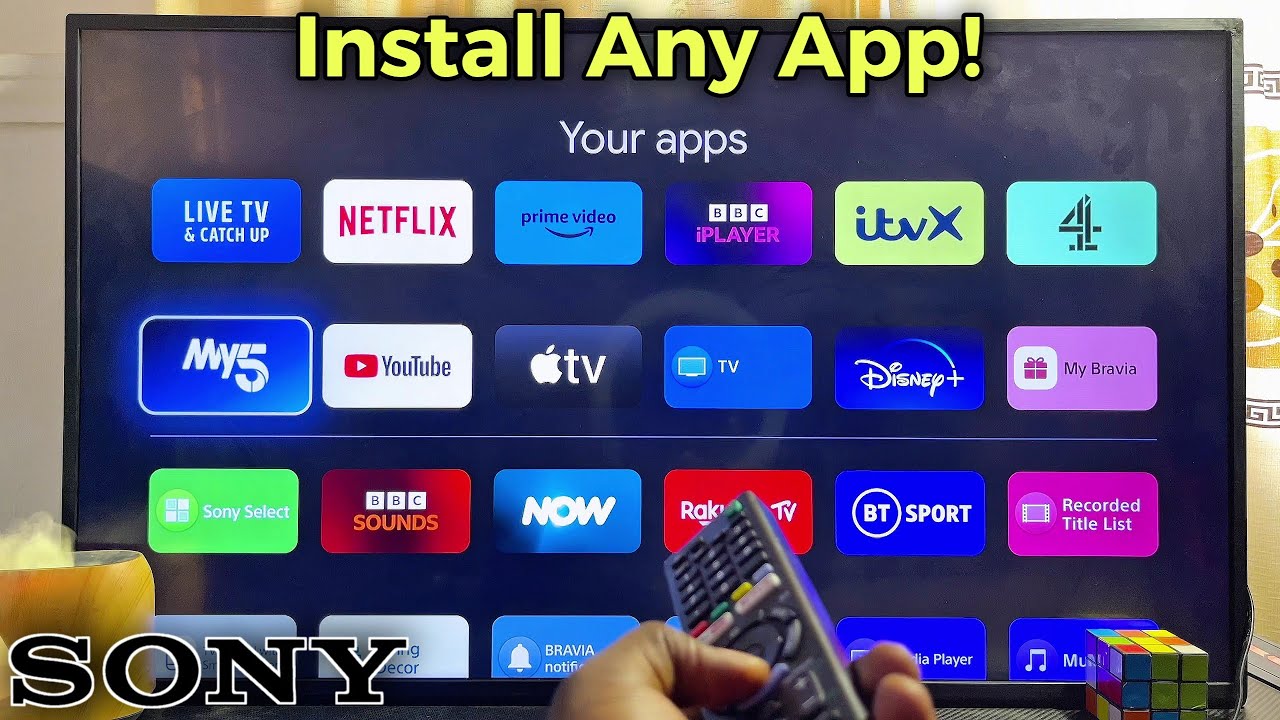
Security, privacy, and best practices when adding apps on a Sony Smart TV
Only install apps from trusted stores and verified developers. The Play Store vets apps better than random APK sites. Limit permissions for apps that ask for sensitive access. Use unique passwords and enable two-factor authentication for services.
Enable automatic updates for apps and firmware. Remove apps you do not use. Use guest or restricted profiles if multiple people share the TV.
Personal experience and lessons learned
- I once sideloaded a media app from an unverified source. It caused crashes and wiped my app settings. I learned to avoid APKs unless absolutely needed and to back up settings first.
- When helping a friend, enabling Ethernet fixed slow installs and streaming buffers. Wired connections are simple and effective.
- Keep a note of app logins. Signing into a new TV is easier when you have email and password ready.
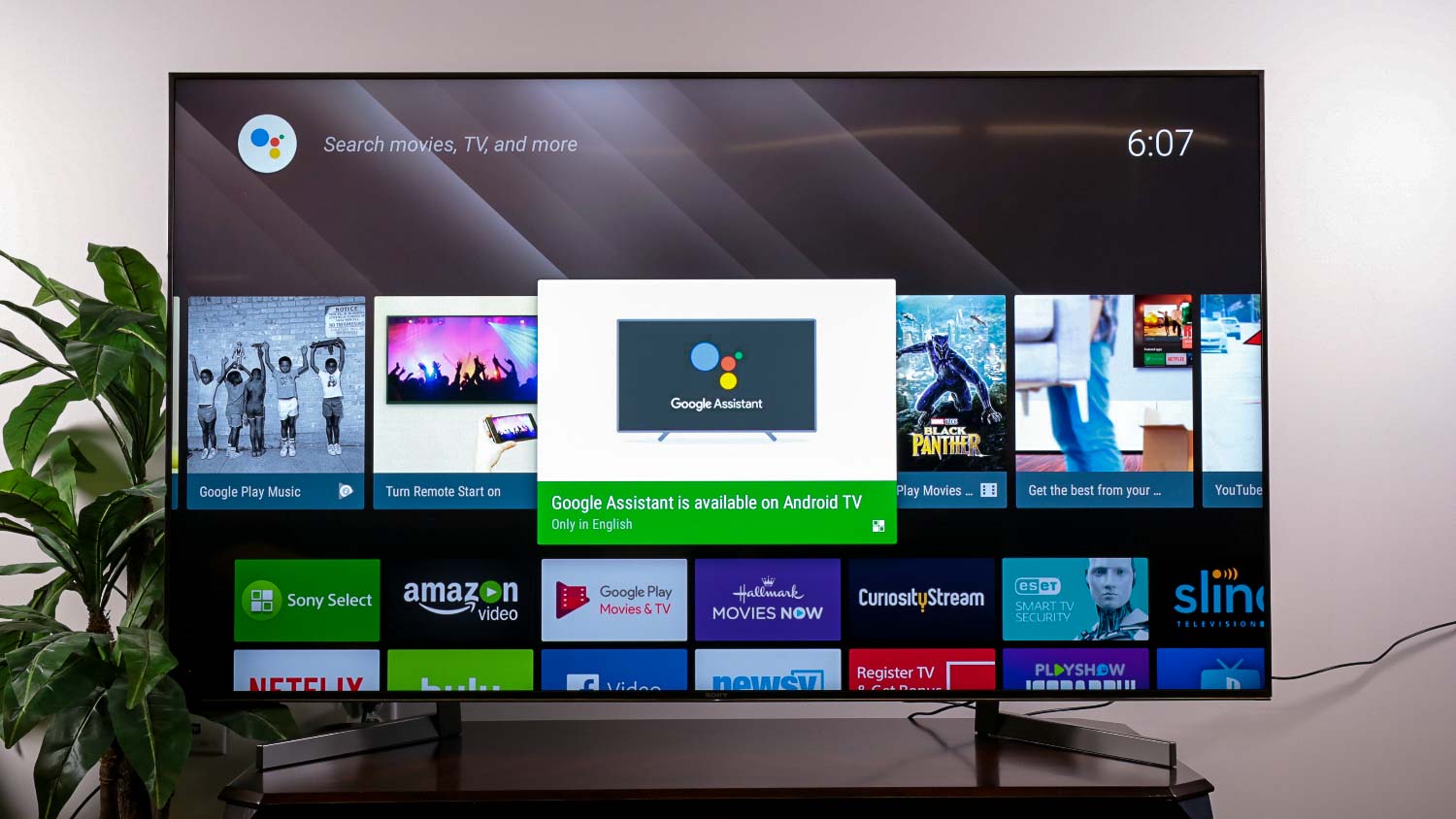
Frequently Asked Questions of how to add apps on a sony smart tv
How do I add apps if my Sony TV uses Google TV, not Android TV?
Search the Play Store app on your Google TV. Sign in with your Google account, find the app, and select Install. Google TV’s interface is newer but the process matches Android TV.
Can I install apps from a USB drive?
You can install APKs from a USB on some models, but you must enable Unknown Sources and use a file manager. This method carries security risks and should be used with care.
Why does an app say “not compatible” on my Sony TV?
Compatibility often depends on the TV’s Android version and hardware. Some apps require newer OS builds or specific codecs. Check for a firmware update or use casting instead.
Will sideloaded apps update automatically?
No. Sideloaded apps do not update via the Play Store. You must manually update them with new APKs or remove and reinstall updated versions.
How do I free up space to add new apps?
Uninstall apps you don’t use, clear app caches, and disable unused system apps. If supported, attach a USB drive for extra storage, but check if the TV lets apps use external storage.
Conclusion
Installing and managing apps on a Sony Smart TV is straightforward when you know the steps and limits. Use the Play Store for the safest installs. Try casting or sideloading only when needed, and keep security in mind. Take action today: update your TV, sign in to the Play Store, and add one app you use daily. If this guide helped, subscribe, leave a comment, or share your own Sony app tips below.