Update apps on a Vizio Smart TV by keeping it online and installing the latest TV firmware.
I have worked with many Smart TVs and helped friends fix app issues. This guide explains how do I update apps on Vizio Smart TV step by step, why updates matter, common problems, and practical workarounds. You will learn the exact actions to take, quick checks to run, and simple fixes I use in real life when apps refuse to update or crash. Read on to get your Vizio apps current and running smoothly.

Why updating apps on Vizio Smart TV matters
Keeping apps fresh improves security, performance, and features. When you ask how do i update apps on vizio smart tv, the short reality is that Vizio’s system handles most app updates through TV firmware. Apps may get new features or bug fixes only after a system update is delivered.
Benefits of regular updates
- Better stability and fewer crashes.
- New features and updated user interfaces.
- Improved security patches and privacy fixes.
- Compatibility with streaming services and DRM updates.
Limitations to know
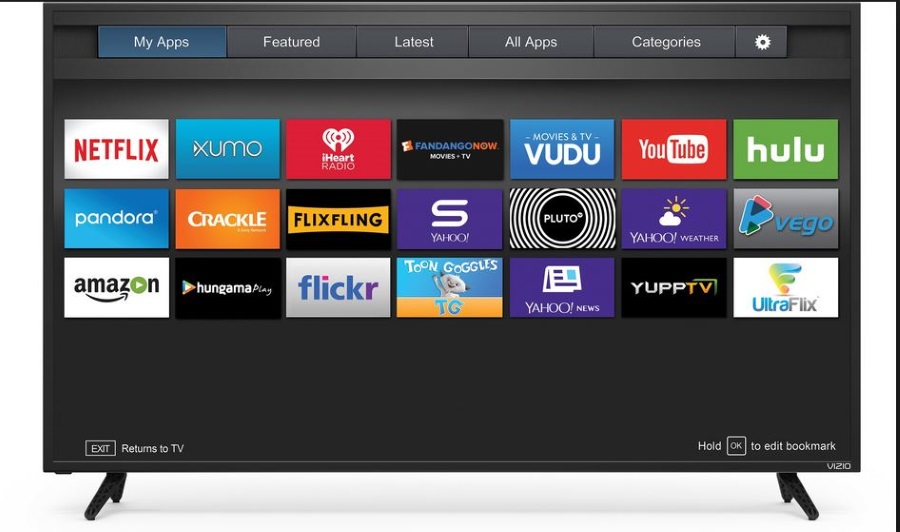
- Vizio SmartCast does not offer a public app store for manual updates.
- Some older Vizio models may not get app updates any more.
- If the TV firmware is out of date, apps may behave poorly even if connected.

Source: plattar.com
How do I update apps on Vizio Smart TV: step-by-step guide
Vizio does most app updates via firmware. These steps show how to check for and apply updates so your apps update indirectly.
- Check your internet connection
- Make sure the TV is on and connected to Wi-Fi or Ethernet.
- Test by opening an app like YouTube to see if streaming works.
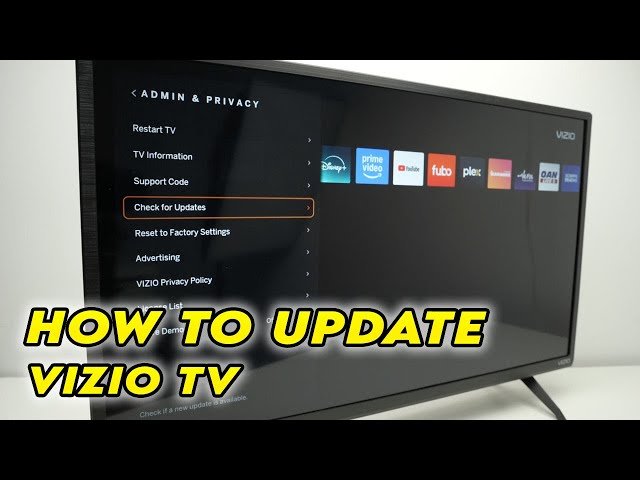
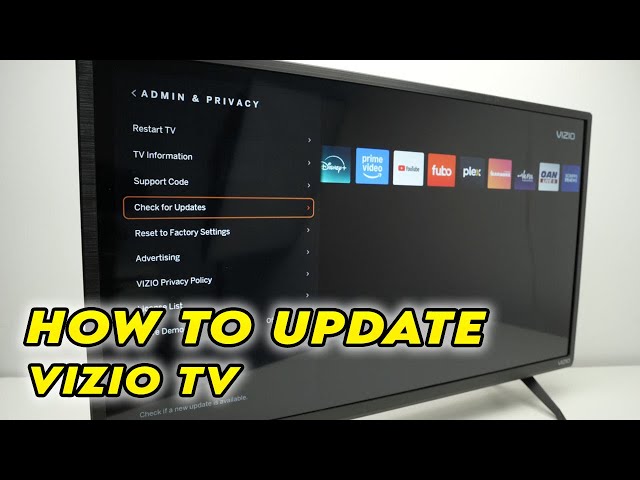
- Check for system updates
- Press the V button or Home to open SmartCast.
- Go to Settings > System > Check for Updates or System > Check for Updates (menu names vary by model).
- If an update is available, choose Install and allow the TV to restart.
- Leave the TV on overnight
- Vizio often pushes updates when the TV is idle.
- Leave it plugged in and connected; updates can occur automatically.
- Restart the TV
- Unplug the TV for 30 seconds, then plug it back in.
- Power cycling clears minor glitches that block updates.
- Sign out and re-open an app
- For a specific app issue, sign out then sign back in.
- If the app still fails, remove personal data via the app settings if available.
- Factory reset as a last resort
- Settings > System > Reset & Admin > Reset to Factory Defaults.
- Back up account info first. This often forces a fresh app state.
- Use an external device if needed
- If the native app is obsolete, use a Roku, Fire TV, Apple TV, or Chromecast with updated apps.
Source: alphr.com

Troubleshooting: when apps won’t update or work
If apps refuse to update after the steps above, try these checks and fixes.
Checklist for quick fixes
- Confirm Wi-Fi speed and stability with another device.
- Remove any VPN or network filter that blocks app servers.
- Check date/time settings; wrong time can break secure connections.
- Ensure the TV has enough free memory; too many cached items can cause hangs.
When to contact Vizio support
– The TV won’t detect system updates.
- Multiple apps are broken after a firmware update.
- You see repeated error codes during updates.
Real-life example
Once, an update failed and left Netflix crashing on a Vizio from 2017. I power-cycled the TV, checked for updates, and finally did a factory reset. That fixed Netflix, but the TV later lost support for a newer app version. The lesson: keep an alternate streaming stick handy for older TVs.
Alternatives and workarounds
If you cannot update apps on your Vizio, use other ways to access content.
Use a streaming stick or set-top box
- Devices like Roku, Fire TV, Apple TV, and Chromecast get frequent app updates.
- Plug one into an HDMI port and use it instead of the built-in app.
Cast from a phone or tablet
- Use AirPlay, Chromecast, or SmartCast from mobile apps.
- This avoids relying on the TV’s app updates.
Use a game console or Blu-ray player
- Consoles and media players often carry current apps and receive updates.
Benefits of external devices
- Faster updates and better long-term app support.
- Modern UI and advanced features.
- Lower risk of app deprecation on older TVs.

Source: plattar.com
Tips to keep apps updated and secure
Simple habits reduce app problems and keep streaming smooth.
Daily and weekly habits
- Keep the TV connected to the internet when not in use.
- Check for system updates monthly.
- Reboot the TV every few weeks to clear memory.
Security tips
- Use strong Wi-Fi passwords and WPA2/WPA3.
- Avoid public networks for signing into apps.
- Keep app logins secure with two-factor auth where possible.
Personal tip from experience
I label smart devices and keep a small HDMI hub drawer with a Roku and a Chromecast. When a built-in app fails, swapping the HDMI input is faster than troubleshooting for an hour. It saves time and keeps guests happy.

Frequently Asked Questions of how do i update apps on vizio smart tv
How do I manually update an app on my Vizio TV?
Vizio SmartCast does not offer a manual app update button. To update apps, check for system/firmware updates in Settings and install any available updates.
Why are my Vizio apps not updating automatically?
Apps rely on firmware updates and a stable internet connection. If the TV is offline, in power-save mode, or uses a slow network, automatic updates may not occur.
Can I reinstall a single app on a Vizio Smart TV?
There is usually no direct reinstall option for individual apps on SmartCast. A factory reset or firmware update is the main way to refresh app installs.
What if an app disappears from my Vizio TV?
Apps can be removed if the provider ends support for that TV model. Use an external streaming device to access the app instead.
Will updating the TV firmware delete my settings?
Firmware updates rarely delete personal settings, but it is wise to note account details and network passwords before updating or performing a factory reset.
Conclusion
Updating apps on a Vizio Smart TV mostly means keeping the TV firmware up to date and ensuring a stable network. If you wonder how do i update apps on vizio smart tv, follow the steps here: check internet, install system updates, restart the TV, and use external devices when needed. Try simple fixes first and keep a streaming stick handy for older models. Take action today by checking for system updates and noting which apps need extra support; leave a comment or subscribe for more tips on getting the most from your Smart TV.