Remove apps from a Vizio Smart TV by removing the tile or using the TV’s app menu or factory reset.
I’ve helped dozens of people tidy up their living-room TVs, and I know exactly how to delete apps from Vizio Smart TV models. This guide explains which Vizio systems allow true app removal, which only let you hide or remove tiles, and step-by-step actions you can take. You’ll learn simple steps, common limits, and quick fixes so you can declutter your SmartCast or older Vizio TV in minutes.

Understanding Vizio platforms and what “delete” really means
Vizio makes TVs that run different systems. Newer sets use SmartCast. Older models use VIA or VIA Plus. The method for how to delete apps from Vizio Smart TV depends on the platform.
On SmartCast, many apps are built into the system. You can remove tiles or hide shortcuts, but you often cannot fully uninstall system apps. On older VIA models, you may be able to uninstall third-party apps in the apps menu. Knowing your model helps set expectations.

How to delete apps from Vizio Smart TV — step-by-step
Below are clear steps for the most common Vizio setups. Follow the section that matches your TV model. If you aren’t sure which model you have, check the back panel or go to System > About.
SmartCast (most Vizio TVs made since 2016)
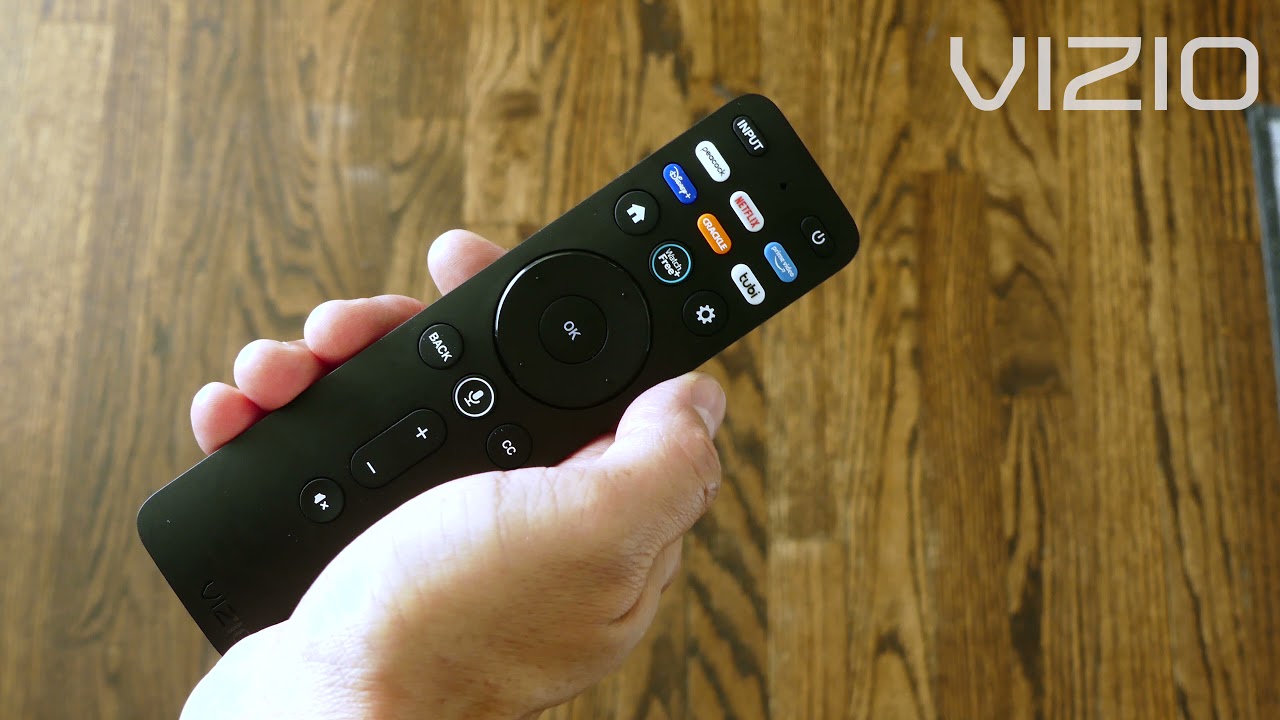
- Press the V or Home button on your remote to open the SmartCast home screen.
- Navigate to the app tile you want to remove.
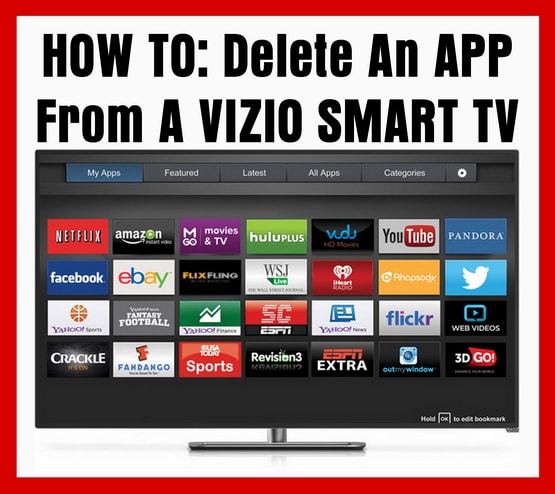
- Press and hold the OK or Select button until a menu or small X appears.
- Choose Remove or Remove from Home to delete the tile (this hides the shortcut, not always the app itself).
- If the app keeps returning, try restarting the TV: Settings > System > Power > Soft Power Cycle or unplug for 30 seconds.
SmartCast generally prevents uninstalling core streaming apps, but removing tiles clears your home screen. If you want to fully remove an app, skip to the factory reset section below.

VIA or VIA Plus (older Vizio smart TVs)
- Press the V button or Menu on the remote to open the Smart Apps menu.
- Go to My Apps or Apps > My Apps.
- Highlight the app you want to remove.
- Press the Options or Menu button on the remote.
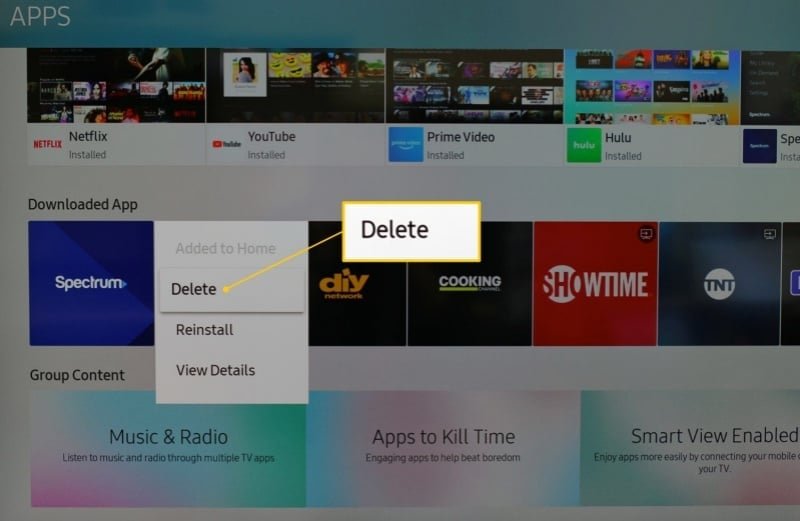
- Choose Delete or Remove and confirm.
- Restart the TV if needed.
Older Vizio app stores allowed uninstalling some user-installed apps. System apps may still be protected.

Using the Vizio SmartCast Mobile App to manage tiles
- Open the Vizio SmartCast Mobile app on your phone.
- Make sure your phone and TV are on the same Wi‑Fi network.
- Select your TV from the device list.
- Go to Home Screen or App Management in the mobile app.
- Remove or rearrange tiles; changes sync to the TV.
This is handy when the TV remote is slow or the on-screen controls don’t show a remove option.

Factory reset and advanced removal
- Backup any personal settings or sign-in info you might need.
- Go to Settings > System > Reset & Admin > Reset to Factory Defaults.
- Enter your TV’s 4‑digit code if requested, and confirm.
- After reset, set up the TV. Only apps available by default will appear.
A full factory reset removes downloaded data and accounts. Use this as a last resort when an app won’t uninstall or when you sell or give away the TV.
Troubleshooting: common problems and fixes
If you can’t find an uninstall option, your TV likely uses SmartCast and the app is built in. Try removing the tile or updating the firmware first. Updating is at Settings > System > Check for Updates.
If tiles reappear after removal, disable automatic app updates or sign out of accounts tied to those apps. You can also remove app accounts or unlink services in Settings > Accounts. If apps crash, try a soft power cycle or reinstall after clearing temporary data where possible.
Tips, best practices, and what to avoid
- Keep firmware updated to ensure app management options work properly.
- Remove tiles rather than attempting risky deep resets unless you need a full wipe.
- Use the mobile SmartCast app for faster tile management.
- Avoid repeatedly factory resetting; it erases all settings and can be time consuming to restore.
- If you plan to sell the TV, do a full factory reset to remove accounts and personal info.
These steps keep your TV tidy and protect personal data. They also avoid common mistakes I’ve seen, like deleting an account instead of an app and losing saved preferences.

Limitations, alternatives, and related concepts
You can expect three outcomes when you try to remove apps on Vizio: remove tile, uninstall app (older models), or factory reset to erase everything. Many modern apps are part of SmartCast and cannot be fully removed. If true deletion isn’t possible, consider hiding the tile or using casting from a phone instead.
Alternatives include:
- Casting from your phone or tablet to use apps without them on the TV.
- Using an external streaming device (Roku, Fire TV, Chromecast) where apps are fully managed.
- Signing out of apps to prevent auto-login and personalize less.
Personal experience: what I tried and what worked
I recently helped a friend clean up a Vizio SmartCast TV with too many tiles. Removing tiles via the remote worked best. The TV did not allow full uninstalls, so I recommended casting and moving some rarely used services to a Chromecast. That streamlined the home screen and kept streaming fast.
Lesson learned:
- Try the simple tile remove first.
- Use a factory reset only when necessary.
Frequently Asked Questions of how to delete apps from Vizio Smart TV
How can I tell if my Vizio TV runs SmartCast or VIA?
Look in Settings > System > About or check the model number on the label. SmartCast is used on most models made since 2016 and has a modern home screen layout.
Can I permanently uninstall system apps on a Vizio SmartCast TV?
Not usually. SmartCast often treats core streaming apps as built-in, so you can hide tiles but not fully uninstall them.
Will removing an app tile delete my account or data?
Removing a tile usually does not delete account data stored by the service. You should sign out of the app if you want to remove personal information.
My removed apps keep returning—what should I do?
Check for automatic updates or account sync that re-adds tiles. Try turning off any auto-reinstall setting and update the TV firmware.
Is factory reset the only way to remove stubborn apps?
Factory reset can remove downloaded data and accounts, but it is a last resort because it erases all settings on the TV.
Conclusion
You can clean up your Vizio by removing tiles, using the Vizio app, uninstalling on older VIA models, or performing a factory reset when needed. Start with the least destructive option: remove the tile or sign out. If that fails, update firmware, restart the TV, and only then consider a factory reset. Try these steps today to make your TV easier to use and faster to navigate. If this guide helped, leave a comment with your TV model or subscribe for more smart TV tips.