Are you new to Linux and wondering how to get your favorite apps up and running? Installing software on Linux might seem tricky at first, but it doesn’t have to be.
Whether you prefer using a simple graphical tool or typing commands in the terminal, this guide will walk you through the easiest ways to install apps on your Linux system. By the end, you’ll feel confident managing your software like a pro and unlocking the full power of your Linux machine.
Ready to make your computer truly yours? Let’s dive in!

Credit: www.geeksforgeeks.org
Package Managers
Package managers simplify app installation on Linux. They handle downloading, installing, and updating software. Using package managers saves time and reduces errors. They work through commands or graphical interfaces. Most Linux distributions include a package manager by default.
Using Apt On Debian-based Distros
Apt is a popular package manager for Debian-based systems like Ubuntu and Linux Mint. It uses simple commands to install, update, and remove apps. To install an app, open the terminal and type sudo apt install appname. Replace appname with the software you want.
Before installing, update your package list with sudo apt update. This ensures you get the latest version. To remove an app, use sudo apt remove appname. Apt also handles dependencies automatically, so apps work correctly after installation.
Dnf And Yum For Fedora And Centos
Dnf and Yum are package managers for Fedora and CentOS distributions. Dnf is newer and preferred on Fedora, while Yum is common on CentOS. To install software with Dnf, type sudo dnf install appname. For Yum, use sudo yum install appname.
Both tools update package lists and manage dependencies automatically. Update your system with sudo dnf update or sudo yum update. Removing apps works similarly using sudo dnf remove appname or sudo yum remove appname. These commands keep your system clean and up to date.
Software Centers
Software Centers offer an easy way to install apps on Linux. They provide a user-friendly interface to browse, search, and install software without using commands. This makes app installation accessible to everyone, even beginners. Most Linux distributions include their own Software Center, designed to work smoothly with their system. Using Software Centers helps keep your system safe, as apps come from trusted sources.
Graphical Interface Installation
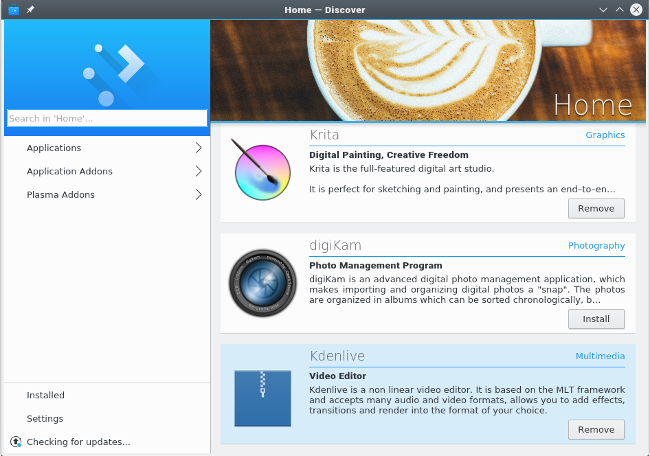
Software Centers use a graphical interface that shows app categories and featured apps. You can open the center from your system menu or dock. The interface lets you explore apps visually, making it easier to find what you need. Icons, descriptions, and ratings give quick info about each app. Installing apps is simple; just a few clicks start the process. The center handles all background tasks like downloading and installing files.
Searching And Installing Apps
The search feature in Software Centers helps find apps fast. Type the app name or a keyword in the search bar. Results appear instantly, showing all matching apps. Click on an app to see details, screenshots, and user reviews. To install, click the install button and enter your password if asked. The center shows progress and notifies you when installation finishes. This process avoids command lines and reduces errors.
Installing From Terminal
Installing apps on Linux through the terminal is a fast and reliable method. It lets you control every step using simple commands. This approach works on most Linux distributions and does not require a graphical interface.
Using the terminal saves time and often installs the latest version of the app. It is ideal for users who want to manage software with precision and ease.
Basic Command Line Steps
Start by opening your terminal. You can find it in your applications menu or press Ctrl + Alt + T.
Type sudo apt-get install app-name to install a program on Debian-based systems like Ubuntu or Mint. Replace app-name with the name of the application you want.
Press Enter and type your password if asked. The system will download and install the app automatically.
For Fedora or Red Hat, use sudo dnf install app-name. For Arch Linux, the command is sudo pacman -S app-name.
Updating Repositories
Before installing, update your package list to ensure the system knows the latest available apps.
Run sudo apt-get update on Debian-based systems. This command refreshes your software sources.
For Fedora, use sudo dnf check-update, and for Arch Linux, run sudo pacman -Sy.
Updating repositories avoids errors during installation and gives you access to new app versions.

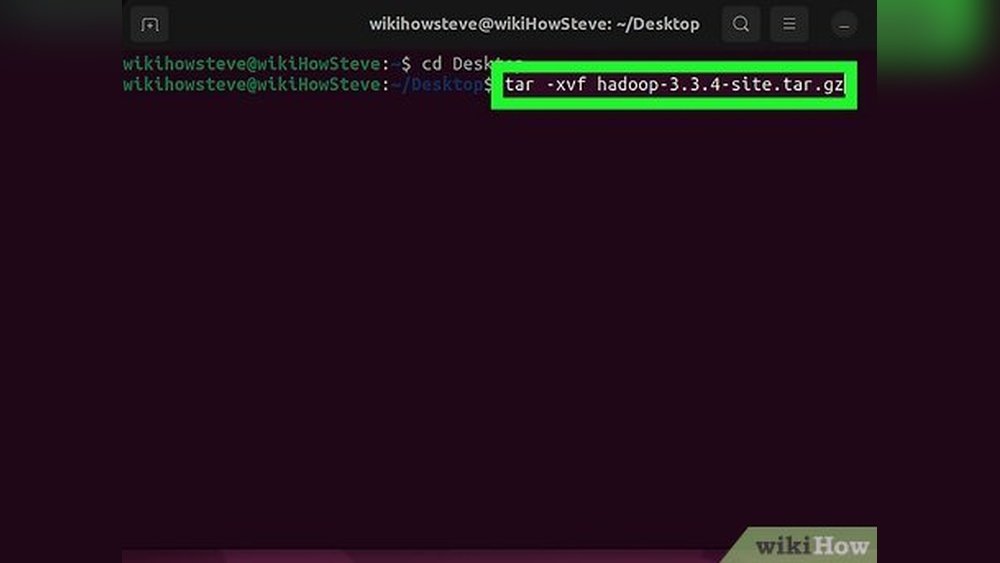
Credit: www.wikihow.com
Manual Installation
Manual installation offers full control over app setup on Linux. It bypasses package managers and lets you handle files directly. This method suits apps not found in repositories or for customized installs.
Manual installs require understanding app formats and Linux file structure. Proper placement of files ensures apps run smoothly and follow system standards. Learn simple steps to install apps manually.
Using Appimages
AppImages are standalone executable files for Linux apps. They bundle all needed libraries, so no installation is required. Download the AppImage file and make it executable with chmod +x filename.AppImage.
Run the AppImage by double-clicking or via terminal. AppImages keep your system clean because they do not alter system files. This method is fast and portable, ideal for testing apps.
Placing Files In Correct Directories
Manual installs often need files placed in proper directories. For system-wide use, place executables in /usr/local/bin or /opt. These folders keep apps organized and accessible.
User-specific apps go in ~/.local/bin or similar hidden folders inside the home directory. Make sure the executable has permission to run using chmod +x. Correct paths help Linux find and run the apps.
Removing Applications
Removing applications from Linux keeps your system clean and fast. Unused apps take space and may slow down your computer. Regular removal helps maintain system health and free disk space.
Linux offers simple tools to remove software safely. Using package managers ensures all parts of the app are deleted properly. You can also clean leftover files that remain after uninstalling.
Uninstalling With Package Managers
Package managers handle software installation and removal. Examples include apt for Ubuntu, yum for Fedora, and pacman for Arch Linux. They remove apps and related files automatically.
To uninstall an app, open the terminal and type a command like sudo apt-get remove app-name. This command deletes the main package but keeps configuration files.
Use sudo apt-get purge app-name to remove the app and its config files. This cleans up more space and avoids conflicts with future installations.
Cleaning Up Residual Files
Some leftover files may stay after uninstalling apps. These include cache, logs, and user settings. Removing them helps free disk space and keep the system tidy.
Check hidden folders in your home directory like ~/.config or ~/.cache for app data. Delete folders related to the removed app carefully.
Use commands like sudo apt-get autoremove to clean unused dependencies. This removes packages installed with the app but no longer needed.
Credit: opensource.com
Finding Installed Apps
Finding installed apps on Linux helps you manage your system better. It shows which programs are already available. You can remove or update apps based on this information. Linux offers two main ways to find installed apps: command line and graphical tools. Both methods are easy and useful for different users.
Listing Packages Via Commands
Using commands is a quick way to list installed apps. Open your terminal to start. For Debian-based systems like Ubuntu, use dpkg --list. It shows all installed packages with details. On Red Hat-based systems like Fedora, try rpm -qa. This command lists all installed packages. Another tool is apt list --installed for Debian systems. These commands give you a clear list in text form. You can search or save the output for later use.
Using Gui Tools
GUI tools make it simple to find installed apps without commands. Most Linux distros have a Software Center or Package Manager. Open it from the main menu or dock. The installed apps section shows all your programs. You can browse, update, or remove apps here. This visual method suits users who prefer clicking over typing. It also displays app icons and descriptions for easier use.
Frequently Asked Questions
How To Install Apps On Linux Pc?
Open your Linux Software Center or use terminal commands like sudo apt install app-name. Search, select, and install apps easily.
How To Get Installed Apps In Linux?
Use package managers like apt list –installed on Debian/Ubuntu or rpm -qa on Red Hat/Fedora to list installed Linux apps.
Where Do I Put Apps In Linux?
Put system-wide apps in /usr/local/bin or /opt. Place user-specific apps in ~/. local/bin or ~/. local/appdata/bin. Use package managers for easiest installation.
How To Install An Application In Terminal?
Open the terminal and update package lists with sudo apt-get update. Then, install the app using sudo apt-get install [app-name]. Replace “[app-name]” with your application’s name. This method works on Debian-based Linux systems like Ubuntu.
What Are The Common Methods To Install Apps In Linux?
You can install apps using package managers, software centers, or terminal commands. Each method suits different user needs and Linux distributions.
How Do I Install Apps Using The Terminal In Linux?
Use commands like apt-get install for Debian-based or yum install for Red Hat-based systems. Terminal installation is fast and efficient.
Can I Install Apps Without Internet On Linux?
Yes, you can use offline installers or transfer packages via USB. Just download the app package on another device first.
What Is A Package Manager In Linux?
A package manager helps install, update, and remove software easily. Examples include APT, YUM, and Pacman.
How To Find Installed Apps On My Linux System?
Use commands like dpkg -l or rpm -qa to list installed packages. You can also check through the software center.
Where Are Apps Installed In Linux?
System-wide apps usually go to /usr/bin or /usr/local/bin. User-specific apps often reside in ~/. local/bin.
Conclusion
Installing apps in Linux is simple and flexible. Use the Software Center for easy access. Command line tools like apt-get work well too. Choose the method that fits your needs best. Always keep your system updated before installing new apps.
Enjoy exploring Linux with your new applications. Keep practicing to gain confidence and skill.