
Are you tired of seeing AI Overviews popping up every time you search on Google? You’re not alone.
These AI-generated summaries can sometimes feel intrusive or distracting, especially when you just want straightforward search results. The tricky part? Google doesn’t offer a simple “off” switch to disable these AI features completely. But don’t worry—there are smart ways you can minimize or bypass them to get back control over your search experience.
You’ll learn exactly how to reduce or remove AI Overviews on Google, whether you’re on desktop or mobile. Keep reading, and you’ll discover practical steps that put you back in the driver’s seat.
Disabling Ai Overviews On Google
Disabling AI overviews on Google can help users who prefer simpler search results without AI-generated summaries. While Google integrates AI features deeply, some options allow users to minimize or avoid these AI overviews.
Understanding how to disable or bypass these AI summaries improves your search experience. It lets you view classic search results without AI-generated content.
Use The Web Filter To Avoid Ai Overviews
Google offers a Web filter to show only text-based search results. This filter hides AI overviews and other special features like knowledge panels. After searching, click on the filter options and select “Web” to see plain links and pages. This method does not disable AI but hides AI summaries from your view.
Disable Ai Features In The Google App
The Google app includes AI-powered tools such as Search Labs. Open the app, tap your profile icon, and go to Settings. Look for AI-related options or Search Labs and turn off features you do not want. This reduces AI influence on your search results and suggestions. It helps control AI without affecting overall Google services.
Turn Off Ai On Mobile Devices
Mobile phones have AI settings that affect search and assistant features. On Android, open Settings and select Advanced Features or Galaxy AI. Toggle off AI functions like voice assistance or predictive text. For iPhones, check Apple Intelligence settings under Settings to disable AI tools. Turning these off limits AI interactions across your device, including Google searches.

Credit: smart.dhgate.com
Using Web Filter To Limit Ai Features
Using a web filter to limit AI features on Google helps control search results. This method reduces AI-generated content like AI Overviews from appearing. Web filters show simpler, text-based links only. This makes search faster and less cluttered.
Applying a web filter is easy and works on both desktop and mobile devices. It changes the way Google displays search results. Instead of AI summaries, users get classic links and snippets. This way, AI content is minimized without disabling Google features completely.
What Is A Web Filter?
A web filter is a tool that changes what appears on your search page. It blocks certain types of content, including AI features. The filter focuses on showing plain, straightforward links. This helps users avoid AI Overviews and other advanced elements.
How To Use A Web Filter On Google
Perform a search on Google as usual. On the results page, look for the filter options. Select the “Web” filter or similar option. This filter removes AI features and shows only standard results. Refresh the page to see the change take effect.
Benefits Of Limiting Ai Features With Web Filters
Web filters speed up loading times by removing AI content. Search results become clearer and easier to read. It reduces distractions caused by AI-generated summaries. Users gain more control over what they see on Google. This method works well for those who prefer classic search results.
Turning Off Ai On Android Phones
Turning off AI features on Android phones helps reduce unwanted AI-based suggestions and overviews. Android devices use AI in many apps and settings. These tools aim to improve your experience but can feel intrusive for some users. Disabling AI features requires going through specific settings on your phone. This section covers how to turn off AI on Android devices, focusing on Samsung Galaxy phones and Google apps.
Samsung Galaxy Ai Settings
Samsung includes AI features under its “Advanced Features” menu. Open Settings on your Galaxy phone. Scroll down and tap Advanced Features. Look for Advanced Intelligence or Galaxy AI. Here, you can toggle off AI tools like Phone AI, Keyboard AI, or Notes AI.
Some Samsung models offer a setting called Process data only on device. Turning this on stops data from being sent to the cloud for AI processing. This option enhances privacy and reduces AI activity. Disabling each AI feature individually is necessary since there is no master switch for all AI functions.
Google Assistant And Search App
Google’s AI tools are active in the Google Assistant and Search apps. To limit AI features, open the Google app on your phone. Tap your profile picture in the top right corner and select Settings. Navigate to options like Search Labs or AI-related sections.
Turn off any AI-powered experiments or features you find here. This action reduces AI-generated overviews and suggestions in your search results. For users wanting less AI interaction, switching off Google Assistant entirely is also possible within these settings.

Credit: mashable.com
Disabling Ai On Iphones
Disabling AI on iPhones can help reduce automatic suggestions and smart features. Apple uses AI to improve user experience but some prefer to limit these functions. You can turn off AI-related features through the phone settings. This process allows more control over your data and device behavior.
Below is a simple guide to managing Apple’s AI settings.
Apple Intelligence Settings
Go to your iPhone’s Settings app to start. Scroll down and tap “Siri & Search.” Here, you find options to disable AI features linked to Siri. Turn off “Listen for ‘Hey Siri’” to stop voice activation. Disable “Press Side Button for Siri” to prevent manual activation.
Next, open “Settings” again and select “Privacy.” Tap “Analytics & Improvements.” Turn off “Share iPhone Analytics” to limit data sent to Apple. Also, disable “Improve Siri & Dictation” to stop AI learning from your voice inputs.
Check “Settings” > “Photos” and disable “Show Siri Suggestions” to reduce AI-based photo suggestions. Under “Settings” > “Mail,” turn off “Siri Suggestions” to avoid AI sorting or recommending emails.
These small changes reduce AI involvement in everyday iPhone use. It helps control what data AI can access or analyze.
Managing Ai Features In Individual Apps
Managing AI features in individual apps helps control AI-generated content on your device. It allows you to disable or limit AI tools one by one. This approach works because many apps have built-in AI settings. You can adjust these settings without affecting the entire device.
Each app offers different options to manage AI. Some let you turn off AI suggestions, while others allow disabling AI-powered assistants. This section explains how to find and change these settings.
Managing Ai Features On Samsung Devices
Samsung phones have AI options under “Advanced Features.” Go to Settings, then select Advanced Features or Galaxy AI. You will see toggles for AI functions like Phone, Keyboard, or Notes. Switch off the ones you do not want. You can also enable “Process data only on device” to stop cloud AI processing.
Disabling Ai In The Google App
Open the Google app and tap your profile picture. Go to Settings and find options for AI or Search Labs. Turn off any AI features you find here. This stops AI from generating summaries or suggestions in search results.
Turning Off Apple Intelligence On Iphones
Apple’s AI is called Apple Intelligence. To manage it, open Settings on your iPhone. Look for Siri & Search or related menus. Disable AI features like Siri suggestions or app intelligence. This reduces AI-driven content in apps and notifications.
General Tips For Managing Ai In Apps
No single switch controls all AI features on a device. Check multiple app settings to fully manage AI. Look for voice assistants, smart suggestions, and AI-powered tools. Turning off these features one by one gives more control over AI content.
Adjusting Google App Settings
Adjusting Google app settings offers a direct way to control AI features on your device. You can limit or disable AI-powered summaries known as AI Overviews by tweaking specific options. This method helps reduce AI content appearing in your Google search experience.
Google app settings include controls for search behavior, assistant functions, and personalized content. Modifying these settings can lower AI-generated results and give you a more traditional search view. Here is how to adjust these settings effectively.
Accessing Google App Settings
Open the Google app on your smartphone or tablet. Tap your profile icon in the top right corner. Select “Settings” from the menu that appears. This opens the main control panel for your Google app preferences.
Disabling Ai And Search Labs Features
Within Settings, look for sections named “AI,” “Search Labs,” or “Experimental.” These areas contain options to toggle off AI-powered features. Turn off any options related to AI Overviews or smart summaries to reduce AI content.
Managing Google Assistant Settings
Google Assistant uses AI to provide answers and suggestions. In the Google app settings, find “Assistant” or “Google Assistant” settings. Disable features like voice match, personalized responses, or data sharing to limit AI interaction.
Adjusting Web & App Activity Controls
Google uses activity data to personalize AI features. Under “Data & Privacy,” locate “Web & App Activity.” Turn off or pause this setting to reduce AI-driven search results and summaries based on your activity.
Using Search Filters To Limit Ai Content
After adjusting settings, apply the “Web” filter in Google Search results. This filter shows only text-based links and excludes AI Overviews. Use it to view simpler, AI-free search results.
Preventing Cloud-based Ai Processing
Preventing cloud-based AI processing helps control how your data is used by online services. Many AI features rely on cloud servers to analyze and respond to your requests. Stopping this process limits AI from accessing your personal information and reduces unwanted AI-generated content.
You can take steps to minimize cloud AI processing by adjusting device and app settings. This can protect your privacy and improve your control over search results. The following methods focus on keeping AI tasks local instead of in the cloud.
Disable Cloud Processing In Device Settings
Most smartphones offer options to limit cloud AI tasks. Check the settings for AI or intelligence features. For example, Samsung phones have “Advanced Features” where you can toggle off cloud processing. Look for options like “Process data only on device” to keep data local.
Turn Off Ai Features In Apps
Apps like Google Search and Google Assistant use cloud AI extensively. Open the app settings and find AI or experiment features. Disable options that send your data to cloud servers. This reduces AI summaries and overviews in search results.
Use Local-only Search Filters
Google provides filters to show only text-based links without AI-generated snippets. After searching, select the “Web” filter to avoid AI overviews. This keeps your results simple and free from cloud AI content.
Choose Privacy-focused Alternatives
Switch to search engines that do not use cloud AI processing. Some privacy-focused engines avoid AI summaries and keep searches anonymous. This prevents cloud AI from analyzing your queries.
Rechecking Ai Settings After Updates
Rechecking AI settings after updates is important to control AI features on Google. Updates may reset or change your settings automatically. This can cause AI overviews to reappear even after you disable them. Regularly checking your settings helps keep unwanted AI features off.
After each update, go back to your Google app or browser settings. Review AI-related options and turn off any you do not want. Updates may add new features you need to manage. This keeps your search experience closer to what you prefer.
Review Google App Settings
Open the Google app on your device. Tap your profile picture and select Settings. Find options related to AI, Search Labs, or Experimental Features. Disable any AI features that control summaries or overviews. This helps reduce AI content in your search results.
Check Browser And Search Settings
Visit your browser’s settings menu. Look for search or privacy settings. Some browsers offer filters to show only text links. Enable such filters to avoid AI-enhanced summaries. This step blocks AI overviews from appearing in search results.
Update Device Ai Preferences
Go to your phone’s main settings. Open Advanced Features or AI settings sections. Disable AI tools like voice assistants or smart suggestions. Some devices have options to process data only on the device. Turn these on to limit cloud-based AI features.
Using Third-party Workarounds
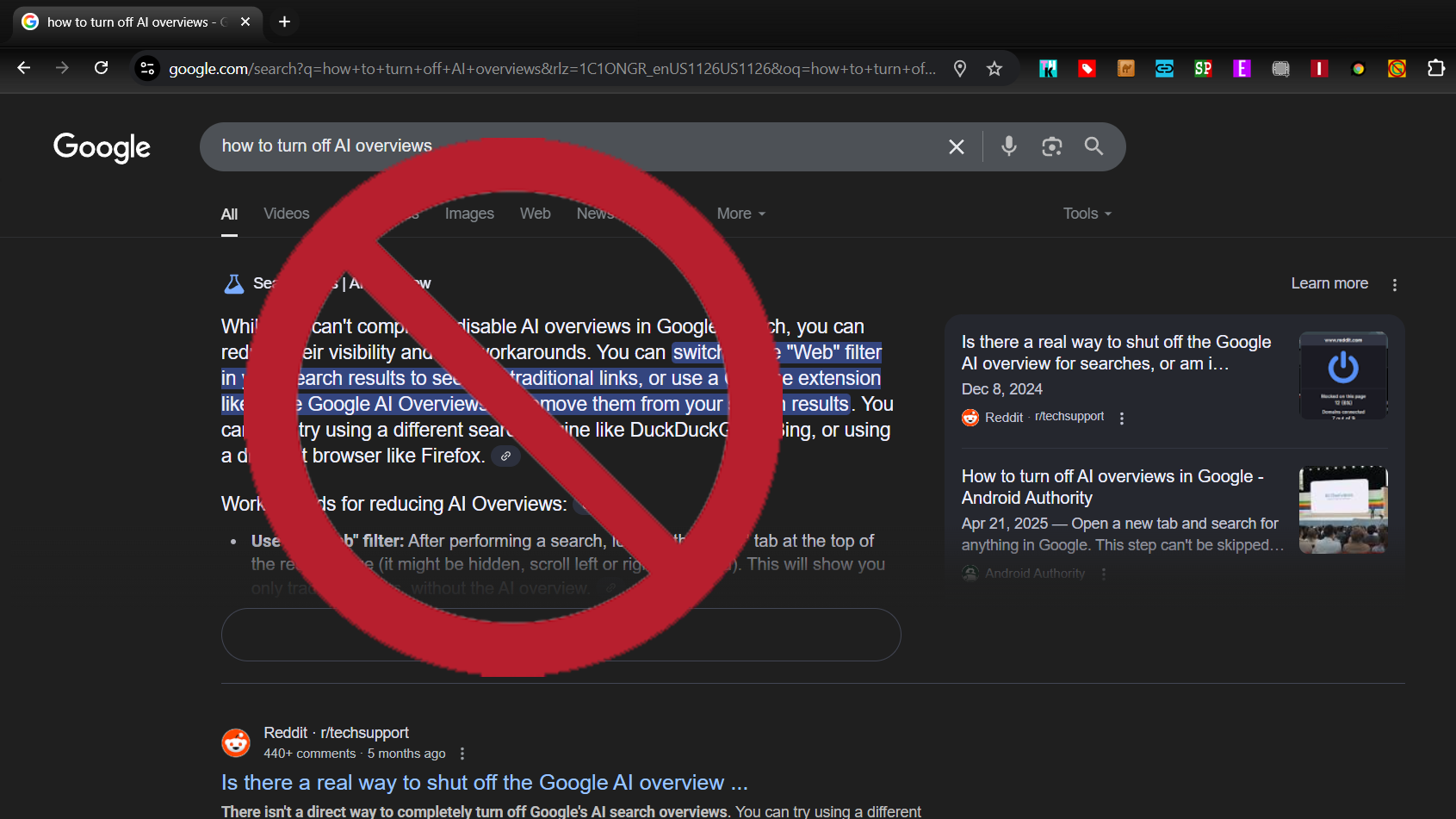
Using third-party workarounds offers an alternative to control AI overview on Google. These methods provide options beyond default settings. They help reduce unwanted AI-generated content in search results. Although Google does not allow direct disabling of AI overviews, third-party tools can help manage your experience. These tools filter search results or change how results display. This section explains common workarounds you can try.
Using Browser Extensions To Filter Ai Content
Browser extensions can block or hide AI overviews on search pages. Many extensions focus on cleaning up search results. They remove extra panels or AI summaries from Google results. Installing these tools is simple and often free. They run quietly and do not affect normal browsing. Extensions like ad blockers or custom filters work well. Check reviews and permissions before adding any extension.
Changing Your Default Search Engine
Switching to another search engine reduces AI overview appearances. Engines like DuckDuckGo or Bing offer different layouts. They may not show AI-generated summaries in results. Changing the default search engine in your browser is quick. This method avoids Google’s AI features entirely. It also improves privacy and reduces tracking. Try different engines to find what suits you best.
Using Custom Search Filters Or Scripts
Custom scripts or filters can modify Google search results. Users create these scripts to hide AI overview panels. They work by altering page content after loading. Tools like Tampermonkey allow running such scripts on your browser. These scripts require basic setup but improve result clarity. They help focus on organic links rather than AI content. Find trusted scripts shared by tech communities online.
Credit: www.tomshardware.com
Tips For Comprehensive Ai Feature Control
Controlling AI features on Google and your devices helps create a simpler search experience. AI Overviews appear automatically and cannot be fully disabled. Still, several settings let you manage these features to reduce their impact.
Understanding how to adjust AI controls on Google and your phone is key. These tips guide you through turning off or limiting AI tools step-by-step. Simple actions can make your search results cleaner and easier to read.
Using Google Search Filters To Limit Ai Features
Google Search offers filters that reduce AI-generated content. After searching, select the “Web” filter. This shows only basic text links without AI Overviews or panels. It removes extra AI features, leaving straightforward search results.
This method works on desktop and mobile browsers. It does not turn off AI but hides its summaries from view. A quick, easy way to avoid AI content clutter.
Disabling Ai Features On Android Devices
Android phones often include AI tools under Advanced Features or Galaxy AI settings. Go to Settings, then Advanced Features, and find AI or intelligence options. Toggle off options like AI keyboard, assistant, or notes.
Samsung devices may offer a “Process data only on device” setting. This stops data from being sent to the cloud, limiting AI processing. Turning off these options reduces AI interaction on your phone.
Turning Off Ai Features In The Google App
Open the Google app and tap your profile picture. Go to Settings and look for AI or Search Labs. Disable any AI-related features you find here. This reduces AI summaries and suggestions within the app.
These changes help control AI without affecting basic search functions. Regular app updates may add or remove AI options, so check settings often.
Managing Ai Settings On Iphones
Apple uses AI features called Apple Intelligence. To control these, go to Settings on your iPhone. Look for Siri & Search or relevant AI sections. Turn off options like suggestions, voice commands, or smart features.
Disabling these lowers AI’s influence on your device’s search and assistant functions. Check settings after iOS updates to maintain control.
General Tips For Effective Ai Control
AI features are often spread across multiple menus. Check all possible settings to find AI controls. Voice assistants, keyboards, and search apps each have their own AI options.
Be patient and thorough. Some AI features require individual disabling. Regularly review settings to keep AI features in check.
Frequently Asked Questions
Can You Turn Off Ai Overviews On Google?
You cannot fully turn off AI Overviews on Google as they are core features. Use the Web filter after searching to hide AI Overviews and see only text-based links instead.
How Do I Remove Ai On My Phone?
Open your phone’s settings and locate AI features under sections like “Advanced Features” or “AI. ” Toggle off AI functions individually. For Google apps, disable AI options in app settings. Check specific apps and update settings regularly, as some AI features may reactivate after updates.
How Do I Get Google To Not Use Ai?
Google AI features, like AI Overviews, cannot be fully disabled. Use the Web filter after searching to see text-only results. To limit AI on phones, disable individual AI settings in device or app menus. Regularly check updates, as AI features may reactivate automatically.
How Do I Turn Off Google Ai On My Iphone?
To turn off Google AI on your iPhone, open the Google app, tap your profile, go to Settings, and disable AI-related features. Also, check individual app settings for AI options and turn them off as needed.
What Is Ai Overview On Google Search Results?
AI Overview is a summary box powered by AI, showing quick info above regular search links.
Can I Turn Off Ai Overview On Google?
AI Overview cannot be fully turned off, but using the Web filter limits such features.
How To Use Web Filter To Avoid Ai Overviews?
Apply the Web filter after searching to see only text-based links without AI summaries.
Does Disabling Ai Features Remove Ai Overview On Google?
Disabling phone AI features does not remove AI Overview in Google search results.
Is There A Way To Block Ai Overview On Mobile Devices?
No direct option exists, but using alternate search engines or Web filter helps reduce AI content.
How To Disable Ai Features On Samsung Phones?
Go to Settings > Advanced Features > Galaxy AI, then toggle off unwanted AI functions.
Conclusion
Getting rid of AI Overview on Google takes some steps. You cannot turn it off completely. Use the web filter to see plain text links only. Check your phone’s settings to disable AI features one by one. Different devices have different menus for this.
Remember to review individual apps for AI controls too. Keep your device updated and watch for AI features returning. Taking these actions helps reduce AI summaries in your search results. Stay patient and adjust settings as needed.





