
Are you getting the most out of Google Chrome? Your browser’s settings hold the key to a faster, safer, and more personalized web experience.
But finding and adjusting these settings can feel confusing if you don’t know where to start. Imagine cutting down distractions, boosting your privacy, and customizing Chrome exactly how you like it—all with a few simple clicks. In this guide, you’ll discover easy steps to access and master Google Chrome settings.
Whether you want to change your homepage, manage passwords, or tweak privacy controls, we’ll walk you through everything clearly and quickly. Ready to take control of your browsing? Let’s dive in and unlock Chrome’s full potential together.
Accessing Chrome Settings
Accessing Google Chrome settings is simple and quick. These settings help you control how your browser works and looks. You can adjust privacy, appearance, search engine, and more. Knowing how to open the settings page saves time and helps you customize Chrome easily.
There are several ways to access Chrome settings. You can use the menu icon, type a special address, or use keyboard shortcuts. Each method works well on computers and mobile devices. Choose the one that fits your style best.
Using The Menu Icon
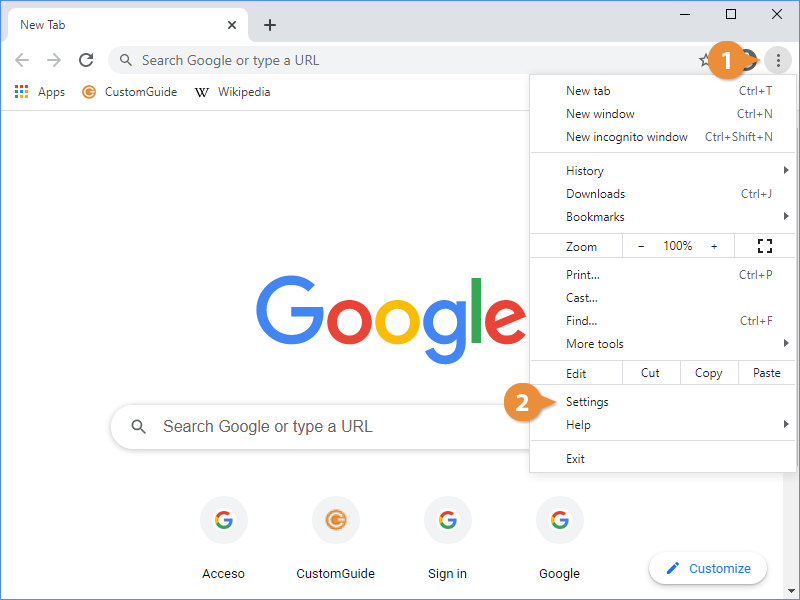
Click the three dots icon in the top-right corner of Chrome. This opens a dropdown menu with many options. Find and click on “Settings” near the bottom of this menu. This opens the main settings page where you can make changes.
On mobile devices, tap the three dots icon next to the address bar. Then select “Settings” from the list. On some iPads, the menu icon may be at the bottom-right corner instead of top-right.
Typing In The Address Bar
Type chrome://settings directly into Chrome’s address bar. Press Enter or Return on your keyboard. This opens the settings page immediately without using any menus. This method is fast and works on all devices.
Keyboard Shortcuts
Use keyboard shortcuts to open settings quickly. On Windows or Linux, press Alt + F or Alt + E. Then select “Settings” from the menu. On Mac, press Command + , (Command and comma keys) to open settings directly.

Credit: www.maketecheasier.com
Customizing Appearance
Customizing the appearance of Google Chrome lets you create a browsing experience that feels personal and comfortable. Changing visual elements can reduce eye strain and make your time online more enjoyable. Chrome offers simple options to adjust themes, wallpapers, fonts, and zoom levels to suit your preferences.
Themes And Wallpapers
Google Chrome allows you to change its overall look with themes. Themes can add colors or patterns to the browser frame and tabs. You can pick from many free themes in the Chrome Web Store. Some themes are dark, while others are bright or colorful. Wallpapers can also be set on the new tab page. This lets you see a favorite photo or design each time you open a new tab. Customizing themes and wallpapers helps make Chrome visually appealing and unique to you.
Font And Page Zoom
Adjusting font size improves readability on websites. Chrome lets you change default font size to small, medium, or large. You can also customize font style for headings, body text, and monospace fonts. Page zoom changes how large or small the entire webpage appears. This setting is helpful if text or images look too small or too big. You can set zoom levels from 25% to 500%. These options make browsing easier on your eyes and fit your screen size perfectly.
Managing Privacy Controls
Managing privacy controls in Google Chrome helps protect your personal information. Chrome offers clear options to keep your data safe. You can control what information websites can access and decide what to remove from your browser. Adjusting these settings is simple and improves your browsing security.
Clearing Browsing Data
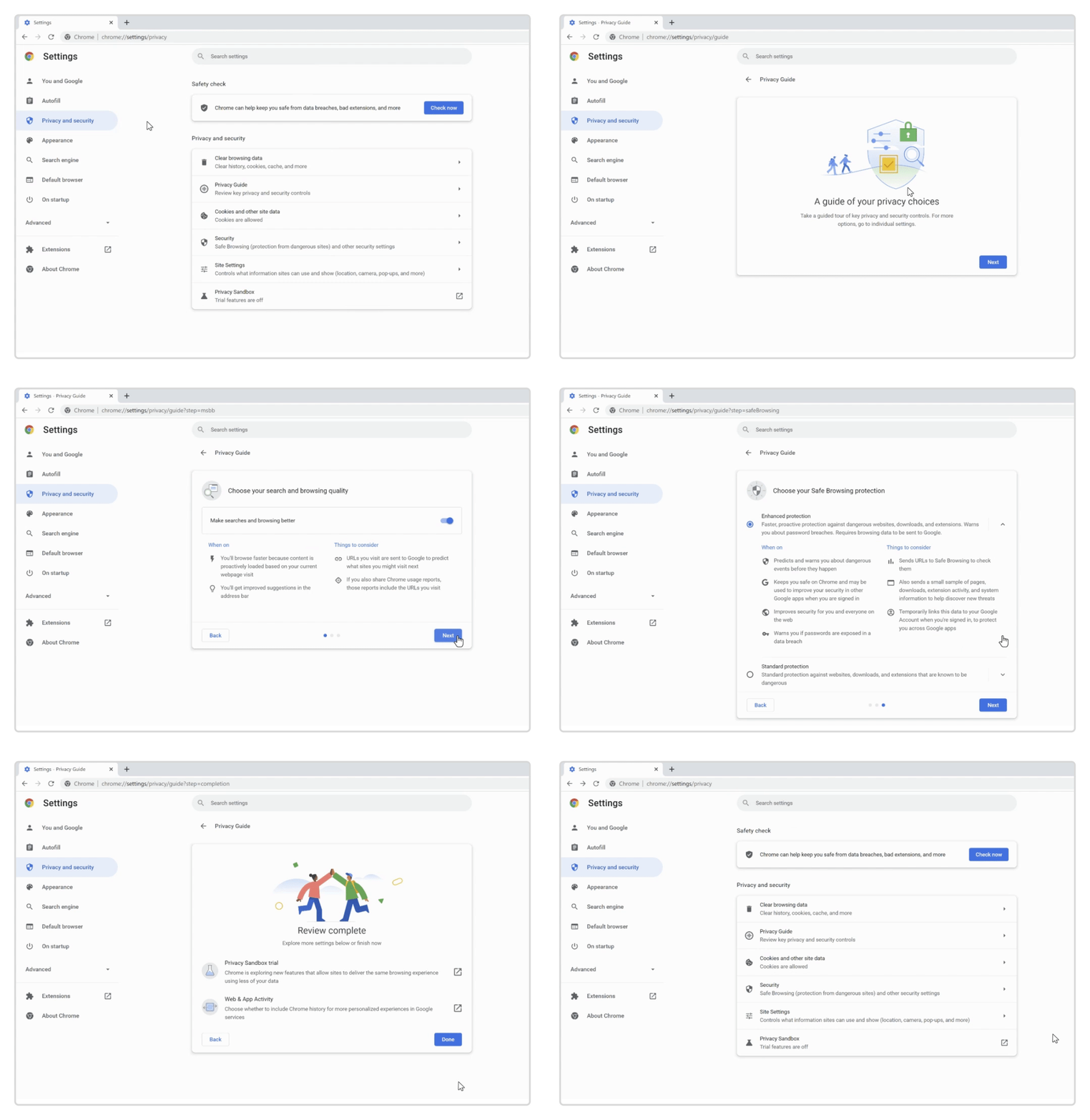
Clearing browsing data removes your history, cookies, and cache. This helps prevent websites from tracking your activity. To clear data, open Chrome settings and find the “Privacy and security” section. Select “Clear browsing data” and choose the time range. You can pick what to delete, like cookies or cached images. This step keeps your browser clean and your info private.
Controlling Site Permissions
Site permissions let you decide what websites can do. You control access to your location, camera, microphone, and notifications. In Chrome settings, go to “Privacy and security,” then “Site settings.” Here, you see all permissions and can block or allow them. Managing these permissions stops sites from using your device features without consent. It gives you power over your online privacy.
Optimizing Security Settings
Improving Google Chrome’s performance can make your browsing faster and smoother. Adjusting a few key settings helps reduce lag and saves computer resources. These tweaks work well on most devices, even older ones.
Focus on features that boost speed and reduce unnecessary background use. Small changes in Chrome’s settings can have a big impact. Let’s explore two important options that enhance performance effectively.
Hardware Acceleration
Hardware acceleration uses your computer’s GPU to handle graphics tasks. This reduces the load on your CPU, making pages and videos run more smoothly. Chrome usually enables this by default.
To check or change this setting, open Chrome Settings, scroll to ‘Advanced,’ then find ‘System.’ Toggle ‘Use hardware acceleration when available’ on or off. Turning it on helps if you see slow video playback or lag in animations.
Sometimes, hardware acceleration causes issues on certain devices. If Chrome crashes or freezes, try disabling this feature to see if performance improves.
Managing Background Apps
Chrome allows some apps and extensions to run in the background even after closing the browser. This can use extra memory and slow your system down.
To stop background apps, go to Chrome Settings, then ‘Advanced,’ and find ‘System.’ Turn off ‘Continue running background apps when Google Chrome is closed.’ This frees up system resources.
Managing background activity helps extend battery life on laptops and reduces CPU usage. Review your installed extensions too, removing any you do not need.
Enhancing Performance
Google Chrome offers syncing and Google services that make browsing easier and more personal. Syncing keeps your bookmarks, history, and passwords updated across devices. Google services enhance your browsing with features like safe browsing and personalized search results.
Account Sync Options
Syncing links your Google account to Chrome. This lets you access your data on any device signed in with the same account. You can choose what to sync, such as bookmarks, passwords, or open tabs. Turn sync on or off anytime in Chrome settings. Sync also helps restore your data if you switch devices.
Customizing Google Services
Google services offer extra tools for a better experience. You can control what data Google collects and uses. Options include safe browsing, spell check, and personalized suggestions. Adjust these settings to balance privacy and convenience. Customizing helps you use Chrome your way without giving up control.
Credit: www.customguide.com
Syncing And Google Services
Configuring startup options in Google Chrome helps customize your browsing experience. These settings control what opens when you launch Chrome. Adjusting startup options saves time and improves workflow. You can choose specific pages or restore previous sessions automatically. This section explains how to set your startup pages and restore your last session easily.
Setting Startup Pages
Open Chrome settings by clicking the three dots in the top-right corner. Select “Settings” from the menu. Scroll to the “On startup” section. Choose the option “Open a specific page or set of pages.” Click “Add a new page” to enter a URL. Add as many pages as you want. These pages open every time you start Chrome. You can also edit or remove pages anytime.
Restoring Previous Sessions
In the “On startup” section, select “Continue where you left off.” Chrome will reopen all tabs from your last session. This option saves your work and browsing history. It helps if you close Chrome by mistake. You don’t lose important pages or data. Chrome remembers your tabs even after restarting your computer.
Configuring Startup Options
Managing extensions in Google Chrome is essential for a smooth browsing experience. Extensions add features but can slow down your browser if not managed well. Chrome gives you full control to install, remove, and adjust permissions of extensions easily.
Installing And Removing
To install an extension, open the Chrome Web Store. Search for the extension you want. Click “Add to Chrome” and confirm the installation. The extension icon appears near the address bar.
Removing an extension is just as simple. Right-click the extension icon and select “Remove from Chrome.” Confirm the removal to delete it. You can also manage all extensions by going to chrome://extensions.
Controlling Permissions
Extensions need permissions to work properly. You can control what data they access. Go to chrome://extensions and click “Details” under the extension.
Here, you can toggle permissions like access to your location, tabs, or browsing history. Limiting permissions helps protect your privacy and keeps your browser safe.
Managing Extensions
Google Chrome offers experimental features that users can test before they become standard. These features often enhance browsing speed, security, and usability. Exploring these settings allows users to experience new tools early.
These features are not fully polished and may change or be removed. Still, they give a sneak peek into Chrome’s future developments. Understanding how to access and use these features is key for curious users.
Accessing Chrome Flags
To explore experimental features, go to Chrome Flags. Type chrome://flags in the address bar and press Enter. This page shows a list of all available experimental features.
Each feature has a short description and a dropdown menu to enable or disable it. Use the search box to find specific flags quickly. After making changes, restart Chrome to apply them.
Risks And Benefits
Experimental features can improve your browsing experience by adding new functions. Some may speed up page loading or improve security. Trying these features lets users test upcoming Chrome updates.
These features may cause browser crashes or bugs. Some settings might not work as expected or conflict with other extensions. Use them carefully and avoid enabling too many at once.
Exploring Experimental Features
Google Chrome offers accessibility features designed to help users with different needs. These features improve browser use for people with vision or mobility challenges. Activating and using them can make browsing easier and more comfortable.
Enabling Screen Readers
Screen readers read aloud the text on web pages. Chrome supports screen readers like ChromeVox. To enable it, go to Chrome settings and find the accessibility section. Turn on the option to use a screen reader. This helps users hear content instead of reading it. It works well with many websites and apps.
Keyboard Navigation
Keyboard navigation lets users browse without a mouse. Chrome allows full control using the keyboard alone. Press the Tab key to move through links and buttons. Use Enter to select items. Enabling this feature helps users who cannot use a mouse. It improves efficiency and access to all parts of a website.
Credit: blog.google
Frequently Asked Questions
How Do I Get To Google Chrome Settings?
Click the three-dots menu icon at Chrome’s top-right corner and select “Settings. ” Alternatively, type chrome://settings in the address bar and press Enter. On Windows or Linux, press Alt+F; on Mac, use Command + comma (⌘ + ,) to open Settings directly.
How Do I Open The Google Settings?
To open Google settings, click the three-dot menu in Chrome’s top-right corner and select “Settings. ” Alternatively, type chrome://settings in the address bar and press Enter. On Windows, press Alt+F; on Mac, use Command + comma (⌘+,) to open Settings quickly.
Is There A Difference Between Google Browser And Google Chrome?
Google Chrome is a web browser developed by Google. “Google browser” is a vague term and may refer to Chrome or other Google-related browsers.
How Do I Get My Google Chrome Settings Back?
Open Chrome, click the three-dot menu at the top-right, then select “Settings. ” Alternatively, type chrome://settings in the address bar and press Enter to restore your settings.
How Do I Open Google Chrome Settings?
Click the three-dot menu at the top-right and select “Settings. ” Or type chrome://settings in the address bar.
Can I Access Chrome Settings Using A Keyboard Shortcut?
Yes, press Alt+F or Alt+E on Windows/Linux, or Command + comma (⌘ + ,) on Mac.
Where Is The Chrome Settings Menu On Mobile Devices?
Tap the three-dot menu near the address bar, then tap “Settings. “
How Do I Reset Google Chrome Settings?
Go to Settings > Advanced > Reset and clean up > Restore settings to original defaults.
Can I Change Chrome’s Default Search Engine In Settings?
Yes, go to Settings > Search engine to select or add a new default.
How Do I Manage Chrome’s Privacy Settings?
Open Settings > Privacy and security to adjust cookies, permissions, and site data.
Conclusion
Google Chrome settings help customize your browsing experience easily. Adjust privacy, security, and appearance to fit your needs. Use simple steps to find and change these options anytime. Exploring settings can improve speed and safety online. Keep your browser updated for best performance.
Regularly check settings to stay in control of your data. Small changes make browsing smoother and more secure. Take time to understand Chrome’s features for better use. This knowledge helps you navigate the web with confidence.





